Adding the License Key to CI/CD Services
This article explains how to activate your Telerik Document Processing license in CI/CD services with deployment keys. It covers environment variables, Azure DevOps secure files, and TelerikLicensing.Register() for AWS Lambda scenarios.
Deployment keys are a dedicated type of license key for build pipelines. They're tied to a specific application and the set of products that the application uses. Deployment keys cannot be used for application development.
Before You Start
To activate your license in a CI/CD environment:
- Navigate to the Deployment Keys page.
- Click Add Application. In the form that opens:
- Add the application name.
- Select the type of application—public or private.
- Select the set of products used in the application.
- Copy the key value and store it securely.
- Create an environment variable named
TELERIK_LICENSEand set it to the obtained key value. Alternatively, the key can be stored in atelerik-license.txtfile, for example when using the Azure Secure files approach. - If you run in an AWS Lambda or similar hosted function scenario, use
TelerikLicensing.Register()when that model is a better fit.
Choose a License Delivery Approach
Use one of these approaches:
TELERIK_LICENSE: Recommended for most CI/CD services.TELERIK_LICENSE_PATH: Useful when the license is stored as a file on the build agent.TelerikLicensing.Register(): Useful for AWS Lambda functions, plugins, class libraries, and other cases where environment-based activation is not the best fit.
Creating an Environment Variable
The recommended way to provide the license key to the Telerik.Licensing NuGet package is to use environment variables. Each CI/CD platform exposes secrets differently, so the sections below focus on the most common setups.
If your CI/CD service is not listed in this article, contact Telerik technical support and adapt the same
TELERIK_LICENSEorTELERIK_LICENSE_PATHapproach to the secret-management system that your service provides.
GitHub Actions
Use a GitHub secret to store the license key and map it to the TELERIK_LICENSE environment variable during the workflow run.
- Create a new Repository Secret or an Organization Secret.
- Set the secret name to
TELERIK_LICENSEand paste the deployment key value. - In the workflow YAML, expose that secret as an environment variable for the build step or job.
env:
    TELERIK_LICENSE: $
After the environment variable is available to the process that restores, builds, or publishes your project, the licensing package can validate the key automatically.
Azure Pipelines
Use a secret pipeline variable when the value fits inside the supported size limits.
- Create a new secret variable named TELERIK_LICENSE.
- Paste the deployment key value.
Always consider the variable-size limit. If you use a Variable Group, the license key will usually exceed the character limit for variable values. To store a long value in a Variable Group, link the value from Azure Key Vault. If you cannot use Key Vault, use a normal secret pipeline variable or the secure-files approach.
Using Secure Files on Azure DevOps
Secure files are an alternative approach for sharing the license key file in Azure Pipelines that does not have the size limitations of environment variables.
You have two options for the file-based approach:
- Set the
TELERIK_LICENSE_PATHvariable. - Add a file named
telerik-license.txtto the project directory or a parent directory.
Make sure that you use
Telerik.Licensingversion1.4.10or later.
YAML Pipeline
With a YAML pipeline, use the DownloadSecureFile@1 task and then reference $(name.secureFilePath):
- task: DownloadSecureFile@1
    name: DownloadTelerikLicenseFile # defining the 'name' is important
    displayName: 'Download Telerik License Key File'
    inputs:
      secureFile: 'telerik-license.txt'
- task: MSBuild@1
  displayName: 'Build Project'
  inputs:
    solution: 'myapp.csproj'
    platform: Any CPU
    configuration: Release
    msbuildArguments: '/p:RestorePackages=false'
  env:
    # Use the name.secureFilePath value to set TELERIK_LICENSE_PATH.
    TELERIK_LICENSE_PATH: $(DownloadTelerikLicenseFile.secureFilePath)
Classic Pipeline
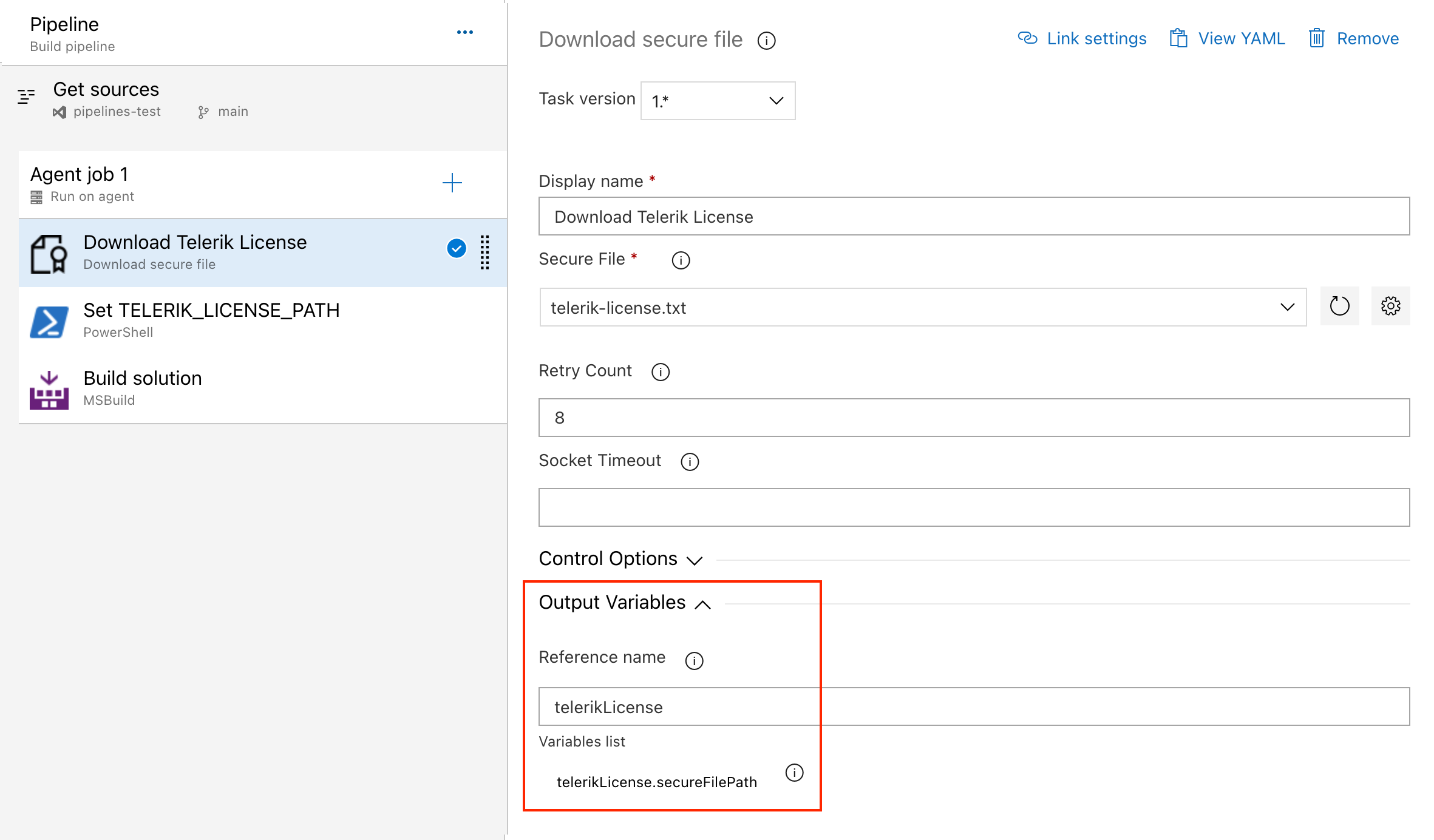
With a classic pipeline, use the Download secure file task and a PowerShell script to set TELERIK_LICENSE_PATH to the secure file path.
-
Add a “Download secure file” task and set the output variable's name to telerikLicense.
-
Add a PowerShell task and set the TELERIK_LICENSE_PATH variable to the secureFilePath property of the output variable:
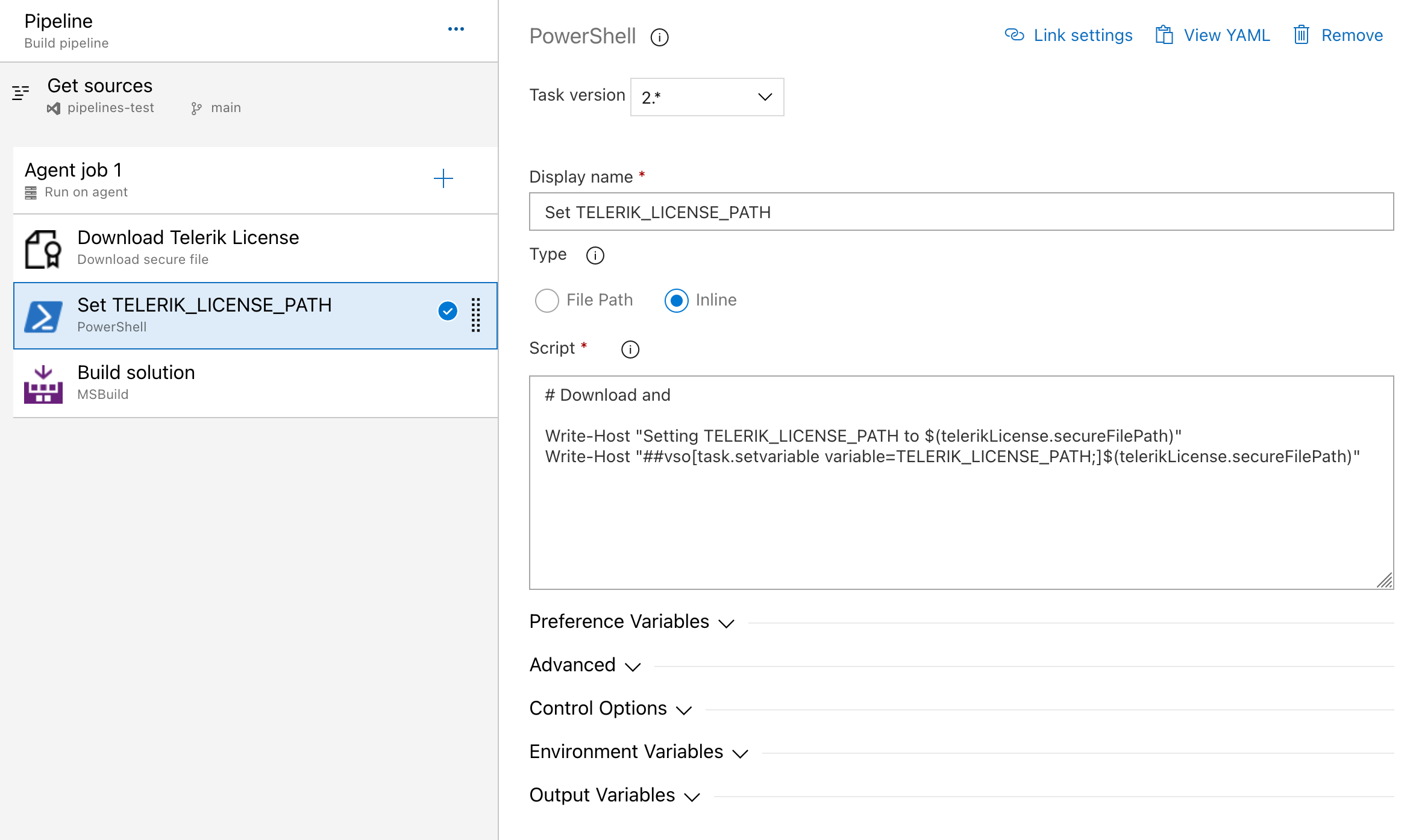
Use this script to set the environment variable:
Write-Host "Setting TELERIK_LICENSE_PATH to $(telerikLicense.secureFilePath)"
Write-Host "##vso[task.setvariable variable=TELERIK_LICENSE_PATH;]$(telerikLicense.secureFilePath)"
Alternatively, copy the file into the repository directory:
echo "Copying $(telerikLicense.secureFilePath) to $(Build.Repository.LocalPath)/telerik-license.txt"
Copy-Item -Path $(telerikLicense.secureFilePath) -Destination "$(Build.Repository.LocalPath)/telerik-license.txt" -Force
Using TelerikLicensing.Register Method on AWS Lambdas
Starting with version 1.6.7, Telerik.Licensing offers the parameterless TelerikLicensing.Register() method and the TelerikLicensing.Register(...script key...) overload. Use these methods when you run AWS Lambda functions, plugins, or class libraries that use Telerik Document Processing and need to validate the license at runtime.
To use this approach:
- Upgrade
Telerik.Licensingto version1.6.7or later. - Add the package to the function project.
- Call
TelerikLicensing.Register()in the function body before the Telerik Document Processing code runs.
namespace LicensingInLambda;

public class Function
{
    public string FunctionHandler(string input, ILambdaContext context)
    {
        // Lambda function entry point

        // This requires Telerik.Licensing to be added to the function project
        TelerikLicensing.Register();

        // TODO: DPL - generate PDF here

        var entryAssembly = Assembly.GetEntryAssembly();
        var name = entryAssembly?.GetName();

        return $"Entry assembly: {entryAssembly?.GetName()} ... {Class1.DoYourMagic()}";
    }
}
Verify the Setup
After you configure the license in your CI/CD service, run a build that restores and builds the project that references Telerik Document Processing.
Confirm these points:
- The CI/CD job can access
TELERIK_LICENSEorTELERIK_LICENSE_PATH. - The job completes without license activation errors.
- Generated documents do not contain trial warnings for licensed builds.
Troubleshooting
Check these common issues when activation does not work as expected:
- The secret is missing at runtime: Confirm that the pipeline step, job, or process actually receives
TELERIK_LICENSE. - Azure variable storage rejects the value: Use a normal secret pipeline variable, Azure Key Vault, or secure files.
- File-based activation does not work: Verify that
TELERIK_LICENSE_PATHpoints to the actual downloaded file and that the agent can read it. - AWS Lambda still shows trial output: Confirm that
TelerikLicensing.Register()runs before any Telerik Document Processing code. - Licensing still fails: Review License Activation Errors and Warnings and Setting Up Your License Key.
See Also
- License Activation Errors and Warnings
- Setting Up Your License Key
- License Key FAQ
- License Agreement
- Redistributing Telerik Document Processing
- Unable to find package Telerik.Licensing
- Handling License Key File Name and Environment Variable Name Changes in the 2025 Q1 Release
- Telerik.Licensing NuGet package is not available on the Telerik NuGet feed
- Telerik License Approaches
- How to Download a Script Key
- Resolving Trial Watermark Issues with the Generated Documents in MFC applications