Troubleshooting
This article provides solutions to common issues you may encounter when working with the Telerik UI for Blazor AI Tools.
Permission Denied (No Valid License)
The Telerik MCP server may exit unexpectedly with the following error:
gRPC error in ValidateUserLicenseAsync: PermissionDenied - no valid license found for the requested product
The error means one of the following:
- You have a legacy Perpetual license, while the Telerik AI tools require a Subscription license.
- Your Telerik UI for Blazor Subscription license has expired.
- Your Telerik UI for Blazor trial or Agentic UI Generator trial has expired.
- The Telerik license key on your computer needs updating.
Telerik Subscription licenses were introduced in 2025 and they explicitly contain the word "Subscription" in their name, for example:
- DevCraft Ultimate Subscription
- DevCraft Complete Subscription
- DevCraft UI Subscription
- Telerik UI for Blazor Subscription
An automatically renewing license is not necessarily a Subscription license.
For detailed information about license requirements and tool capabilities, see License Requirements.
I Started a Trial License but Cannot Activate the MCP Server
When you activate a trial license, you must download and install the updated license key to enable access to the AI Tools. To resolve this issue:
- Follow the steps in the License Key Updates section.
- Restart your IDE to ensure the changes take effect.
The MCP server validates your license during initialization. Without a properly activated license key, the server cannot authenticate your access to the AI Tools.
MCP Assistants Not Recognized by Visual Studio
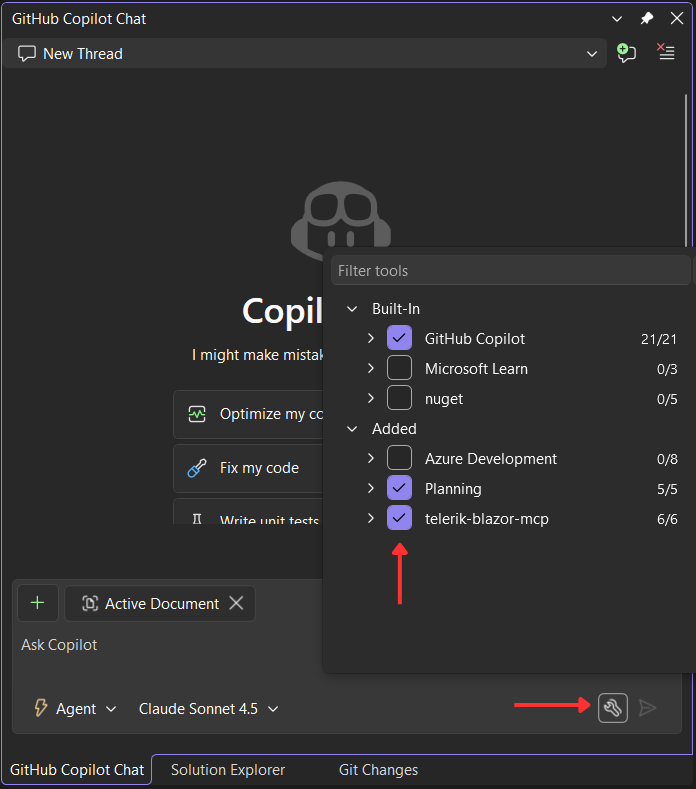
If the Telerik MCP server assistants are not available or recognized by GitHub Copilot in Visual Studio, you may need to manually enable them:
- Click on the Select Tools button on the bottom right part of the Copilot chat window.
- In the popup that opens, check telerik-blazor-mcp from the list to enable it.
Hanging Tool Calls in Visual Studio
When using Telerik AI tools in Visual Studio, GitHub Copilot may:
- Hang during tool invocation.
- Show UI for a successful tool response, but actually fail silently.
- Continue generation without waiting for parallel tool calls.
This is a known issue in older Visual Studio versions that has been fixed in Visual Studio 2026 Insiders 18.3.0 (11426.168).
Unable to Establish HTTP/2 Connection
The Telerik AI Assistant depends on gRPC, which requires HTTP/2. If the client device does not support HTTP/2 or the protocol is disabled, the following exception occurs:
HttpRequestException: Requesting HTTP version 2.0 with version policy RequestVersionExact while unable to establish HTTP/2 connection.In this case, enable HTTP/2 on the client device and any related firewalls or proxy servers in the network.
AI Plugin and MCP Server Running Simultaneously
The telerik-blazor-plugin comes with its own predefined MCP server configuration tuned for skills, so if you already have the MCP server configured in your IDE, you must disable or remove it before installing the plugin. Running both at the same time can cause the following issues:
- Tool vs. skill confusion—The MCP server exposes a
telerik_ui_generatortool. The plugin intentionally disables that tool and provides atelerik-ui-generatorskill instead, to avoid ambiguity. When the MCP server is also active, that protection no longer works and the agent may be unsure which entry point to use. - Duplicated context—MCP tools carry static context that is injected into the model on every invocation. The plugin replaces this with skills that are loaded on demand. If both configurations are active, the agent receives both the skill instructions and the tool's static context — duplicate information that leads to higher token usage and inconsistent responses.
- Double invocation—When both are present, the agent may read the plugin skill and then also call the MCP tool. The result is even more context, more confusion, and less predictable output.
Disable or remove the Telerik MCP server configuration from your IDE before using the plugin. For example, for VS Code, remove or comment out the telerik-mcp-server entry from your .vscode/mcp.json or user-level mcp.json. Then reload the window (Developer: Reload Window) before starting a new session.