Searching
The PdfViewer allows for flexible searching in a loaded PDF document, which can be done either by using the UI through the Find dialog or programmatically.
Searching through the UI
The following image shows the Find dialog of the PdfViewer.
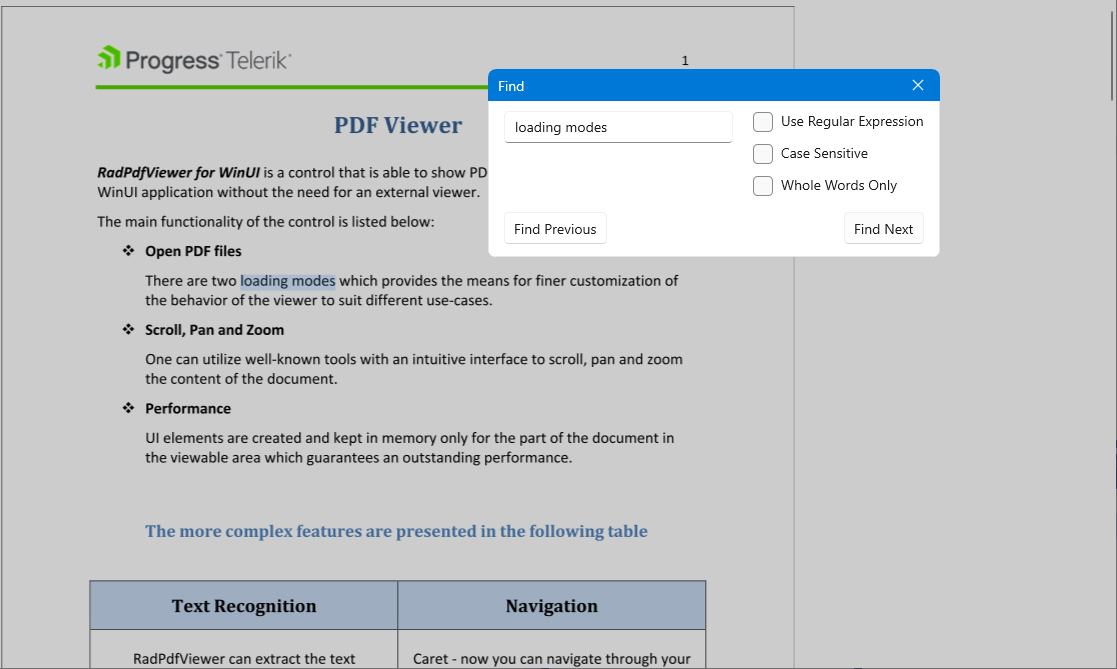
The Find dialog is opened when you press Ctrl+F while the PdfViewer is focused. Additionally, you can open the dialog by executing the command of the ShowFindDialogCommandDescriptor.
Show the Find dialog
this.pdfViewer.CommandDescriptors.ShowFindDialogCommandDescriptor.Command.Execute(null);Programmatic Search
You can search by using the Find, FindAll, and FindPrevious methods of the PdfViewer. The methods are provided with a string value representing the searched text and can accept additional search options through the TextSearchOptions class (an optional parameter of the methods).
The Find and FindPrevious methods are used to find the next and previous results. The return result is an object of type SearchResult.
Use the Find method
SearchResult result = this.pdfViewer.Find("loading modes");
TextPosition start = result.Range.StartPosition;
TextPosition end = result.Range.EndPosition;
string foundText = result.Result;
The FindAll method returns a collection of SearchResult objects.
Use the FindAll method
IEnumerable<SearchResult> result = this.pdfViewer.FindAll("loading modes");The additional overload of the Find methods allows you to provide a TextSearchOptions containing additional search parameters.
Use the TextSearchOptions
SearchResult result = this.pdfViewer.Find("loading modes", new TextSearchOptions(caseSensitive:true, useRegularExpression:true, wholeWordsOnly:true));