How to Use External Styles to Style Missing Component Parts
Environment
| Product | ThemeBuilder |
| Product Version | Any |
Description
I am trying to change the icon of the CheckBox component in ThemeBuilder to use a font icon. However, there is no specific component part available in ThemeBuilder that allows such customization. I found a solution that involves using custom CSS, which works well in my application. Can I apply this custom CSS to the ThemeBuilder project as well so that I can preview the updated version of the component there?
Solution
Some component parts may not yet be exposed for styling in ThemeBuilder. You can influence the prioritization of such component parts by submitting a feature request in the Feedback Portal.
As a workaround, you can achieve such customizations using custom CSS. For example, for the icon of the CheckBox component, the solution can look like this:
.k-checkbox-wrap .k-checkbox:checked::before {
    font-family: WebComponentsIcons;
    content: "\e118";
}
While this solution will function in your application, you may want to update the same component in ThemeBuilder. This ensures it displays the correct preview. To achieve this, upload these styles to ThemeBuilder by following these steps:
-
Click on the Project Settings button in the toolbar.

-
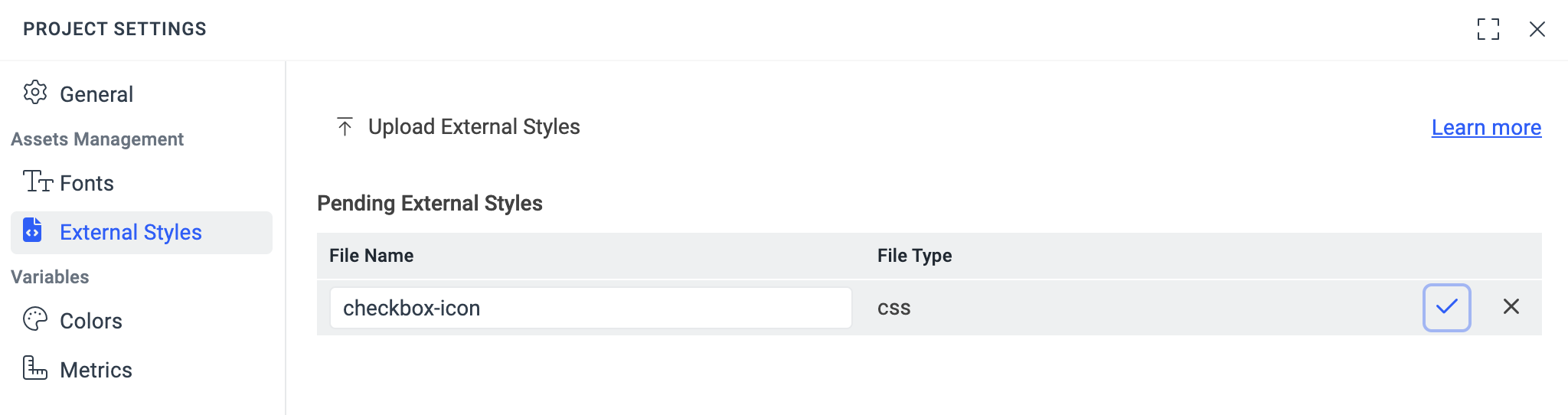
Select the External Styles tab from the Project Settings dialog.
-
Select Upload External Styles from the External Styles tab.
-
Add the external styles, then click the Save button.
The main purpose of the external styles feature is to allow you to upload styles that serve as a foundation for building upon in ThemeBuilder. Keep in mind that any styles you set in ThemeBuilder will override the external styles you upload.