ItemTemplate
When binding your RadTreeView to a collection, you are able to configure the visualization of the data and the appearance of the RadTreeViewItems via the ItemTemplate and the ItemTemplateSelector properties.
If you want to read about the ItemTemplateSelector, see the main topic ItemTemplateSelector.
This tutorial uses Expression Blend to create a HierarchicalDataTemplate and assign it to the treeview's ItemTemplate property.
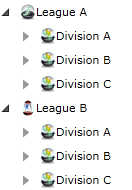
The resulting tree displays leagues with their divisions as child items:
-
Create a new Silverlight application and perform the following steps:
- Add a RadTreeView in your XAML.
- Create two empty hierarchical data templates and one empty data template in your application resources as it is shown in the XAML below:
XAML<UserControl.Resources> <DataTemplate x:Key="Team"> <Grid> </Grid> </DataTemplate> <HierarchicalDataTemplate x:Key="Division"> <Grid> </Grid> </HierarchicalDataTemplate> <HierarchicalDataTemplate x:Key="League"> <Grid> </Grid> </HierarchicalDataTemplate> </UserControl.Resources> <Grid x:Name="LayoutRoot" Background="White"> <telerik:RadTreeView x:Name="radTreeView" Margin="8"/> </Grid> -
Open your page in Expression Blend.
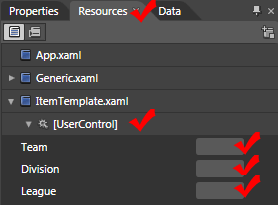
In the Resources window (Window->Resources), in the context of your control you will see the three templates which were declared directly in the XAML on the previous step.
-
Select Edit resource for the League template. Add an Image and a TextBlock to the template, as shown in the following XAML.
 XAML
<Grid>
    <Grid.Resources>
        <HierarchicalDataTemplate x:Key="League" ItemsSource="{Binding Divisions, Mode=OneWay}"
				ItemTemplate="{StaticResource Division}">
            <Grid d:DesignWidth="93" d:DesignHeight="26">
                <Grid.ColumnDefinitions>
                    <ColumnDefinition Width="0.323*"/>
                    <ColumnDefinition Width="0.677*"/>
                </Grid.ColumnDefinitions>
                <Image Source="{Binding ImageUrl, Mode=OneWay}"/>
                <TextBlock Margin="0" Grid.Column="1" TextWrapping="Wrap" Text="{Binding Name, Mode=OneWay}"/>
            </Grid>
        </HierarchicalDataTemplate>
To configure the binding for the Source property of the Image control, select it in the "Object and Timeline" pane.
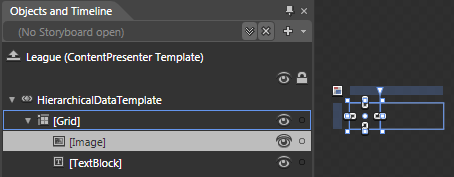
Go to the "Properties" pane and find the Source property in the Common properties section.
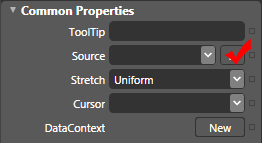
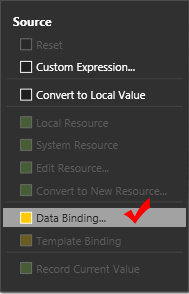
Open the Source property's options menu and choose Data Binding to open the Create Data Binding dialog.
In the Create Data Binding dialog, select Explicit Data Context and check Use a custom path expression. Enter
ImageUrlto bind the image's Source to that property. Select OK.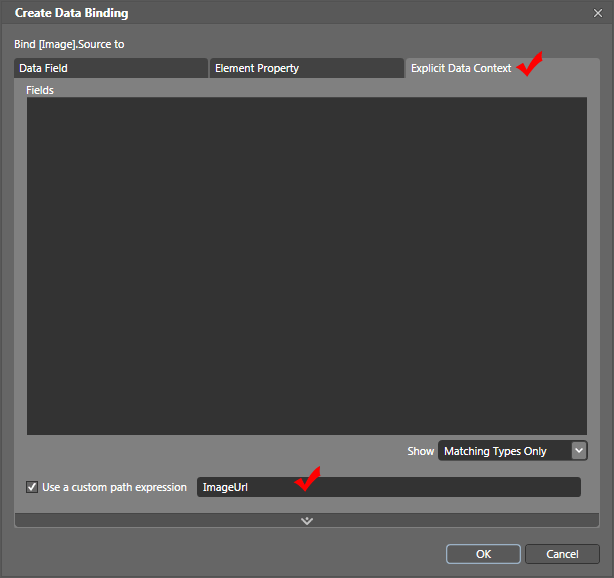
Repeat the binding-dialog steps for TextBlock.Text, using the text-binding path in the completed League template below, not
ImageUrl.Finally, in the "Object and Timeline" pane, select the HierarchicalDataTemplate:
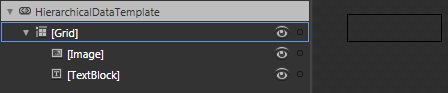
Find and set the following properties in the "Properties" pane:
-
ItemsSource: Set the binding expression to
{Binding Divisions, Mode=OneWay}.
-
ItemTemplate: Set the resource reference to
{StaticResource Division}.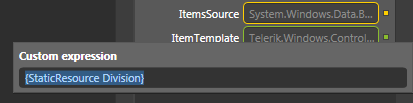
Here is the result XAML for the League data template:
XAML<Grid> <Grid.Resources> <HierarchicalDataTemplate x:Key="League" ItemsSource="{Binding Divisions, Mode=OneWay}" ItemTemplate="{StaticResource Division}"> <Grid d:DesignWidth="93" d:DesignHeight="26"> <Grid.ColumnDefinitions> <ColumnDefinition Width="0.323"/> <ColumnDefinition Width="0.677"/> </Grid.ColumnDefinitions> <Image Source="{Binding ImageUrl, Mode=OneWay}"/> <TextBlock Margin="0" Grid.Column="1" TextWrapping="Wrap" Text="{Binding Name, Mode=OneWay}"/> </Grid> </HierarchicalDataTemplate> -
-
Perform the same steps for the other two templates - Division and Team.
-
Select the treeview and set its ItemTemplate property to the League resource (
{StaticResource League}), as shown in the following XAML.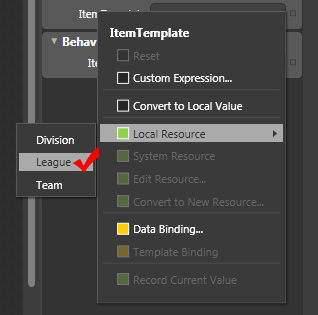
<UserControl>
    <UserControl.Resources>
        <sampleData:RadTreeViewSampleData x:Key="DataSource"/>

        <DataTemplate x:Key="Team">
            <Grid>
                <Grid.ColumnDefinitions>
                    <ColumnDefinition Width="0.323"/>
                    <ColumnDefinition Width="0.677"/>
                </Grid.ColumnDefinitions>
                <Image Source="{Binding ImageUrl, Mode=OneWay}" Width="16" Height="16"/>
                <TextBlock Margin="0" Grid.Column="1" TextWrapping="Wrap" Text="{Binding Name, Mode=OneWay}"/>
            </Grid>
        </DataTemplate>

        <HierarchicalDataTemplate x:Key="Division"
	        ItemsSource="{Binding Teams, Mode=OneWay}"
	        ItemTemplate="{StaticResource Team}">
            <Grid>
                <Grid.ColumnDefinitions>
                    <ColumnDefinition Width="0.323"/>
                    <ColumnDefinition Width="0.677"/>
                </Grid.ColumnDefinitions>
                <Image Source="{Binding ImageUrl, Mode=OneWay}" Width="16" Height="16"/>
                <TextBlock Margin="0" Grid.Column="1" TextWrapping="Wrap" Text="{Binding Name, Mode=OneWay}"/>
            </Grid>
        </HierarchicalDataTemplate>
        <HierarchicalDataTemplate x:Key="League"
	        ItemsSource="{Binding Divisions, Mode=OneWay}"
	        ItemTemplate="{StaticResource Division}">
            <Grid>
                <Grid.ColumnDefinitions>
                    <ColumnDefinition Width="0.323"/>
                    <ColumnDefinition Width="0.677"/>
                </Grid.ColumnDefinitions>
                <Image Source="{Binding ImageUrl, Mode=OneWay}" Width="16" Height="16"/>
                <TextBlock Margin="0" Grid.Column="1" TextWrapping="Wrap" Text="{Binding Name, Mode=OneWay}"/>
            </Grid>
        </HierarchicalDataTemplate>
    </UserControl.Resources>
    <Grid x:Name="LayoutRoot2" Background="White">
        <telerik:RadTreeView x:Name="radTreeView2" Margin="8"
	       ItemsSource="{Binding Source={StaticResource DataSource}, Path=LeaguesDataSource}"
	       ItemTemplate="{StaticResource League}" />
    </Grid>
The data source class RadTreeViewSampleData assigned to the RadTreeView is covered in greater details in the chapter Binding to Object.