Implement Search, Filter and Sort
This article will demonstrate how you can implement searching, filtering and sorting on RadTreeView data. The final result will look like this:
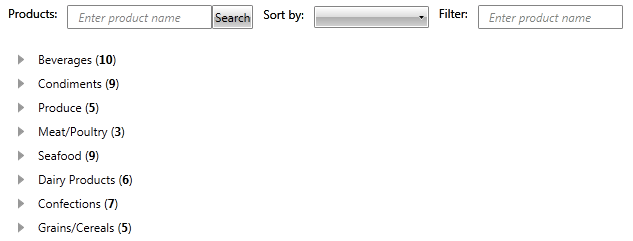
The purpose of this article is to demonstrate how you can implement additional logic to the RadTreeView control. This is why we will skip the definition of our models and view-model. For more detailed information you can scroll down to the end of the article and find a link to a downloadable, ready to run project.
The RadTreeView is a data-driven control, designed to display large amounts of hierarchical data and it does not provide searching, filtering and sorting functionality out of the box. Hence, such operations should be implemented on the data it represents. Below you can find sample implementation of:
Searching
The searching functionality is triggered when the Search button is pressed. Basically, we first get the entered text in the first TextBox and then we search if the Name of each Category contains it. If nothing is found - we search in that Category's Products. When an existing item is found it is selected and brought into the view port of the RadTreeView.
For more details examine the following code:
: Example 1: Implement Searching
			//the RadTreeView.ItemsSource collection is traversed to find an item by a provided name
			string searchText = null;
			private void Search(object sender, RoutedEventArgs e)
			{
				if (!string.IsNullOrEmpty(searchTextBox.Text))
				{
					searchText = searchTextBox.Text.ToLower();
					foreach (Category category in radTreeView.ItemsSource)
					{
						if (category.Name.ToLower().Contains(searchText))
						{
							RadTreeViewItem item = radTreeView.GetItemByPath(category.Path);
							item.BringIntoView();
							item.IsSelected = true;
							return;
						}
						foreach (Product product in category.Products)
						{
							if (product.Name.ToLower().Contains(searchText))
							{
								RadTreeViewItem item = radTreeView.GetItemByPath(category.Path + "\\" + product.Path);
								item.BringIntoView();
								item.IsSelected = true;
								return;
							}
						}
					}
				}
				isFiltered = false;
} Filtering
The filtering functionality is triggered immediately when the text of the second TextBox is changed. The first step, again, is to get the text that is entered into the filterTextBox. After that, we call a helper method (which will also be used in the sorting functionality) that accepts as arguments a collection to sort and a filter string and returns a new filtered collection. With the help of that method we change the ItemsSource of the RadTreeView control so that it visualizes only the items that contain the filtering criteria.
Below you can examine the implementation of these two methods:
Example 2: Implement Filtering
			//the SampleDataSource collection is dynamically filtered to display only those items matching the filter criteria
			string filterText = null;
			private void filterTextBox_TextChanged(object sender, TextChangedEventArgs e)
			{
				if (!String.IsNullOrEmpty(filterTextBox.Text))
				{
					filterText = filterTextBox.Text == " Enter product name" ? "" : filterTextBox.Text;
					radTreeView.ItemsSource = FilterCollection(new SampleDataSource(), filterText);
				}
				else
				{
					radTreeView.ItemsSource = new SampleDataSource();
					filterText = null;
				}
				isFiltered = true;
			}

			//this method filters a business collection
			private ObservableCollection<Category> FilterCollection(ObservableCollection<Category> collection, string filterText)
			{
				foreach (Category category in collection)
				{
					category.Products = new ObservableCollection<Product>(category.Products.Where(p => p.Name.ToLower().Contains(filterText)));
				}
				return new ObservableCollection<Category>(collection.Where(cat => (cat.Name.ToLower().Contains(filterText) && cat.Products.Count == 0) || cat.Products.Count > 0));
}Sorting
The sort functionality is triggered when the selection of the ComboBox is changed. When the SelectionChanged event occurs we check the SelectedItem. and based on its Value, we sort the RadTreeView. collection.
Example 3: Implement Sorting
			//When the Sorting ComboBox selection is changed, the SampleDataSource collection is sorted accordingly
			private void sortingComboBox_SelectionChanged(object sender, SelectionChangedEventArgs e)
			{
				if ((sortingComboBox.SelectedItem as RadComboBoxItem).Content.Equals("Category name"))
				{
					if (filterText != null)
					{
						radTreeView.ItemsSource = FilterCollection(new SampleDataSource(), filterText).OrderBy(c => c.Name);
					}
					else
					{
						radTreeView.ItemsSource = new SampleDataSource().OrderBy(c => c.Name);
					}
				}
				else
				{
					if (filterText != null)
					{
						radTreeView.ItemsSource = FilterCollection(new SampleDataSource(), filterText).OrderBy(c => c.Products.Count);
					}
					else
					{
						radTreeView.ItemsSource = new SampleDataSource().OrderBy(c => c.Products.Count);
					}
				}
				isFiltered = false;
} Find a runnable project of the previous example in the WPF Samples GitHub repository.