Multiple-Column Grouping
On the snapshot you can see how the data in the RadGridView is grouped by two columns - the Country and the Title. The data is first grouped by the Country column and then the data in the separate groups is grouped again by the Title column.
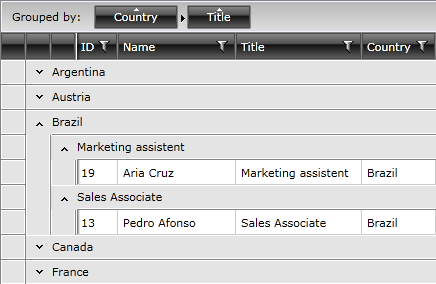
The user can do it via the built-in grouping mechanism by dragging and dropping more than one column headers into the grouping area.
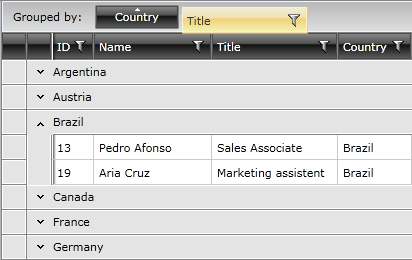
The data in the RadGridView will be grouped depending on the order the user drops the headers in the grouping area.
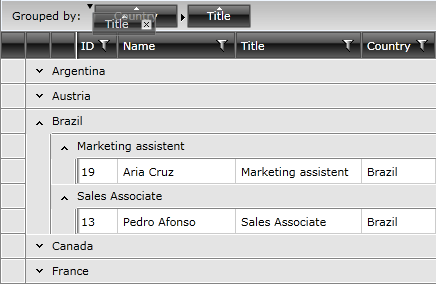
After adding several headers you are allowed to reorder them by dragging the rectangle representing the grouping criteria and dropping it at the desired position.
It is also possible to group the data by multiple columns programmatically by using the GroupDescriptors collection of RadGridView. To learn more about it take a look at the Programmatic Grouping topic.
If you want to implement multi-column grouping you just have to define GroupDescriptor or ColumnGroupDescriptor objects for the desired grouping criteria and add them to the GroupDescriptors collection. It can be done at design time:
<telerik:RadGridView x:Name="radGridView"
                AutoGenerateColumns="False">
    <telerik:RadGridView.GroupDescriptors>
        <telerik:GroupDescriptor Member="Country"
                            SortDirection="Ascending" />
        <telerik:GroupDescriptor Member="Title"
                            SortDirection="Ascending" />
    </telerik:RadGridView.GroupDescriptors>
</telerik:RadGridView>
This can be done at run time via managed code too:
GroupDescriptor countryDescriptor = new GroupDescriptor();
countryDescriptor.Member = "Country";
countryDescriptor.SortDirection = ListSortDirection.Ascending;
this.radGridView.GroupDescriptors.Add(countryDescriptor);
GroupDescriptor titleDescriptor = new GroupDescriptor();
titleDescriptor.Member = "Title";
titleDescriptor.SortDirection = ListSortDirection.Ascending;
this.radGridView.GroupDescriptors.Add(titleDescriptor);Dim countryDescriptor As New GroupDescriptor()
countryDescriptor.Member = "Country"
countryDescriptor.SortDirection = ListSortDirection.Ascending
Me.radGridView.GroupDescriptors.Add(countryDescriptor)
Dim titleDescriptor As New GroupDescriptor()
titleDescriptor.Member = "Title"
titleDescriptor.SortDirection = ListSortDirection.Ascending
Me.radGridView.GroupDescriptors.Add(titleDescriptor)The result is the same as if the user has dragged and dropped the desired columns into the grouping area: