Search as You Type
RadGridView control allows you to perform search operations on the displayed data.
Show the Search Panel
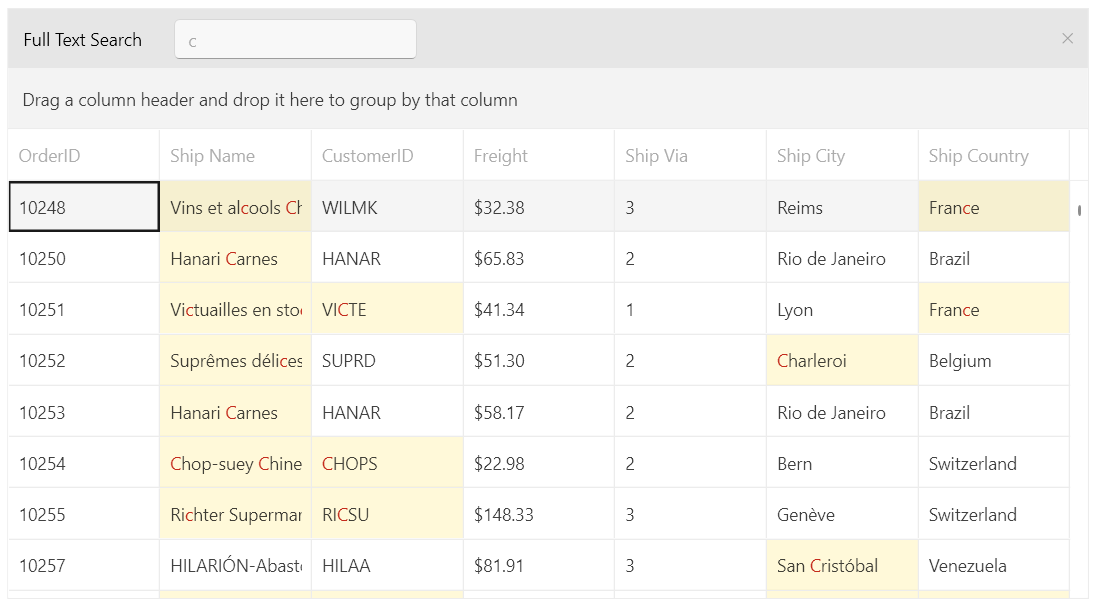
Through the new boolean ShowSearchPanel property of the control, the user can show/hide the search panel. Its default value is false. If hidden, the search panel can be shown with the Ctrl+F shortcut.
The default searching behavior has two ways of setting the operator of the filtering criteria, depending on the value type of the property over which the search is performed. For a
stringandEnumtype the operator is set toContains. For all other types the operator is set toIsEqualTo.
Showing the Search Panel
	<telerik:RadGridView x:Name="orderItemsDataGrid"
					     ItemsSource="{Binding Orders}"
			     		 ShowSearchPanel="True"
                    	 Margin="5"
			     		 AutoGenerateColumns="False"
			     		 ColumnWidth="*"/>
Showing the Search Panel
In case highlighting in a custom column or CellTemplate is needed, the
HightlightTextBlockcan be used. Its constructor needs to have theSearchStateManagerpassed as a parameter. It is exposed through the SearchStateManager property of RadGridView. The usage of the HighlightTextBlock is demonstrated in the Custom Highlight Column.
Disable Showing the Search Panel
You can control whether the users can use the search panel through the CanUserSearch boolean property of RadGridView. Its default value is true. Setting it to false would permanently disable the functionality, meaning that the Ctrl+F combination would not show the panel as well.
Disabling the Search Panel
	<telerik:RadGridView x:Name="orderItemsDataGrid"
						 ItemsSource="{Binding Orders}"
						 CanUserSearch="False"
						 Margin="5"
						 AutoGenerateColumns="False"
						 ColumnWidth="*"/>
Search Panel's Close Button's Visibility
The visibility of the search panel's close button can be controlled via the SearchPanelCloseButtonVisibility property. The default value is Visible meaning that the search panel can originally be closed via this button.
Collapse the close button in XAML
<telerik:RadGridView SearchPanelCloseButtonVisibility="Collapsed" />Collapse the close button in code-behind
this.GridView.SearchPanelCloseButtonVisibility = Visibility.Collapsed;Collapsed Close Button

Deferred Searching
The deferred searching functionality can be controlled through the IsSearchingDeferred property. Its default value is false and it determines whether the filtering through the search text box will be performed dynamically.
When IsSearchingDeferred is set to true, the filtering will be executed when the value is being committed on lost focus or when the Enter or Tab key is pressed.
Setting the IsSearchingDeferred to True
	<telerik:RadGridView x:Name="orderItemsDataGrid"
						 ItemsSource="{Binding Orders}"
			             IsSearchingDeferred="True"
                     	 Margin="5"
                     	 AutoGenerateColumns="False"/>
Commands
Three new commands have been exposed for the text search functionality, via the RadGridViewCommands class.
Search—Executed in order to show the search panel.SearchByText—Executed in order to perform an actual search. It takes astringas a parameter - the text to search by.CloseSearchPanel—Executed in order to hide the search panel.
Executing the search commands in code
	// search by text
	string searchText = "search text";
 	var searchByTextCommand = (RoutedUICommand)RadGridViewCommands.SearchByText;
 	searchByTextCommand.Execute(searchText, this.gridView);

	// open the search panel
   	var searchCommand = (RoutedUICommand) RadGridViewCommands.Search;
 	searchCommand.Execute(null, this.gridView);

  	// close the search panel
   	var closeSearchPanelCommand = (RoutedUICommand)RadGridViewCommands.CloseSearchPanel;
 	closeSearchPanelCommand.Execute(null, this.gridView);
Events
RadGridView provides several events related to the search-as-you-type functionality:
The SearchPanelVisibilityChanged event will be raised on changing the ShowSearchPanel property. Its arguments are of type VisibilityChangedEventArgs and contain the value of the new visibility - NewVisibility.
A common scenario where you can use this event is when you want to clear the search criteria on collapsing the panel:
Clearing search criteria on SearchPanelVisibilityChanged
    private void RadGridView_SearchPanelVisibilityChanged(object sender, VisibilityChangedEventArgs e)
    {
        if (e.NewVisibility == Visibility.Collapsed)
        {
            var clearSearchValue = GridViewSearchPanelCommands.ClearSearchValue as RoutedUICommand;
            clearSearchValue.Execute(null, this.RadGridView.ChildrenOfType<GridViewSearchPanel>().FirstOrDefault());
        }
}The Searching event will be raised when the grid data is about to be searched. It's arguments are of type GridViewSearchingEventsArgs and contain the value of the text which was entered in the search panel TextBox - SearchText. They also contain a boolean property which indicates whether the event should be canceled - Cancel.
A common scenario for the use of this event is when you want to cancel the search based on a condition:
Stop the searching based on a condition
    private void RadGridView_Searching(object sender, Telerik.Windows.Controls.GridView.GridViewSearchingEventArgs e)
    {
        if (e.SearchText.ToString() == "SomeText")
        {
            e.Cancel = true;
        }
    }
The Searched event will be raised when the grid data has been searched. It's arguments are of type GridViewSearchedEventArgs and contain the value of the text which was entered in the search panel TextBox - SearchText.
For more information, refer to the Overview article.
Modify the Searching Criteria
In order to modify the search behavior, you can benefit from the following three search operators:
-
+—The items that will pass the filtering operation will have to contain both the value before the operator and the one after it.
Using the
+search operator
-
-—All items that will pass the filtering operation will have to contain the value before the operator, but not the one after it.
Using the
-search operator
-
""—When a word or a phrase is put in quotes, the filtered objects will contain only the exact same value.
Using the
""search operator
SearchMode
The RadGridView control exposes the SearchMode property which allows you to control how items are matched when search is executed. It has the following two possible values:
-
MatchAnyTerm: Items match the search operation when they fulfill any of the search terms. For example, ifJohn Terryis inputted in the search panel, items containing any of the terms "John" and "Terry" in any of their properties will be matched. This is the default value. -
MatchAllTerms: Items match the search operation only when they fulfill all of the search terms. Continuing with the previous example, ifJohn Terryis entered as the search text, only items which contain both terms ("John" and "Terry") in any of their properties will be matched. -
MatchExact: Items match the search operation only when they exactly match the search text.
Change the Label Text of the Search Panel
By default, the value of the TextBlock appearing before the search TextBox in the search panel is "Full Text Search". It can be altered through the localization mechanism of RadGridView. The resource key that needs to be modified is GridViewSearchPanelTopText. More information can be found in the Localization topic.
Add Search Criteria Programmatically
RadGridView's search mechanism supports defining a search criteria programmatically. This can be done through the SearchByText command. More information can be found in the Commands Overview topic.
Search Over Dynamic Data
RadGridView provides full support for searching over dynamic data. This includes IDynamicMetaObjectProvider(DynamicObject and ExpandoObject), ICustomTypeProvider, and ICustomTypeDescriptor implementations.
Search in Hidden Columns
RadGridView's text search mechanism supports searching in hidden columns. This behavior can be enabled by setting the CanUserSearchInHiddenColumns property of the RadGridView control to true.
Setting CanUserSearchInHiddenColumns property in XAML
<telerik:RadGridView CanUserSearchInHiddenColumns="True"/>Search With Accent Insensitive
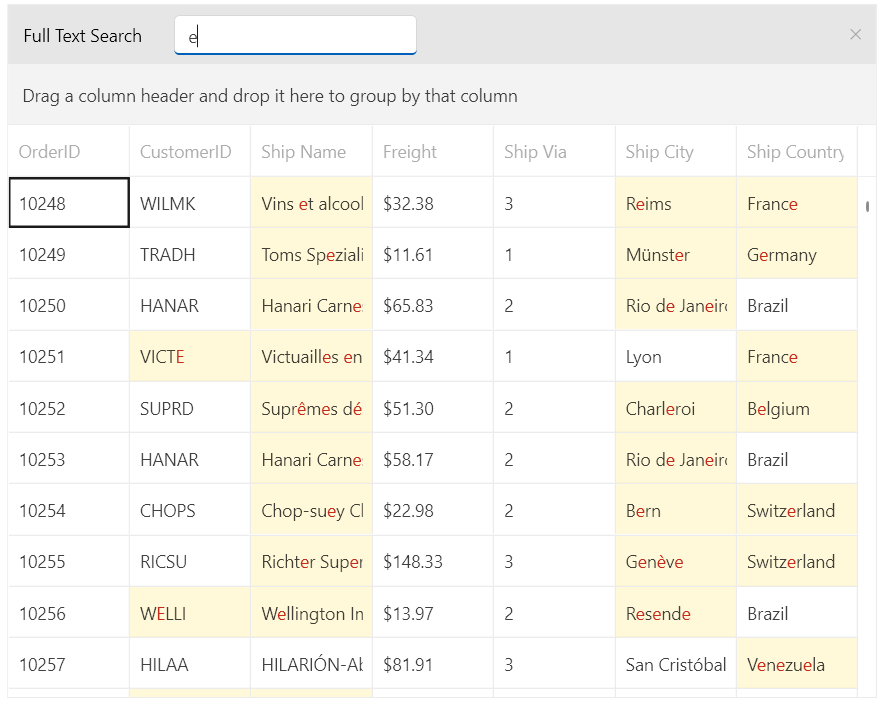
The SearchStateManager property of RadGridView exposes the IsSearchWithAccentEnabled property, which allows you to search with accent insensitive. This behavior is turned off by default. To enable this functionality you can subscribe to the Loaded event of the RadGridView. In the event handler, you can set this property to true.
Setting IsSearchWithAccentEnabled property
	private void GridView_Loaded(object sender, RoutedEventArgs e)
	{
		var radGridView = (RadGridView)sender;

		radGridView.SearchStateManager.IsSearchWithAccentEnabled = true;
	}
Using Search With Accent Insensitive
Exclude Column from Search
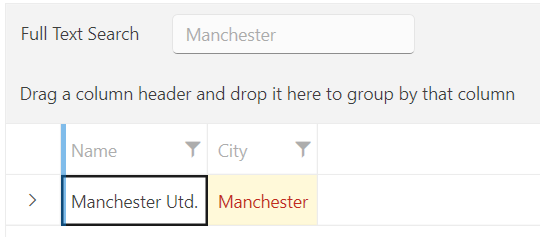
The GridViewBoundColumnBase provides an option to exclude it from the search mechanism. To achieve this, you can use its IsSearchable property. The default value of this property is True, which means that the column will be included in the search operation. To exclude a column from this operation, set the IsSearchable property to False.
Excluding a column from the search mechanism
	<telerik:RadGridView ItemsSource="{Binding Clubs}"
	                     ShowSearchPanel="True"
	                     AutoGenerateColumns="False"
	                     GroupRenderMode="Flat">
	    <telerik:RadGridView.Columns>
	        <telerik:GridViewDataColumn DataMemberBinding="{Binding Name}"
	                                    IsSearchable="False"/>
	        <telerik:GridViewDataColumn DataMemberBinding="{Binding City}"/>
	    </telerik:RadGridView.Columns>
	</telerik:RadGridView>
RadGridView with an excluded column from the search mechanism
Disable the Data Filtering when Searching
The RadGridView control exposes the IsSearchFilteringEnabled option. It will allow you to control whether the data will be filtered when a search operation is performed. The default value of the IsSeachFilteringEnabled property is set to True, which will filter the data. When the data filtering is disabled, search operations will only highlight the cells that match the search criteria.
Disabling the data filtering when performing search
<telerik:RadGridView IsSearchFilteringEnabled="False"/>