RadSaveFileDialog
RadSaveFileDialog is a modal dialog box that allows you to specify a filename to save.
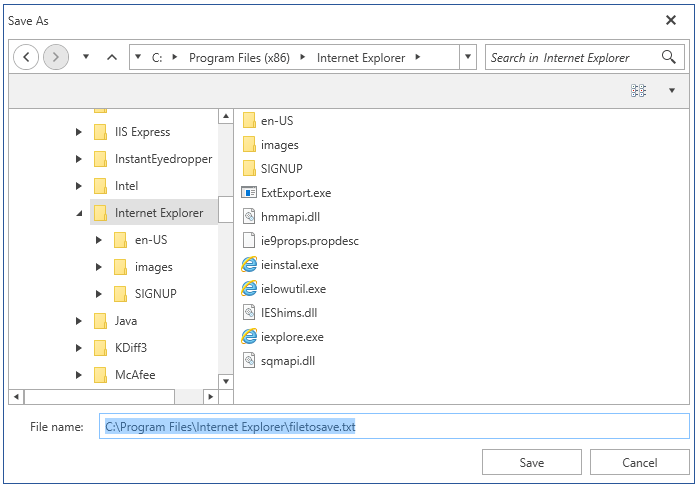
Figure 1: RadSaveFileDialog
Showing the dialog
To show the dialog call its ShowDialog method. If a valid file is selected when you press OK, the DialogResult property will return True and the FileName property will be set. You can use FileName to get the name of the selected file.
Note that when the ShowDialog method is called the UI of the host application will freeze until the dialog closes.
Example 1: Show a save file dialog
public partial class MainWindow : Window
{
    public MainWindow()
    {
        InitializeComponent();
        ShowSaveFileDialog();
    }

    private void ShowSaveFileDialog()
    {
        RadSaveFileDialog saveFileDialog = new RadSaveFileDialog();
        saveFileDialog.Owner = this;
        saveFileDialog.ShowDialog();
        if (saveFileDialog.DialogResult == true)
        {
            string selectedFileName = saveFileDialog.FileName;
        }
    }
}
The Owner property holds a reference of the Window which owned the dialog. Before calling the ShowDialog() method, the Owner property should be set to ensure correct behavior. Ownership is established when this property is set.
Creating a stream for the selected file
You can open a read-write file stream for the selected file using the OpenFile method. Or alternatively you can use the FileName property and open the file manually.
Example 2: Open a file stream
public partial class MainWindow : Window
{
    public MainWindow()
    {
        InitializeComponent();
        ShowSaveFileDialog();
    }

    private void ShowSaveFileDialog()
    {
        RadSaveFileDialog saveFileDialog = new RadSaveFileDialog();
        saveFileDialog.Owner = this;
        saveFileDialog.ShowDialog();
        if (saveFileDialog.DialogResult == true)
        {
            Stream fileStream = saveFileDialog.OpenFile();
        }
    }
}
Working with the selected file
You can get the path of the selected file via the FileName property (see Example 1). Note that the property is empty until the DialogResult is valid. When the dialog closes and DialogResult is True, the property returns the corresponding file path.
To check whether the selected path identifies an existing file, use the System.IO.File.Exists method after the dialog returns successfully.
Example 3: Check whether the selected file exists
	RadSaveFileDialog saveFileDialog = new RadSaveFileDialog();
	saveFileDialog.Owner = this;
	saveFileDialog.ShowDialog();
	if (saveFileDialog.DialogResult == true)
	{
		bool fileExists = System.IO.File.Exists(saveFileDialog.FileName);
	}
When the selected file already exists, RadSaveFileDialog displays an overwrite confirmation automatically. If the user confirms the overwrite, DialogResult is set to True. There is no separate overwrite event. Use the DialogResult and FileName properties after the dialog closes to determine whether the save operation was accepted.
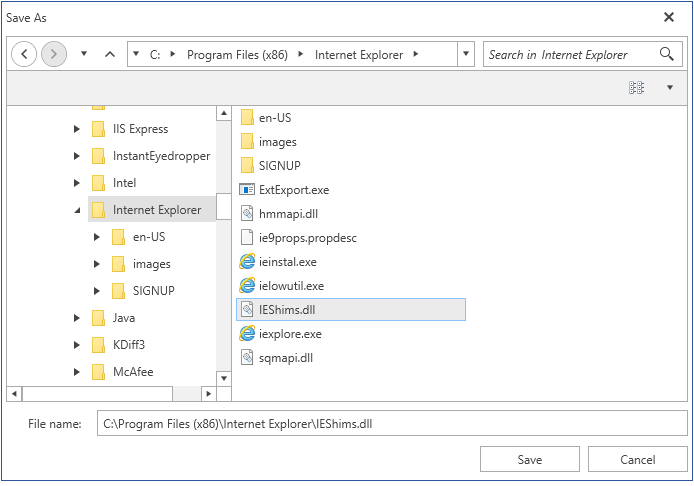
The FileName property can be set manually. This will change the value displayed in the selected file autocomplete box area. Note that setting this won't change the selected item in the list with the files.
Example 4: Set the file name
public partial class MainWindow : Window
{
    public MainWindow()
    {
        InitializeComponent();
        ShowSaveFileDialog();
    }

    private void ShowSaveFileDialog()
    {
        RadSaveFileDialog saveFileDialog = new RadSaveFileDialog();
        saveFileDialog.Owner = this;
        saveFileDialog.InitialDirectory = @"C:\Program Files\Internet Explorer\";
        saveFileDialog.FileName = @"C:\Program Files\Internet Explorer\filetosave.txt";
        saveFileDialog.ShowDialog();
    }
}
Figure 2: Setting the file name