New to Telerik UI for WinForms? Start a free 30-day trial
Drag and Drop Text with Cursor Movement in RadSyntaxEditor for WinForms
Updated over 1 year ago
Environment
| Product Version | Product | Author |
|---|---|---|
| 2023.3.1114 | RadTreeView for WinForms | Dinko Krastev |
Description
In the following tutorial, we will demonstrate how to drag-drop text from an external source while moving the cursor to the desired drop position.
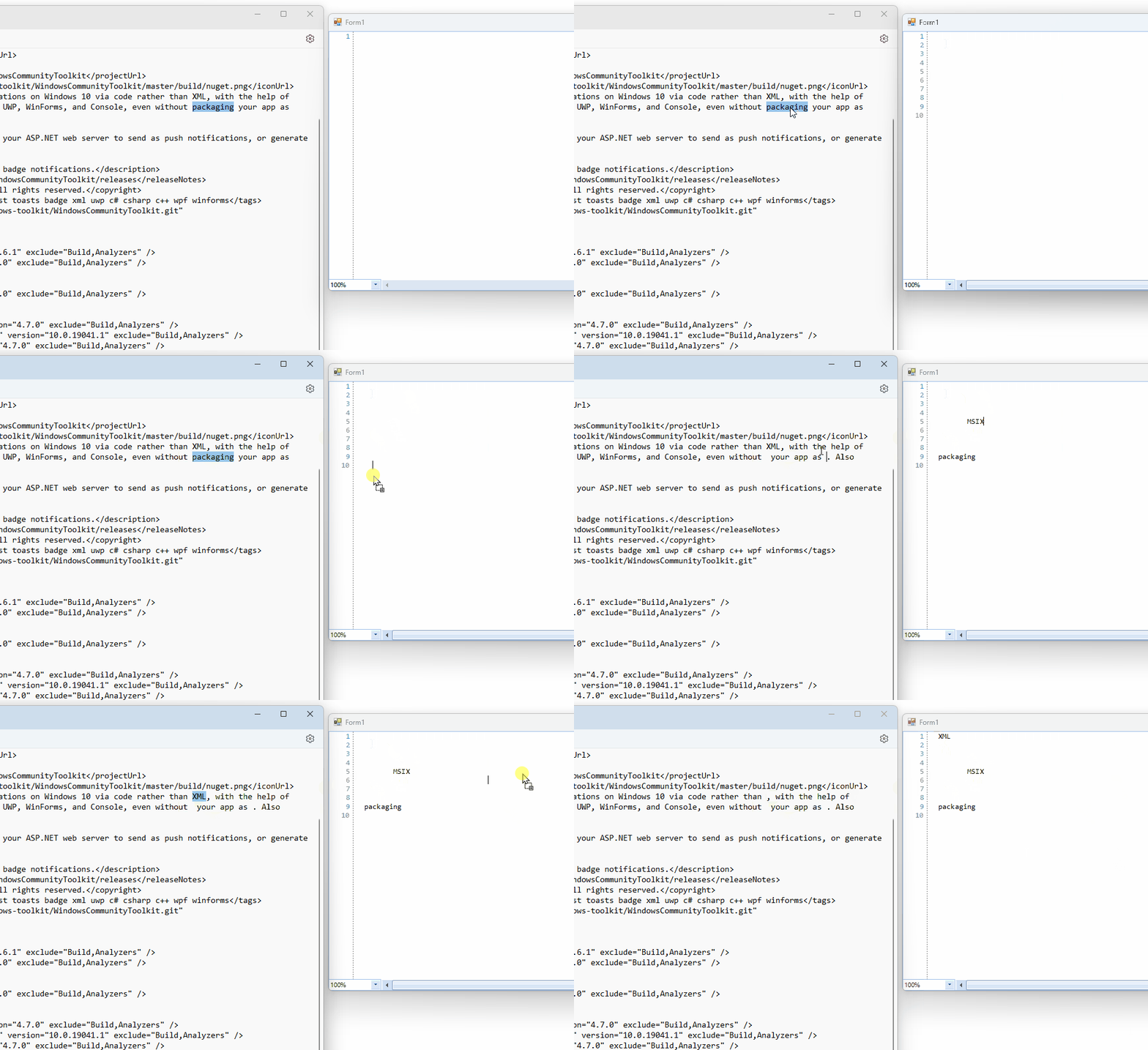
Solution
To achieve this, you can follow the steps below:
- Set the
AllowDropproperty of theRadSyntaxEditorcontrol totrue. - Handle the
DragOverevent of theRadSyntaxEditorcontrol and set theEffectproperty of theDragEventArgstoDragDropEffects.All. This allows the control to accept the dragged text. - In the
DragOverevent handler, move the cursor to the desired drop position by focusing theRadSyntaxEditorcontrol and using theMoveToPosition()method. - Handle the
DragDropevent of theRadSyntaxEditorcontrol and insert the dropped text at the current cursor position using theInsert()method of theSyntaxEditorElement.Documentproperty.
Here is an example implementation:
C#
public partial class Form1 : Form
{
    public Form1()
    {
        InitializeComponent();
        this.radSyntaxEditor1.AllowDrop = true;
        this.radSyntaxEditor1.DragOver += radSyntaxEditor1_DragOver;
        this.radSyntaxEditor1.DragDrop += radSyntaxEditor1_DragDrop;
    }

    private void radSyntaxEditor1_DragDrop(object sender, DragEventArgs e)
    {
        string txt = e.Data.GetData(DataFormats.Text).ToString();
        this.radSyntaxEditor1.SyntaxEditorElement.Document.Insert(GetCaretPostion().Index, txt);
    }

    private void radSyntaxEditor1_DragOver(object sender, DragEventArgs e)
    {
        e.Effect = DragDropEffects.All;
        this.radSyntaxEditor1.SyntaxEditorElement.CaretPosition.MoveToPosition(GetCaretPostion());
        this.radSyntaxEditor1.Focus();
    }

    private CaretPosition GetCaretPostion()
    {
        Point pt = this.radSyntaxEditor1.SyntaxEditorElement.PointFromScreen(MousePosition);
        CaretPosition caretPosition = this.radSyntaxEditor1.SyntaxEditorElement.GetPositionFromControlPoint(pt);
        return caretPosition;
    }
}
Make sure to add empty space in the control before dragging and dropping the text to have room for the drop operation.