How to change radial gauge's value with the mouse/keyboard
Environment
| Product | RadRadialGauge for WinForms |
Description
This article demonstrates a sample approach how to change the value of RadRadialGauge by handling user's mouse/keyboard input.
Solution
We will detect when the user either moves the mouse, keeping pressed the left mouse button or presses the up/down arrow keys. The below gif file illustrates the achieved behavior:
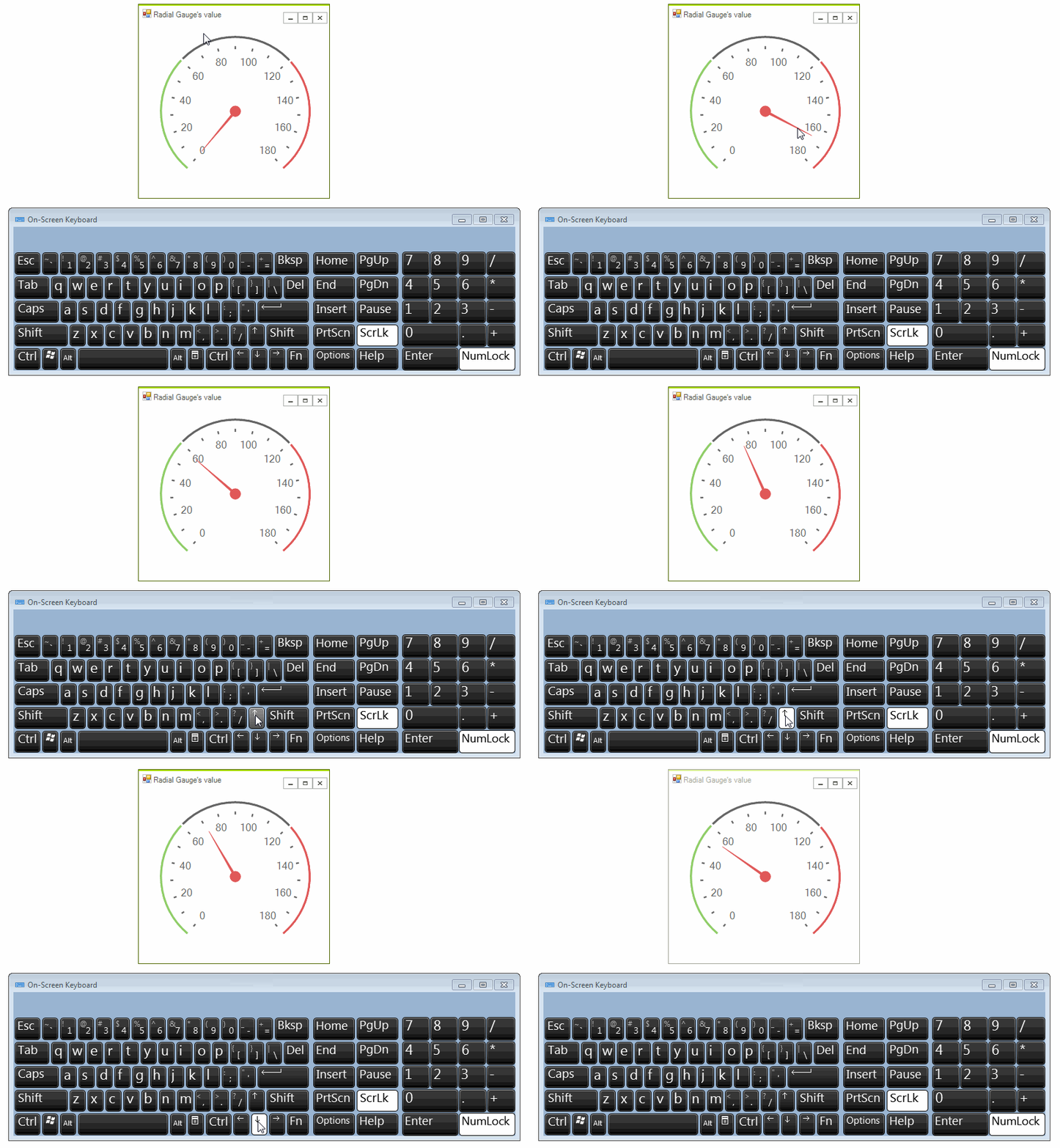
Changing the Value with the Mouse
Handle the MouseMove event and check whether the left mouse button is pressed. Then, calculate the new gauge's value considering the angle of the current mouse location to the center of the gauge.
protected override void OnLoad(EventArgs e)
{
    base.OnLoad(e);

    this.radRadialGauge1.MouseMove += radRadialGauge1_MouseMove;
    this.radialGaugeNeedle1.BindValue = true;
}

private void radRadialGauge1_MouseMove(object sender, MouseEventArgs e)
{
    if (e.Button == System.Windows.Forms.MouseButtons.Left)
    {
        UpdateValue(e.Location);
    }
}

private void UpdateValue(Point pointLocation)
{
    float centerX = this.radRadialGauge1.GaugeElement.GaugeCenter.X + this.radialGaugeNeedle1.TotalTransform.DX;
    float centerY = this.radRadialGauge1.GaugeElement.GaugeCenter.Y + this.radialGaugeNeedle1.TotalTransform.DY;
    PointF center = new PointF(centerX, centerY);

    double radian = Math.Atan2(pointLocation.Y - center.Y, pointLocation.X - center.X);
    double angle = radian * (180 / Math.PI);
    if (angle < 0.0)
    {
        angle += 360.0;
    }

    float newValue = CalculateValueByAngle(angle, this.radRadialGauge1.RangeStart, this.radRadialGauge1.RangeEnd, this.radRadialGauge1.StartAngle, this.radRadialGauge1.SweepAngle);
    this.radRadialGauge1.Value = Math.Min(newValue, (float)this.radRadialGauge1.RangeEnd);
}

public float CalculateValueByAngle(double needleAngleDegree, double rangeStart, double rangeEnd, double startAngle, double sweepAngle)
{
    float value = 0;
    double angleDiff = needleAngleDegree - startAngle;
    if (angleDiff < 0)
    {
        angleDiff += 360;
    }
    double ratio = (angleDiff) / sweepAngle;
    value = (float)(ratio * Math.Abs(rangeEnd - rangeStart) + rangeStart);
    return value;
}
Changing the Value with the Keyboard
Add a timer to detect whether the up/down arrow key is pressed in order to adjust the value of RadRadialGauge. In the PreviewKeyDown event you can enable a flag to distinguish which arrow key is pressed. It is necessary to stop the timer when you release the mouse:
A complete solution providing a C# and VB.NET project is available here.