New to Telerik UI for WinForms? Start a free 30-day trial
Customize GridViewCommandColumn
Updated on Jul 16, 2026
| Product Version | Product | Author |
|---|---|---|
| 2019.2.618 | RadGridView for WinForms | [Dimitar Karamfilov] |
Problem
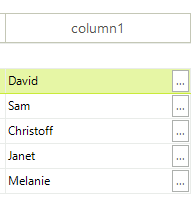
You want to make the button in the command column smaller and show other value.
Solution
You can use the CellFormatting event to achieve this. Here is a complete example that shows this.
C#
public RadForm1()
{
    InitializeComponent();
    radGridView1.AutoSizeColumnsMode = GridViewAutoSizeColumnsMode.Fill;
    radGridView1.DataSource = GetTable();

    var col = new GridViewCommandColumn() { UseDefaultText = true, DefaultText = "..." };
    radGridView1.Columns.Add(col);
    col.FieldName = "Name";


    radGridView1.CellFormatting += RadGridView1_CellFormatting;
    radGridView1.CommandCellClick += RadGridView1_CommandCellClick;
}

private void RadGridView1_CommandCellClick(object sender, GridViewCellEventArgs e)
{
    RadMessageBox.Show(e.Value.ToString());
}

private void RadGridView1_CellFormatting(object sender, CellFormattingEventArgs e)
{
    if (e.CellElement is GridCommandCellElement)
    {
        var cell = e.CellElement as GridCommandCellElement;
        cell.DrawText = true;
        cell.Text = cell.Value + "";
        cell.CommandButton.StretchHorizontally = false;
        cell.CommandButton.Alignment = ContentAlignment.MiddleRight;
        cell.CommandButton.FitToSizeMode = RadFitToSizeMode.FitToParentPadding;
        cell.CommandButton.Margin = new Padding(0, 2,2, 2);
    }
}