New to Telerik UI for WinForms? Start a free 30-day trial
How to Customize the Highlight Style for the Found Results in SyntaxEditor
Updated on Aug 27, 2026
Environment
| Product Version | Product | Author |
|---|---|---|
| 2022.1.222 | RadSyntaxEditor for WinForms | Desislava Yordanova |
Description
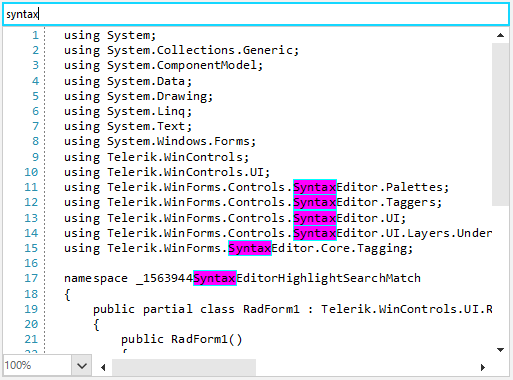
This article demonstrates how to change the default highlight colors for the Find and Replace functionality in RadSyntaxEditor.
Default Highlight Style

Solution
With the help of a TextSearchHighlightTagger RadSyntaxEditor finds the exact matches according to the search criteria. The SyntaxEditorElement.TextFormatDefinitions stores a collection of ITextFormatDefinitionKey defining the style (format colors) for different keywords, search results, etc.
We will define a new TextFormatDefinition for the SelectedWordFormatDefinition of the TextSearchHighlightTagger where the desired border and background colors will be specified:
Customized Highlight Style
C#
public RadForm1()
{
    InitializeComponent();

    TextFormatDefinition def = new TextFormatDefinition(null,
                               new SolidBrush(Color.Fuchsia),
                               null,
                               new Telerik.WinForms.Controls.SyntaxEditor.UI.Pen(new SolidBrush(Color.Aqua), 1));
    this.radSyntaxEditor1.SyntaxEditorElement.TextFormatDefinitions.Remove("SelectedWordFormatDefinition");
    this.radSyntaxEditor1.SyntaxEditorElement.TextFormatDefinitions.AddLast(TextSearchHighlightTagger.SelectedWordFormatDefinition.Name, def);
}

private void radTextBox1_TextChanged(object sender, EventArgs e)
{
    this.radSyntaxEditor1.SyntaxEditorElement.HighlightAllMatches(this.radTextBox1.Text);
}