New to Telerik UI for WinForms? Start a free 30-day trial
How to create QWERTZ keyboard
Updated over 1 year ago
Environment
| Product Version | Product | Author |
|---|---|---|
| 2021.1.223 | RadVirtualKeyboard for WinForms | Nadya Karaivanova |
Description
By default, RadVirtualKeybord is of QWERTY keyboard type. However, it is a commom requirement to customize the keyboard to another type, for example - QWERTZ or AZERTY. The main difference between these three keyboards is the position of the Q, W, Z and A keys.
This tutorial will demonstrate how you can achieve this type of keyboard with RadVirtualKeyboard control.
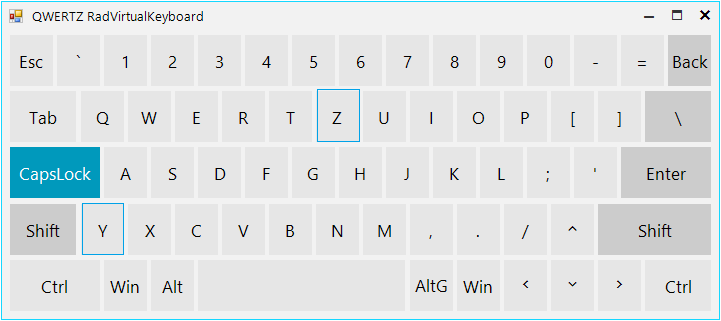
Solution
In order to achieve this, we need to replace the positions of the Y and Z keys. We should find the desired keys, remove them from the Keys collection, then insert the keys back on desired position. The following code snippet demonstrates this:
C#
public RadForm1()
{
    InitializeComponent();

    this.radVirtualKeyboard1.LayoutType = KeyboardLayoutType.Simplified;
    SimplifiedVirtualKeyboardLayoutPanel simplifiedLayoutPanel = this.radVirtualKeyboard1.MainLayoutPanel as SimplifiedVirtualKeyboardLayoutPanel;
    VirtualKeyboardLayout mainLayout = simplifiedLayoutPanel.MainButtonsLayout;
    Key Zkey = mainLayout.Rows[3].Keys.FirstOrDefault(k => k.VirtualKey == (int)Keys.Z) as Key;
    int zKeyIndex = mainLayout.Rows[3].Keys.IndexOf(Zkey);
    Key Ykey = mainLayout.Rows[1].Keys.FirstOrDefault(k => k.VirtualKey == (int)Keys.Y) as Key;
    int yKeyIndex = mainLayout.Rows[1].Keys.IndexOf(Ykey);
    //Remove keys
    mainLayout.Rows[3].Keys.Remove(Zkey);
    mainLayout.Rows[1].Keys.Remove(Ykey);
    //Insert keys
    mainLayout.Rows[1].Keys.Insert(yKeyIndex, Zkey);
    mainLayout.Rows[3].Keys.Insert(zKeyIndex, Ykey);
    //Reset layout
    mainLayout.ResetLayout(true);
}
Feel free to use this approach in order to customize the position of the keys in any way that is suitable for you.