New to Telerik UI for WinForms? Start a free 30-day trial
Create a Password Text Box
Updated on Jul 16, 2026
Environment
| Product Version | Product | Author |
|---|---|---|
| 2019.3.917 | RadButtonTextBox for WinForms | Dimitar Karamfilov |
Description
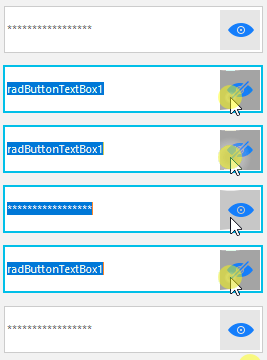
This article shows how you can create a password textbox that is capable to show the password. This is done by pressing and holding a button. Figure 1 shows the result. For this example I am using the Fluent theme and a RadButtonTextBox.
Figure 1: Create PasswordTextBox using RadButtonTextBox
Solution
To achieve this you need to handle the MouseDown and MouseUp events. This way you can change the image and set the PasswordChar.
C#
public RadForm1()
{
    InitializeComponent();

    radButtonElement1.DisplayStyle = DisplayStyle.Image;
    radButtonElement1.Image = Properties.Resources.eye32;
    radButtonElement1.MouseDown += RadButtonElement1_MouseDown;
    radButtonElement1.MouseUp += RadButtonElement1_MouseUp;
    radButtonTextBox1.PasswordChar = '*';
}

private void RadButtonElement1_MouseUp(object sender, MouseEventArgs e)
{
    radButtonElement1.Image = Properties.Resources.eye32;
    radButtonTextBox1.PasswordChar = '*';
}

private void RadButtonElement1_MouseDown(object sender, MouseEventArgs e)
{
    radButtonElement1.Image = Properties.Resources.eye32hidden;
    radButtonTextBox1.PasswordChar = '\0';
}