How to host RadElement in RadCommandBar
Environment
| Product Version | Product | Author |
|---|---|---|
| 2020.2.512 | RadCommandBar for WinForms | Nadya Karaivanova |
Description
By default, the items that are displayed in the overall area in RadCommandBar are arranged in CommandBarStripElement. More information about the RadCommandBar's structure is available here. Every item (eg. CommandBarButton, CommandBarTextBox, etc.) is descendant of RadCommandBarBaseItem which is a base class for all of the items contained in the CommandBarStripElement. A common requirement is to add a custom element into the area in RadCommandBar in order to achive more flixibility.
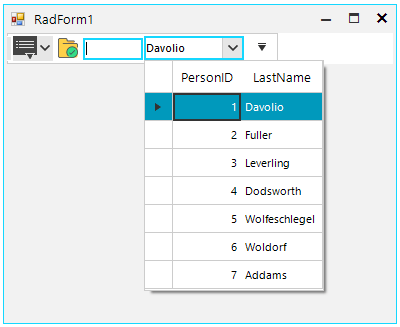
This article demonsrates how you can add a RadMultiColumnComboBox in the CommandBarStripElement.
Solution
RadCommandBar offers the CommandBarHostItem. The CommandBarHostItem can host any RadElement that you would like to display in the command bar area. You can add CommandBarHostItem both at design time or run time and just specify the HostedItem property to the element that you want to host.
 public RadForm1()
{
    InitializeComponent();

    RadMultiColumnComboBoxElement mccb = new RadMultiColumnComboBoxElement();
    mccb.BindingContext = new BindingContext();
    mccb.AutoSizeDropDownToBestFit = true;
    mccb.DataSource = GetTable();
    mccb.MinSize = new Size(100, 20);
    this.commandBarHostItem1.HostedItem = mccb;
}

private object GetTable()
{
    DataTable dt = new DataTable();
    dt.Columns.Add("PersonID", typeof(int));
    dt.Columns.Add("LastName", typeof(string));
    dt.Rows.Add(1, "Davolio");
    dt.Rows.Add(2, "Fuller");
    dt.Rows.Add(3, "Leverling");
    dt.Rows.Add(4, "Dodsworth");
    dt.Rows.Add(5, "Wolfeschlegel");
    dt.Rows.Add(6, "Woldorf");
    dt.Rows.Add(7, "Addams");
    return dt;
}