Dialog Icons
RadTaskDialog shows a large icon in the header layout that signifies the purpose of the dialog. The RadTaskDialogPage.Icon property allows you to specify the RadTaskDialogIcon itself.
Specifying the dialog icon
RadTaskDialogPage page = new RadTaskDialogPage();
page.Caption = "Window Title";
page.Heading = "Main instruction";
page.Text = "Main text here...";
page.Icon = RadTaskDialogIcon.Information;
RadTaskDialog.Show(page);You can find listed below the available built-in icons:
-
RadTaskDialogIcon.None - no icon is displayed
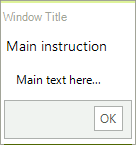
-
RadTaskDialogIcon.Information
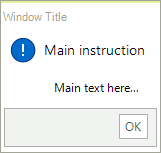
-
RadTaskDialogIcon.Warning
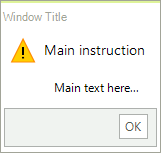
-
RadTaskDialogIcon.Error
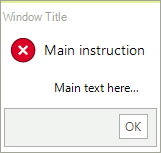
-
RadTaskDialogIcon.Shield
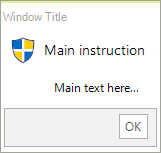
-
RadTaskDialogIcon.ShieldBlueBar
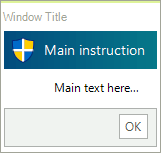
-
RadTaskDialogIcon.ShieldGrayBar
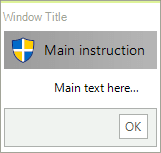
-
RadTaskDialogIcon.ShieldWarningYellowBar
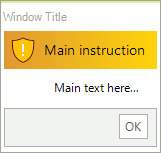
-
RadTaskDialogIcon.ShieldErrorRedBar
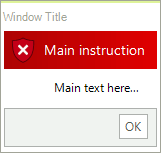
-
RadTaskDialogIcon.ShieldSuccessGreenBar
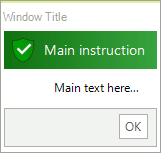
The RadTaskDialogPage.Icon.SvgImage property allows you to specify the vector image to the task dialog. The RadTaskDialogIcon.GetSvgImage(RadTaskDialogIconImage icon, Size? size = null) method offers an easy way of creating a SvgImage passing the RadTaskDialogIconImage and size as arguments.
Custom Icon
If none of the built-in icons fits your needs, it is possible to construct your own RadTaskDialogIcon:
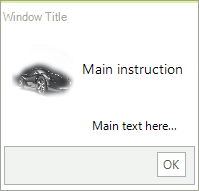
RadTaskDialogPage page = new RadTaskDialogPage();
page.Caption = "Window Title";
page.Heading = "Main instruction";
page.Text = "Main text here...";
page.Icon = new RadTaskDialogIcon(new Bitmap(Properties.Resources.TV_car,new Size(64,64)));
RadTaskDialog.Show(page);