New to Telerik UI for WinForms? Start a free 30-day trial
Custom Data Cells
Updated on Aug 27, 2026
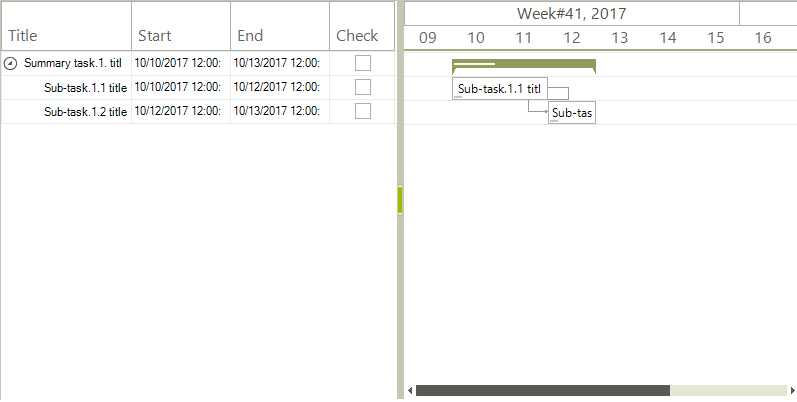
RadGanttView allows you to replace the standard cells displayed in the text view with custom ones. The following example demonstrates how to add a custom cell element having a check box.
Figure 1: Checkbox Cell
Custom Cell Implementation
C#
public class CustomGanttViewTextViewCellElement : GanttViewTextViewCellElement
{
    private RadCheckBoxElement checkBox;

    public CustomGanttViewTextViewCellElement(GanttViewTextItemElement owner, GanttViewTextViewColumn column)
        : base(owner, column)
    { }

    protected override Type ThemeEffectiveType
    {
        get { return typeof(GanttViewTextViewCellElement); }
    }

    public override bool IsCompatible(GanttViewTextViewColumn data, object context)
    {
        return data.FieldName == "Check";
    }

    protected override void CreateChildElements()
    {
        base.CreateChildElements();

        this.checkBox = new RadCheckBoxElement();
        this.checkBox.CheckStateChanged += CheckBox_CheckStateChanged;
        this.Children.Add(this.checkBox);
    }

    protected override SizeF ArrangeOverride(SizeF finalSize)
    {
        SizeF size = base.ArrangeOverride(finalSize);
        this.checkBox.Arrange(new RectangleF(new PointF((size.Width - this.checkBox.CheckMarkPrimitive.Size.Width) / 2, 0), this.checkBox.Size));
        return size;
    }

    private void CheckBox_CheckStateChanged(object sender, EventArgs e)
    {
        GanttViewTextItemElement owner = this.Owner as GanttViewTextItemElement;
        owner.Data.Tag = this.checkBox.Checked;
    }
}The events which need to be handled are:
- DataCellElementCreating: The custom cell element will be initialized in the event handler.
- ItemEditing: The actual cell editing will be performed by the custom cell element with the check box. The event needs to be canceled so that the default editor will not initialize.
Handling Events
C#
private void GanttViewElement_ItemEditing(object sender, GanttViewItemEditingEventArgs e)
{
    if (e.Column.FieldName == "Check")
    {
        e.Cancel = true;
    }
}

private void radGanttView1_DataCellElementCreating(object sender, GanttViewDataCellElementCreatingEventArgs e)
{
    if (e.CellElement.Data.HeaderText == "Check")
    {
        e.CellElement = new CustomGanttViewTextViewCellElement(e.CellElement.Owner, e.CellElement.Column);
    }
}The data can be added to the control in the OnLoad method of the form. It is important to also add "Check" column in which the custom cell will be displayed.
Initial Setup
C#
protected override void OnLoad(EventArgs e)
{
    base.OnLoad(e);

    this.radGanttView1.GanttViewElement.ItemEditing += GanttViewElement_ItemEditing;
    this.radGanttView1.DataCellElementCreating += radGanttView1_DataCellElementCreating;

    this.radGanttView1.GanttViewElement.GraphicalViewElement.TimelineStart = new DateTime(2017, 10, 9);
    this.radGanttView1.GanttViewElement.GraphicalViewElement.TimelineEnd = new DateTime(2017, 10, 20);

    this.BindData();
}

private void BindData()
{
    GanttViewDataItem item1 = new GanttViewDataItem();
    item1.Start = new DateTime(2017, 10, 10);
    item1.End = new DateTime(2017, 10, 13);
    item1.Progress = 30m;
    item1.Title = "Summary task.1. title";

    GanttViewDataItem subitem11 = new GanttViewDataItem();
    subitem11.Start = new DateTime(2017, 10, 10);
    subitem11.End = new DateTime(2017, 10, 12);
    subitem11.Tag = "Custom";
    subitem11.Progress = 10m;
    subitem11.Title = "Sub-task.1.1 title";
    GanttViewDataItem subitem12 = new GanttViewDataItem();
    subitem12.Start = new DateTime(2017, 10, 12);
    subitem12.End = new DateTime(2017, 10, 13);
    subitem12.Progress = 20m;
    subitem12.Title = "Sub-task.1.2 title";

    item1.Items.Add(subitem11);
    item1.Items.Add(subitem12);
    this.radGanttView1.Items.Add(item1);

    GanttViewLinkDataItem link1 = new GanttViewLinkDataItem();
    link1.StartItem = subitem11;
    link1.EndItem = subitem12;
    link1.LinkType = TasksLinkType.FinishToStart;
    this.radGanttView1.Links.Add(link1);

    GanttViewTextViewColumn titleColumn = new GanttViewTextViewColumn("Title");
    GanttViewTextViewColumn startColumn = new GanttViewTextViewColumn("Start");
    GanttViewTextViewColumn endColumn = new GanttViewTextViewColumn("End");
    GanttViewTextViewColumn checkColumn = new GanttViewTextViewColumn("Check");

    this.radGanttView1.GanttViewElement.Columns.Add(titleColumn);
    this.radGanttView1.GanttViewElement.Columns.Add(startColumn);
    this.radGanttView1.GanttViewElement.Columns.Add(endColumn);
    this.radGanttView1.GanttViewElement.Columns.Add(checkColumn);
}