New to Telerik UI for WinForms? Start a free 30-day trial
Themes
Updated on Sep 1, 2026
This help article will demonstrate a step by step tutorial how to customize the ControlDefault theme for RadTextBox
-
Open Visual Style Builder
-
Export the built-in themes in a specific folder by selecting
File>>Export Built-in Themes. -
Load a desired theme from the just exported files by selecting
File>>Open Package. -
Expand RadTextBox and select the
TextBoxFill. Make sure that the Disabled state is selected in the `Element States' window.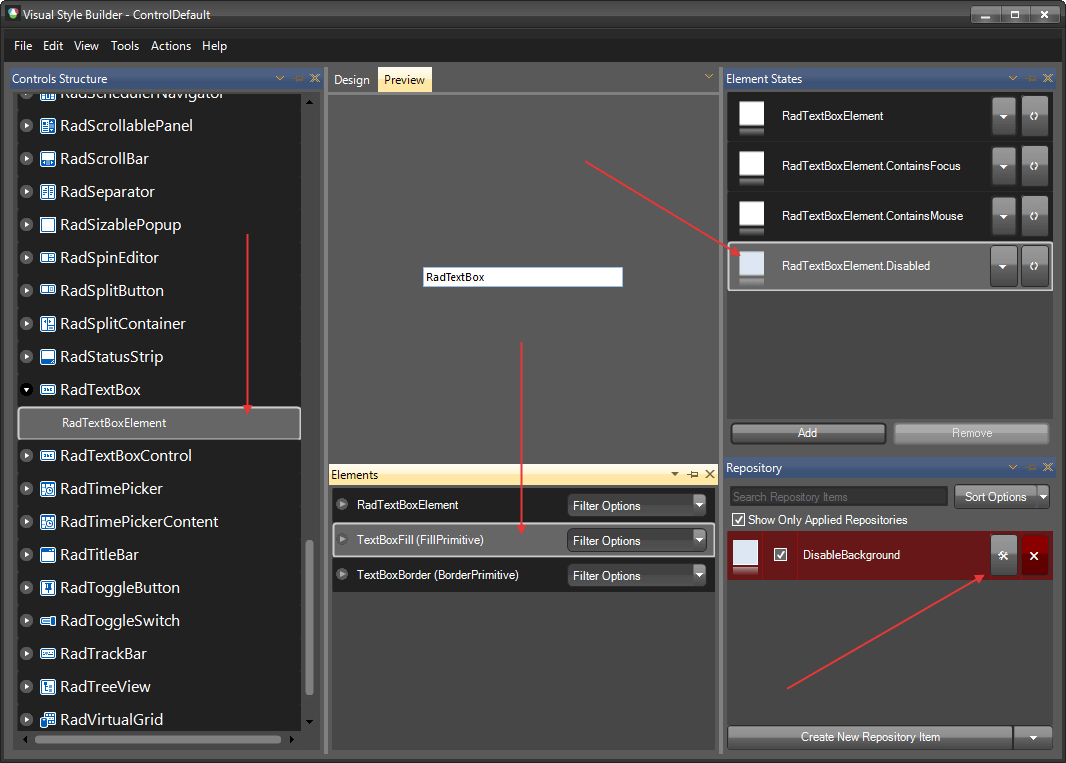
-
Open the
Edit Repository Itemdialog and change theBackColor: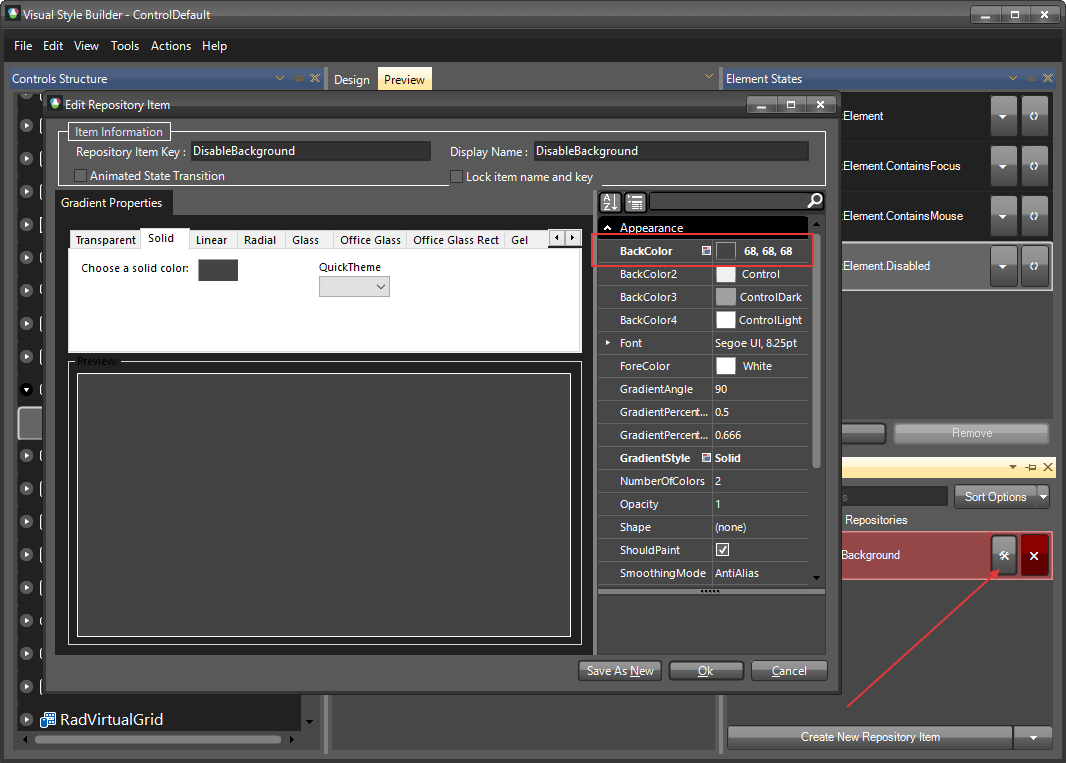
-
Select
RadTextBoxElementand change the BackColor, then save the theme. (you can press Ctrl+H to open the Spy and disable the text box to see the results):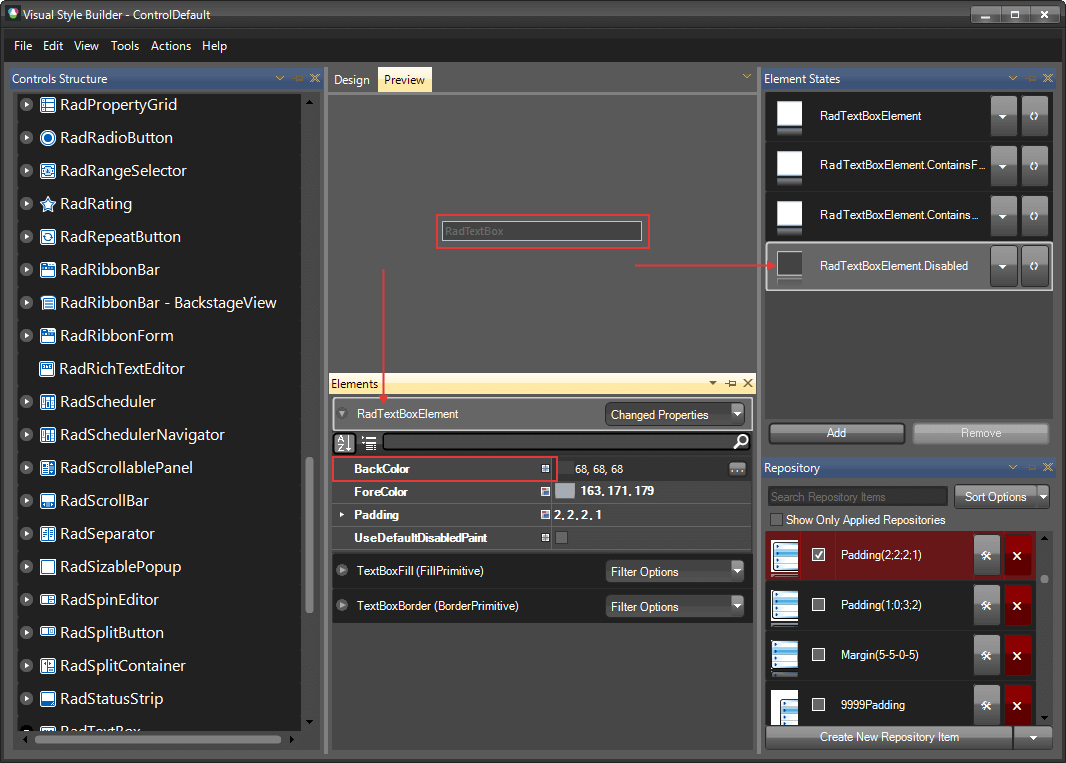
The following article shows how you can use the new theme: Using Custom Themes.