Formatting Items
Formatting drop down list items
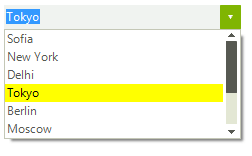
Items appearance in RadDropDownList can be customized by making use of the VisualListItemFormatting event. The following example demonstrates how you can change the color of an item which is being selected.
By using this event to customize the items appearance, you should always provide an else clause, where you reset the appearance settings which you have introduced. This is necessary since RadDropDownList uses data virtualization, which might lead to unpredicted appearance results when items are being reused.
Figure 1: Formatting items in drop down
Customize selected item appearance
private void radDropDownList1_VisualListItemFormatting(object sender, VisualItemFormattingEventArgs args)
{
    if (args.VisualItem.Selected)
    {
        args.VisualItem.NumberOfColors = 1;
        args.VisualItem.BackColor = Color.Yellow;
        args.VisualItem.BorderColor = Color.Blue;
    }
    else
    {
        args.VisualItem.ResetValue(LightVisualElement.NumberOfColorsProperty, Telerik.WinControls.ValueResetFlags.Local);
        args.VisualItem.ResetValue(LightVisualElement.BackColorProperty, Telerik.WinControls.ValueResetFlags.Local);
        args.VisualItem.ResetValue(LightVisualElement.BorderColorProperty, Telerik.WinControls.ValueResetFlags.Local);
    }
}
Customizing auto-complete drop-down appearance
In order to customize the auto complete pop-up, you should subscribe to the VisualItemFormatting event of the AutoCompleteSuggestHelper.
Subscribe to the VisualItemFormatting event of the auto complete popup
radDropDownList1.DropDownListElement.AutoCompleteSuggest.DropDownList.ListElement.VisualItemFormatting += new VisualListItemFormattingEventHandler(ListElement_VisualItemFormatting);
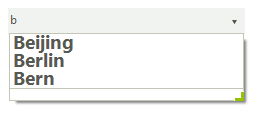
The following code snippet, will demonstrate how to change the Font of all items in the auto complete drop down.
Customize auto complete items appearance
Font myFont = new Font("Segoe UI", 14, FontStyle.Bold);

private void ListElement_VisualItemFormatting(object sender, VisualItemFormattingEventArgs args)
{
    args.VisualItem.Font = myFont;
}
Here we do not reset the style because we do want the Font for all items to be changed not only on certain one.
Figure 2: Formatting auto-complete items