Themes
This help article will demonstrate a step by step tutorial how to customize the ControlDefault theme for RadDesktopAlert:
-
Open VisualStyleBuilder: Start menu (Start >> Programs >> Telerik >> UI for WinForms [version] >> Tools).
-
Export the built-in themes in a specific folder by selecting File >> Export Built-in Themes.
-
Load a desired theme from the just exported files by selecting File >> Open Package
-
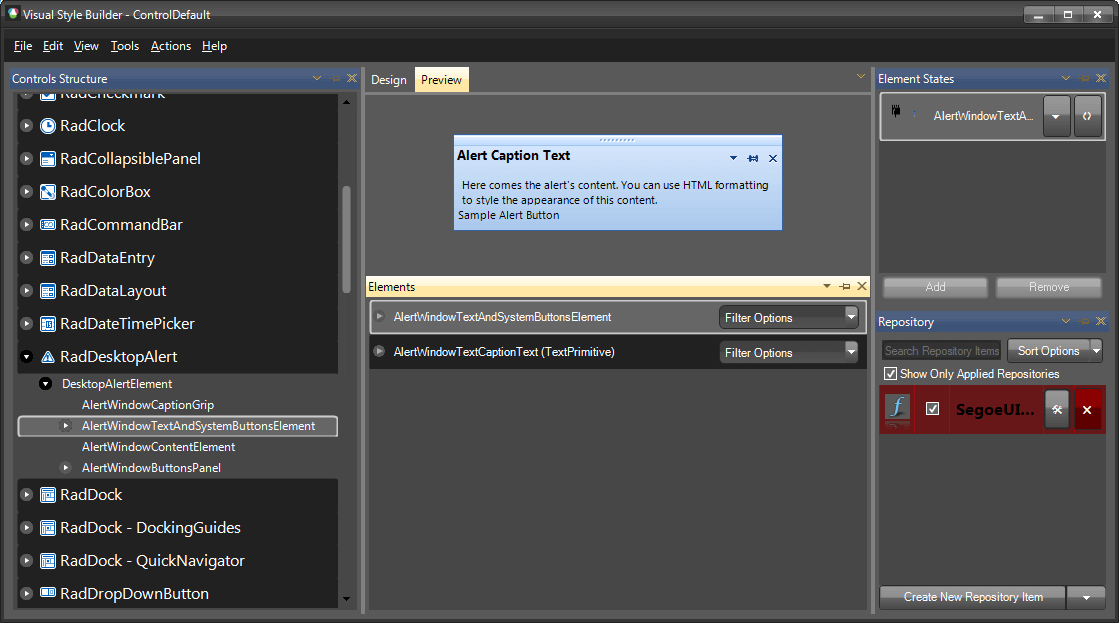
Select AlertWindowTextAndSysemButtonsElement in Controls Structure on the left side. Then, select AlertWindowTextAndSystemButtonsElement in the Elements section.
-
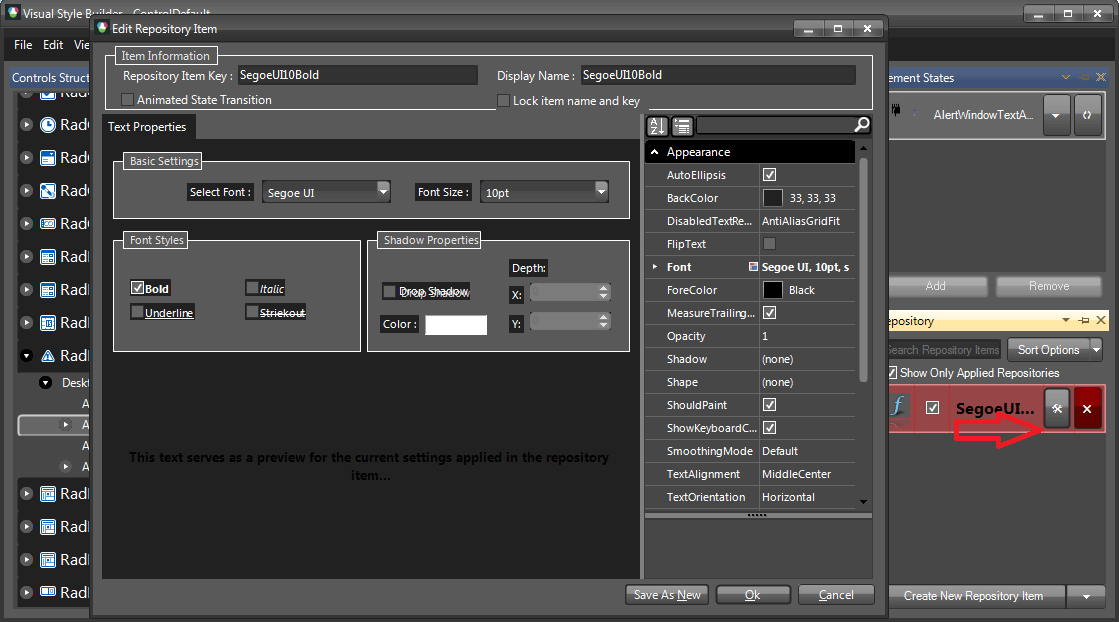
Modify the applied text repository item.
-
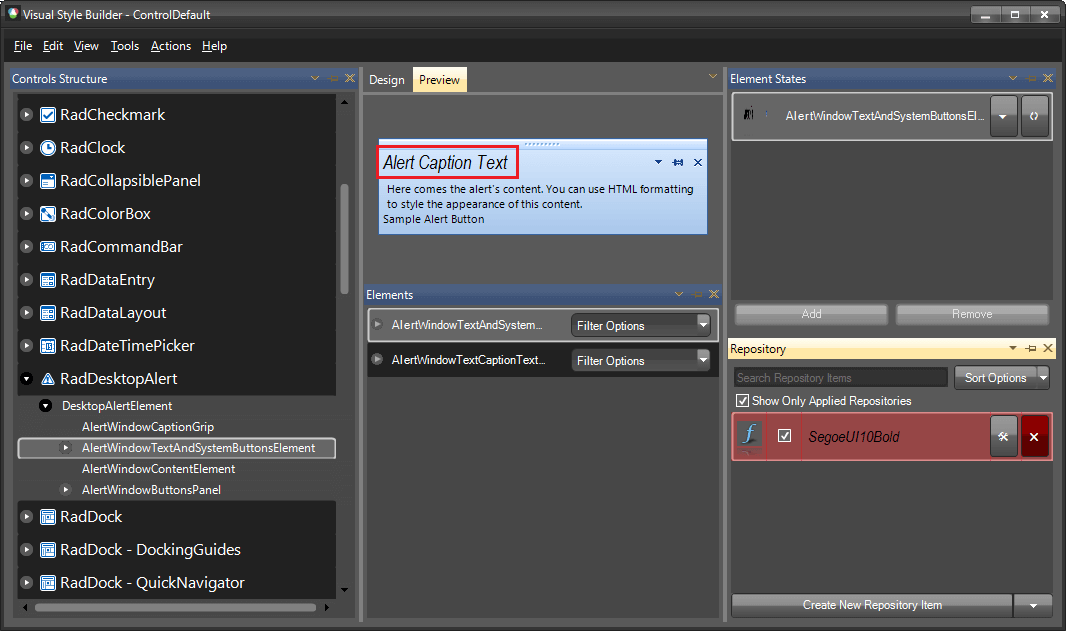
You can see the result directly in the Visual Style Builder.
-
Save the theme by selecting File >> Save As.
-
Now, you can apply your custom theme to RadDesktopAlert by using the demonstrated approach in the following link: Using custom themes