Change auto generated editor
By default RadDataEntry generates several different editors according to the data type of the property that it should edit. The following table demonstrates the default editors that RadDataEntry can create.
| enum | RadDropDownList |
|---|---|
| DateTime | RadDateTimePicker |
| Boolean | RadCheckBox |
| Color | RadColorBox |
| Image | PictureBox |
| string | RadTextBox |
| Byte, SByte, UInt16, UInt32, UInt64, Int16, Int32, Int64, Single, Double, Decimal | RadSpinEditor |
For any type that is not represented in this table RadDataEntry generates RadTextBox .
In the following example it will be demonstrated how to change default editor with the custom one.
1. For the purpose of this tutorial, we will create a new class Employee with a couple of exposed properties. By binding RadDataEntry to object from this type we will generate several items.
Data Object
private class Employee
{
    public string FirstName
    {
        get;
        set;
    }
    public string LastName
    {
        get;
        set;
    }
    public string Occupation
    {
        get;
        set;
    }
    public DateTime StartingDate
    {
        get;
        set;
    }
    public bool IsMarried
    {
        get;
        set;
    }

    public int Salary
    {
        get;
        set;
    }
    public Gender Gender
    {
        get;
        set;
    }
}
private enum Gender
{
    Female,
    Male
}Data Binding
this.radDataEntry1.DataSource = new Employee()
{
    FirstName = "Sarah",
    LastName = "Blake",
    Occupation = "Supplied Manager",
    StartingDate = new DateTime(2005, 04, 12),
    IsMarried = true,
    Salary = 3500, Gender = Gender.Female
};Figure 1: RadDataEntry Initializing.
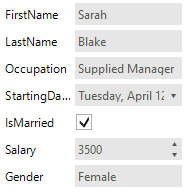
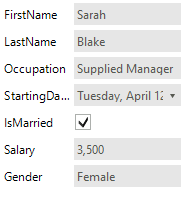
2. To change the default RadTextBox editor of the “Salary” property with RadMaskedEditBox we will subscribe to EditorInitializing event of RadDataEntry.
void radDataEntry1_EditorInitializing(object sender, Telerik.WinControls.UI.EditorInitializingEventArgs e)
{
    if (e.Property.Name == "Salary")
    {
        RadMaskedEditBox radMaskedEditBox = new RadMaskedEditBox();
        radMaskedEditBox.MaskType = MaskType.Numeric;
        radMaskedEditBox.MaskedEditBoxElement.StretchVertically = true;

        e.Editor = radMaskedEditBox;
    }
}3. To achieve working binding for this new editor we should subscribe to the BindingCreated event where we will subscribe to the Parse event of the Binding object. You can read more about Format and Parse events of Binding object and why we should use them here.
Subscribe to Parse Event
void radDataEntry1_BindingCreated(object sender, BindingCreatedEventArgs e)
{
    if (e.DataMember == "Salary")
    {
        e.Binding.Parse += new ConvertEventHandler(Binding_Parse);
    }
}

void Binding_Parse(object sender, ConvertEventArgs e)
{
    int salary = int.Parse(e.Value.ToString(), NumberStyles.Currency);
    e.Value = salary;
}
Figure 2: RadDataEntry MaskedEditBox.
RadSpinEditor Default Values
The spin editor is created with the default settings for Minimum/Maximum, DecimalPlaces, and Step. If a case, you are using fractional numbers, the decimal part will be lost so we need to change the above properties. You can do that in the EditorInitializing.
void radDataEntry_EditorInitializing(object sender, EditorInitializingEventArgs e)
{
    var spinEditor = e.Editor as RadSpinEditor;

    if (spinEditor == null)
        return;

    spinEditor.Step = 0.01m;
    spinEditor.DecimalPlaces = 2;
    spinEditor.Maximum = Decimal.MaxValue;
}