WinForms Chat File Upload
RadChat provides built-in file upload functionality that allows users to attach files and images to messages, preview them before sending, and download received files. The feature integrates with the existing RadPromptInputElement and uses the More button in the input area to trigger file selection.
Overview
The file upload workflow in RadChat consists of:
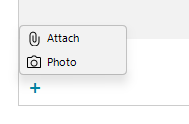
- The user clicks the Plus button in the input area and selects Attach File or Attach Photo.
- A file dialog opens for file selection.
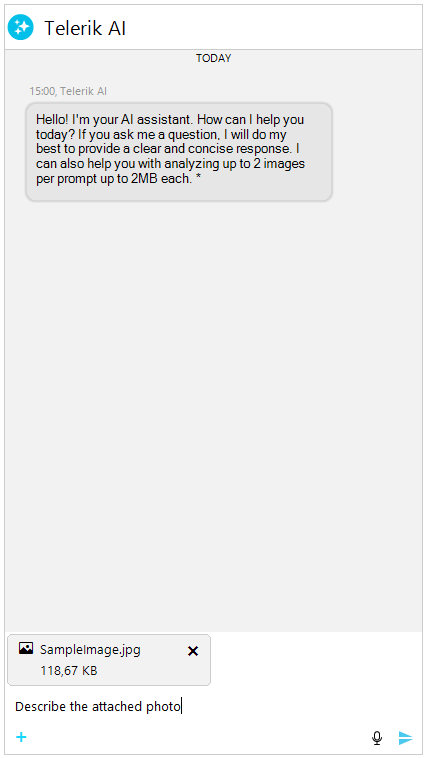
- Selected files appear in a preview area above the input buttons, showing file name, size, and a remove button.
- When the user sends the message, the attached files are bundled into the
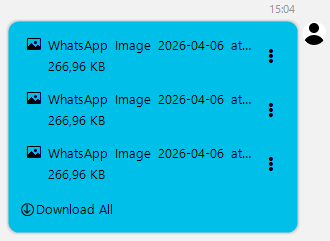
ChatTextMessagealongside any typed text. - The message appears in the chat area with attachment rows showing file icon, name, size, and a context menu for download.
The attachment system uses the PromptInputAttachedFile class as the data model for each attached file. Messages with attachments are rendered by the TextMessageItemElement, which displays attachment rows (ChatAttachmentRowElement) below the message text.
Enabling File Upload
File upload is available through the More button in the input area. To show the More button, set the IsMoreButtonVisible property to true:
Showing the More button to enable file upload
this.radChat1.IsMoreButtonVisible = true;The Plus button provides two default actions: Attach File (all file types) and Attach Photo (image files only).
Attaching Files Programmatically
You can add files to the input area programmatically through the AttachedFiles collection on the PromptInputElement:
Adding a file attachment programmatically
PromptInputAttachedFile file = new PromptInputAttachedFile(new System.IO.FileInfo(@"C:\Documents\report.pdf"));
this.radChat1.ChatElement.PromptInputElement.AttachedFiles.Add(file);You can also create a PromptInputAttachedFile manually by setting the FileName, FileSize, and GetFileStream properties:
Creating an attachment from a stream
PromptInputAttachedFile file = new PromptInputAttachedFile();
file.FileName = "data.json";
file.FileSize = 2048;
file.GetFileStream = () => new System.IO.MemoryStream(jsonBytes);
this.radChat1.ChatElement.PromptInputElement.AttachedFiles.Add(file);This approach is useful for server-based scenarios where the file content comes from a remote source.
Input Area Preview
When files are attached, they appear in the PromptInputAttachedFilesElement area above the buttons panel. Each file shows its icon, name, and size, along with a remove button.
The MaxVisibleAttachments property controls how many attachment rows are visible before the area becomes scrollable:
Setting the maximum visible attachments
this.radChat1.MaxVisibleAttachments = 5;The default value is 3.
Sending Messages with Attachments
When the user presses Send (or Enter), RadChat creates a ChatTextMessage that includes both the typed text and the attached files. The ChatTextMessage constructor accepts an optional IEnumerable<PromptInputAttachedFile> parameter:
Creating a message with attachments programmatically
List<PromptInputAttachedFile> files = new List<PromptInputAttachedFile>
{
    new PromptInputAttachedFile(new System.IO.FileInfo(@"C:\Documents\report.pdf")),
    new PromptInputAttachedFile(new System.IO.FileInfo(@"C:\Images\photo.png"))
};

ChatTextMessage message = new ChatTextMessage("Here are the files", files, this.radChat1.Author, DateTime.Now);
this.radChat1.AddMessage(message);Messages can contain text only, attachments only, or both. When no text is provided, pass null as the message parameter.
Chat Area Display
Sent messages with attachments are rendered by the TextMessageItemElement. Each attachment appears as a ChatAttachmentRowElement displaying:
- A file type icon
- The file name (truncated if too long)
- The file size (formatted in KB/MB)
- A context menu button with download options
When a message contains more than one attachment, a Download All button appears below the attachment rows.
Download and Interaction
Each attachment row provides a context menu with a Download option. Clicking it triggers the AttachmentActionRequested event and, if not handled, shows a save file dialog.
AttachmentActionRequested Event
The AttachmentActionRequested event fires when the user invokes an attachment action (Download or Share). Set AttachmentActionEventArgs.Handled to true to suppress the default behavior and provide custom handling:
Handling the AttachmentActionRequested event
this.radChat1.AttachmentActionRequested += this.OnAttachmentActionRequested;

private void OnAttachmentActionRequested(object sender, AttachmentActionEventArgs e)
{
    if (e.Action == AttachmentAction.Download)
    {
        // Custom download logic (for example, upload to server or open in browser)
        e.Handled = true;
    }
}The AttachmentActionEventArgs class provides the following properties:
| Property | Description |
|---|---|
| Attachment | The single PromptInputAttachedFile associated with the action. |
| Attachments | All attachments when the action applies to multiple files. |
| Action | The AttachmentAction enum value (Download or Share). |
| Handled | Set to true to suppress the default behavior. |
| IsMultiple | Indicates whether the action applies to multiple attachments. |
AttachedFilesChanged Event
The AttachedFilesChanged event fires when files are added to or removed from the input area attachment collection:
Handling the AttachedFilesChanged event
this.radChat1.AttachedFilesChanged += this.OnAttachedFilesChanged;

private void OnAttachedFilesChanged(object sender, EventArgs e)
{
    int count = this.radChat1.ChatElement.PromptInputElement.AttachedFiles.Count;
    Console.WriteLine("Attached files count: " + count);
}PromptInputAttachedFile Properties
The PromptInputAttachedFile class is the data model for file attachments:
| Property | Type | Description |
|---|---|---|
| FileName | string | The display name of the attached file. |
| FileSize | long | The size of the file in bytes. |
| GetFileStream | Func<Stream> | A factory delegate that provides a stream for reading the file content. |
| Data | object | Custom user data associated with the attachment. |
| IsDownloading | bool | Indicates whether the file is currently being downloaded. The UI can reflect this state. |