Worksheet View Exporter
The IWorksheetViewExporter interface allows you to manipulate the way the exported document appears when opened in an application. This article explains the available members of the interface and how to use it.
Creating Worksheet View Exporter
You can create an instance of the IWorksheetViewExporter interface through the corresponding method of IWorksheetExporter.
Example 1: Create an IWorksheetViewExporter from a worksheet exporter
using (IWorksheetViewExporter worksheetView = worksheetExporter.CreateWorksheetViewExporter())
{
	//...
}
IWorksheetViewExporterinherits from IDisposable. Make sure the object is disposed when you are done with it. Otherwise, the content will not be written in the exported file. The best way to ensure this is handled properly is to wrap it in a using statement.
Working with IWorksheetViewExporter
The IWorksheetViewExporter interface allows you to perform the following operations:
Change the First Visible Cell
With the IWorksheetViewExporter interface you can set the first visible cell. This cell is positioned at the top left position of the visible area when the document is rendered. Example 2 shows how to generate a document containing one worksheet, which, when visualized, displays the C5 cell as the top left cell.
Example 2: Export a Document with First Visible Cell C5
using (IWorksheetExporter worksheetExporter = workbookExporter.CreateWorksheetExporter("Sheet 1"))
{
	using (IWorksheetViewExporter worksheetView = worksheetExporter.CreateWorksheetViewExporter())
	{
		worksheetView.SetFirstVisibleCell(4, 2);
	}
	//Fill the worksheet.
}
Add Selection to a Document
IWorksheetViewExporter defines methods that allow you to apply selection to the exported document so that it contains selection ranges when visualized. You can also change the position of the active cell in the selection.
Example 3: Add multiple selection ranges to the exported worksheet view
using (IWorksheetExporter worksheetExporter = workbookExporter.CreateWorksheetExporter("Sheet 1"))
{
	using (IWorksheetViewExporter worksheetView = worksheetExporter.CreateWorksheetViewExporter())
	{
		worksheetView.AddSelectionRange(2, 2, 5, 5);
		worksheetView.AddSelectionRange(4, 4, 8, 8);
		worksheetView.AddSelectionRange(3, 3, 10, 10);
	}
	//Fill the worksheet.
}
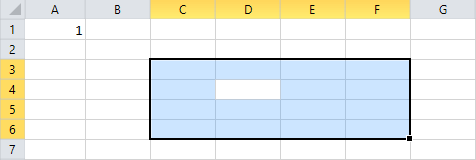
Example 4: Add a selection range and set D4 as its active cell
using (IWorksheetExporter worksheet = workbookExporter.CreateWorksheetExporter("Sheet 1"))
{
	using (IWorksheetViewExporter worksheetView = worksheet.CreateWorksheetViewExporter())
	{
		worksheetView.AddSelectionRange(2, 2, 5, 5);
		worksheetView.SetActiveSelectionCell(3, 3);
	}
	//Fill the worksheet with data.
}
Figure 1: Selection with specified active cell
Scale a Document
You can apply a scale factor to the exported document.
Example 5: Scale the worksheet view to 50 percent
worksheetView.SetScaleFactor(0.5);Hide Grid Lines and Row or Column Headers
IWorksheetViewExporter enables you to set whether the resultant document is visualized with grid lines and headers. Example 6 demonstrates how to hide both grid lines and row/column headers.
Example 6: Hide grid lines and row and column headers in the worksheet view
worksheetView.SetShouldShowGridLines(false);
worksheetView.SetShouldShowRowColumnHeaders(false);
Freeze Panes
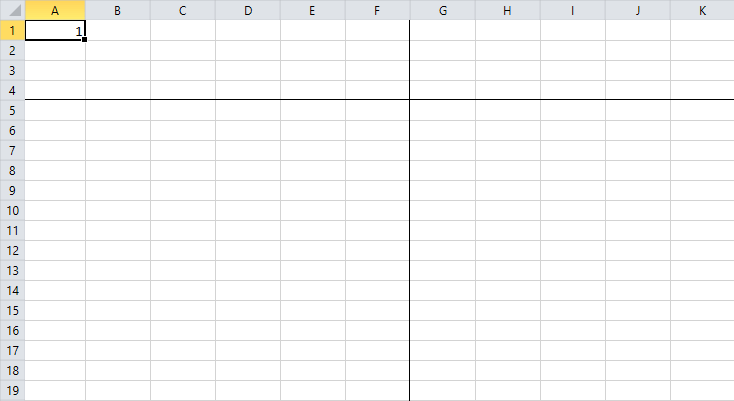
You can freeze panes in the spreadsheet document through the SetFreezePanes() method.
Example 7: Freeze the top four rows and leftmost six columns
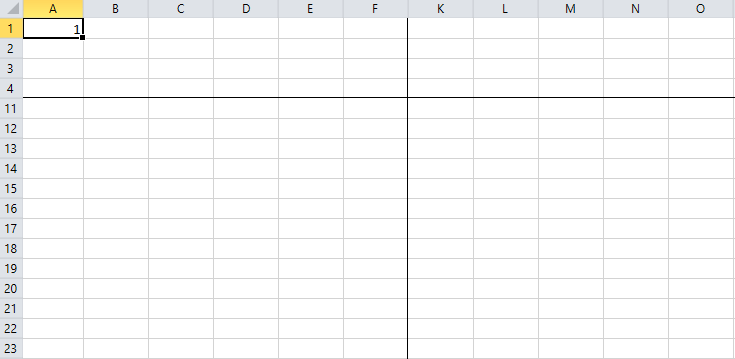
worksheetView.SetFreezePanes(4, 6);Figure 2: Frozen panes
An overload of the SetFreezePanes() method enables you to change the first visible cell of the scrollable pane (the right-bottom pane).
Example 8: Freeze panes and make K11 the first visible cell in the scrollable pane
worksheetView.SetFreezePanes(4, 6, 10, 10);In Figure 3, you can see that the first visible cell of the scrollable pane is K11.
Figure 3: Frozen panes with modified first visible cell of the scrollable pane