Spreadsheet Analysis with Telerik Document Processing Libraries Agentic Tools

Summarize with AI:
Agentic workflows provide dynamic ways to interact with and analyze documents. The Progress Telerik Document Processing Libraries now have these AI tools ready to use!
Modern applications rely on automation and intelligent processing to handle large volumes of data, and spreadsheets are no exception. With the 2026 Q1 release, Progress introduced Agentic Tools (in Preview) for Telerik Document Processing Libraries (DPL).
These tools are purpose‑built .NET APIs for agentic document workflows, enabling AI agents to analyze, extract, edit and generate Excel and PDF files; run aggregates; transform content; and convert formats directly inside your app. The new Agentic Tools cover both PdfProcessing and SpreadProcessing libraries and are available with a Subscription license.
In this post, we’ll walk you through how to use the SpreadProcessing Agentic Tools to analyze an existing spreadsheet.
Importing the Workbook
Let’s create a simple .NET console app. Our first step is to import the Workbook. I am going to add the necessary DPL dependencies, in this case:

and then use this code:
Workbook workbook = null;

using (Stream input = File.OpenRead("Electric_Vehicle_Population_Data.xlsx"))
{
    XlsxFormatProvider formatProvider = new();
    workbook = formatProvider.Import(input, null);
}
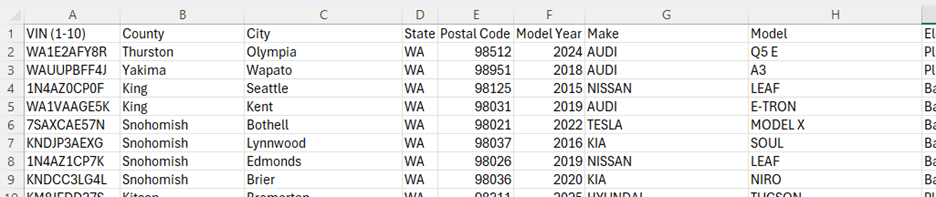
In case you are wondering, this file contains 17 columns and 75,331 rows of data.
An agent using the DPL tools can work with multiple files at the same time by importing and exporting them via the SpreadProcessingFileManagementAgentTools and managing them with the InMemoryWorkbookRepository. However, in this example we are going to concentrate on analyzing one workbook, so we are going to use the SingleWorkbookRepository, a class which gives an agent a single file to work with in memory.
IWorkbookRepository repository = new SingleWorkbookRepository(workbook);
For this code, we need to reference the Telerik.Documents.AI.AgentTools.Spreadsheet package.
Initializing the DPL Agentic Tools
Initializing the Agentic Tools is very simple. For this example, we will use an Azure Open AI deployment, so first we are going to add the Microsoft.Agents.AI.OpenAI and Azure.AI.OpenAI packages. Then we are going to collect the Read and Formula tools in one collection:
List<AITool> tools = new SpreadProcessingReadAgentTools(repository).GetTools().ToList();
tools.AddRange(new SpreadProcessingFormulaAgentTools(repository).GetTools());
And then we can initialize our agent. We are going to need an Azure Open AI endpoint and key and are going to use gpt-4.1-mini.
OpenAI.Chat.ChatClient chatClient = new AzureOpenAIClient(
    new Uri(endpoint),
    new ApiKeyCredential(key))
    .GetChatClient(model);

AIAgent agent = chatClient.AsIChatClient().AsAIAgent(
    instructions: "",
    name: "SpreadsheetAnalyzer",
    tools: tools);
At this point, we can already ask a simple question to check our progress:
AgentResponse response = await agent.RunAsync("What is the value on cell A4?");
Console.WriteLine(response.ToString());
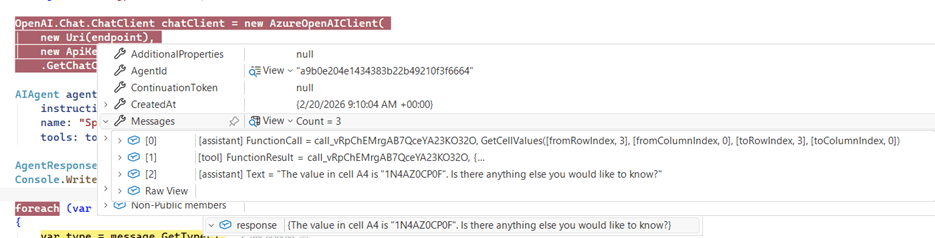
Here is the result:

If you examine the response of the agent more closely, you will notice that it contains three messages. The first is the function call the agent made to the document processing tool GetCellValues and with what parameters. The second is the response. And the third is what the LLM has reasoned and has decided to give us.
Giving It UI
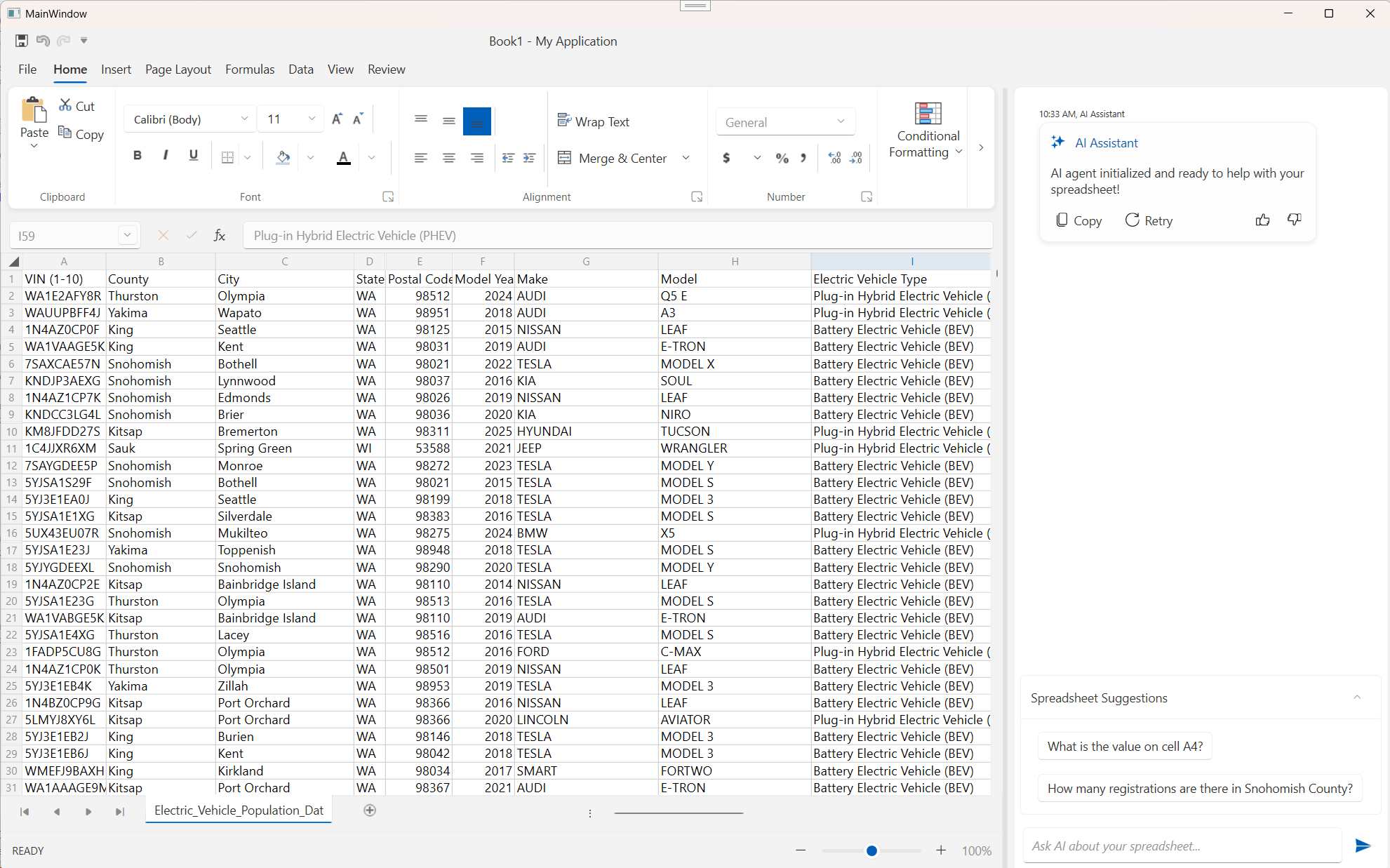
A console app is good for a proof of concept, but it would be nice to give our functionality a more finished look. One of the ways to do this is by using some Progress Telerik for WPF controls. The RadSpreadsheet control can show the content of our file, and we can leverage RadChat for the conversation with the agent.
We can give the repository the Workbook object of the RadSpreadsheet like this when initializing the chat:
IWorkbookRepository repository = new SingleWorkbookRepository(this.radSpreadsheet.Workbook);
Then we are going to subscribe to the SendMessage event, which is where our logic for running the agent is going to go:
this.radChat.SendMessage += this.RadChat_SendMessage;
After a few more tweaks, this is the result:
The full code of the demo can be found on this link: AgentToolsAnalyzeSpreadsheet on GitHub
Conclusion
Agentic workflows introduce a powerful new way to interact with documents, moving beyond static reading and writing to dynamic, intelligent analysis. As you’ve seen, the setup integrates seamlessly with .NET, and, once the agent is initialized, it can leverage the full capabilities of the Document Processing Libraries.
This example is just the beginning! The same approach can be extended to multi-document scenarios, automated reporting, data validation or even generating new spreadsheets from scratch.
The future of document processing is agentic, and it’s already here.
Try out the Telerik Document Processing Libraries, which are included in the Telerik DevCraft bundles to pair perfectly with your favorite component libraries.
Try Telerik DevCraft

Anna Velcheva
Anna is a software developer for the Document Processing team at Progress. She has been with the company since 2013. When not working on products that make other developers’ lives easier, she enjoys computer games, books, nature and running after her kids.
Related Posts
Comments
All articles
Topics
Web MobileMobile
Desktop
Design
Productivity
People