Users and Permissions
Manage Users
Register New User
Each user is registered with the following information:
-
Authentication Provider - in case you have set up an external authentication provider (AD FS), a Federation entry will be added in the drop-down list. Otherwise, only Local is available.
-
Username
-
Password - available only for local accounts. By default, the password must conform to the following rules:
- at least 6 characters long
If a mail (SMTP) server is configured, there is no need to specify a password for the new local user. After saving the new user, an email with a special activation link will be sent to the user's email address. When clicking the link, the user will be taken to a page to set their password, after which they will be redirected to the login page.
-
Email
-
First Name - available only for local accounts. When creating a Federation user, its names will be populated upon first login using AD FS.
-
Last Name - available only for local accounts.
-
Roles - optional. You can assign the user to one or more existing user roles.
Modify User
You can change the following user settings:
- First Name
- Last Name
- Password
- Enabled
Disabling a user will stop their access to the report server assets and will free a CAL for a new user.
Delete User
The Guest user and the currently logged user cannot be deleted. All other users can be deleted by a user with sufficient permissions. Deleting a user will unlock their reports and will remove the user from all roles they are currently assigned to. Deleting a user will free a CAL for a new user.
Manage User Permissions
You can add/remove permissions by clicking on the Manage Permissions button from the Permissions tab.
Manage Permissions
You can grant permissions to a user from the Apply Roles and Add Permission tabs.
The Apply Roles tab allows assigning users to user roles. The user can simultaneously belong to more than one user group. In this way, they receive the permissions of the user role.
The Add Permission tab allows giving specific permissions to users. Each permission has an Access Mode, Scope, and Target:
Access Modes
-
Read - gives a read permission for the selected scope.
-
Modify - gives an edit permission for the selected scope.
-
Delete - gives delete permission for the selected scope.
-
Create - gives create permission for the selected scope.
-
Allow Reading Nested Reports - gives a read permission for the SubReports in other Reports and Reports in Report Books that reference report definitions in the selected scope. The permission is visible only for the following scopes:
- Reports in Category
- Specific Report
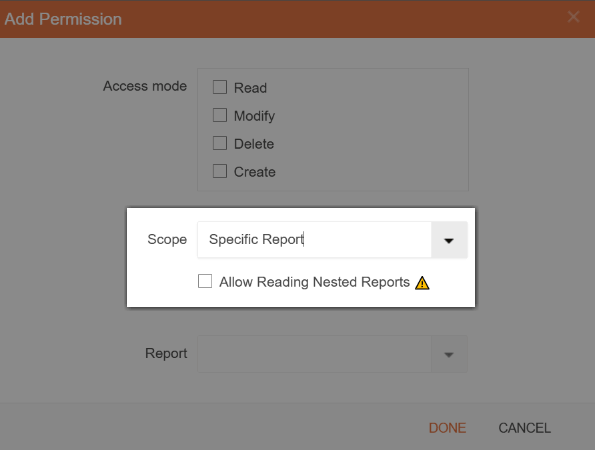
The default behavior is restrictive. If a user lacks Read permission for a subreport, the subreport is not rendered.
When the permission is enabled, the user may render any subreport nested in the allowed scope hierarchy.
Examples:
- To render SubReport1 in main report MainReport1, the user must have Read permission for SubReport1 or Allow Reading Nested Reports for MainReport1.
- To render SubReport2 nested in SubReport1 nested in MainReport1, the user must have Read permission for SubReport2 or Allow Reading Nested Reports for MainReport1 or SubReport1.
Modify and Delete access modes require Read access. Create access mode cannot have a specific scope (e.g. Specific Report, Specific Category, Specific Data Connection).
Scopes
- Reports in All Categories - the permission applies to all the reports.
- Reports in Category - the permission applies to all the reports that belong to a specific category.
- Specific Report - the permission applies to a specific report.
- All Categories - the permission applies to all categories.
- Specific Category - the permission applies to a specific category.
- All Data Connections - the permission applies to all data connections.
- Specific Data Connection - the permission applies to a specific data connection.
- All Tasks - the permission applies to all tasks.
- Specific Task - the permission applies to a specific task.
- All Data Alerts - the permission applies to all data alerts.
- Specific Data Alert - the permission applies to a specific data alert.
Targets
The scope target depends on the selected scope:
- For Reports in Category scope you have to choose a specific Category.
- For Specific Report scope you have to choose a specific Report.
- For Specific Category scope you have to choose a specific Category.
- For Specific Data Connection scope you have to choose a specific Data Connection.
- For Specific Task scope you have to choose a specific Task.