Report Server for .NET in Containers
Introduced in 2025 Q2 (11.1.25.521), Report Server for .NET (aka RS.NET) can be run as a Linux container using our official images in the Docker.io registry.
The manifest contains images for
linux/amd64andlinux/arm64architectures.
Installation
While you can deploy these containers separately, we strongly recommend using a stack like Docker Compose to keep everything coordinated.
To demonstrate this, we will walk you through using docker-compose.yml and the docker compose up -d commands; however, you can adapt this for your preferred container tooling (e.g., Portainer, podman, etc).
Overview / Order of Operations
As we'll be repeatedly stopping and restarting containers for the initial setup, it is good to review this list before you get started to avoid confusion later. We will be doing the following:
- Create docker-compose.yml, set initial values.
- Set up the manager container app:
- START the stack (Report Server Manager and SQL Server only) => Follow the onboarding wizard to create an admin user, then generate and download encryption keys.
- STOP the stack => set the encryption key environment variables you got from the previous step.
- START the stack (the Report Server Manager setup is finished)
- Set up the agent container app:
- Log into the manager app and create a new agent configuration
- STOP the stack => uncomment the agent's YAML, and set the environment variables you got from the previous step
- START the stack => log into the manager app and confirm the agent is connected.
This repeated start/stop/start process is only needed the first time you set up Report Server, so you can generate the required runtime configs.
Next, let's peek at a simplified outline of the docker-compose.yml to explain the stack's basic structure:
services:
  # The Manager app
  telerik-report-server:
    image: progressofficial/telerik-reportserver-app:latest
    depends_on:
      - storage

  # The Agent app
  telerik-report-server-agent:
    image: progressofficial/telerik-reportserver-agent:latest

  # The storage app
  storage:
    image: "mcr.microsoft.com/mssql/server:2022-latest"

volumes:
  mssql-storage:
There are three apps in the stack: the manager, the agent, and the SQL server. To keep things simple, we will slowly build up the docker-compose.yml as we go.
Setup
Step 0. Prerequisites
Let's get the required files out of the way. This is better if you do it in an empty folder that is dedicated to the stack
- Create a new, empty directory to work in (e.g. ~/report-server-compose)
- Inside the directory, create two new files
docker-compose.yml.env
Step 1. Environment Variables
In our example, we use variable substitution placeholders like ${variable_name} in the docker-compose file. The flexibility of this approach allows you to use whatever your preferred approach of setting environment variables (docker CLI env, runtime secrets, .env, and more). To keep things simple for this tutorial, we will use an .env file, as the docker compose up command will automatically find and use it!
Open the .env file and copy/paste the following content:
# CHANGE ME!
MY_SQL_PASS=my3xTraStr0ngP@ssw0rd

# Provided by Report Server Manager during initial setup
MY_RS_NET_MAIN_PRIVATE_KEY=
MY_RS_NET_BACKUP_PRIVATE_KEY=

# Provided by Report Server Manager when configuring a new agent
MY_AGENT_SERVER_ADDRESS=http://telerik-report-server
MY_AGENT_AUTHTOKEN=
MY_AGENT_AGENTID=

# YOUR TELERIK LICENSE KEY
MY_TELERIK_LICENSE=
Then, perform the following steps:
- Update
MY_TELERIK_LICENSEwith your Telerik license key (you can download a copy from https://prgress.co/DevToolsLicenseKeys). - Update
MY_SQL_PASSto a different password than "my3xTraStr0ngP@ssw0rd" (see SQL Server Password Policy for rules). - The other variables will get updated in steps 2 and 3 below.
Save the changes, but don't close the file yet; you'll need to edit it again before we're done.
Step 2. Configure the Report Server Manager app
To begin, we'll add the Report Server Manager app and the SQL Server app to the docker-compose.yml file.
Step 2.1
-
Open the
docker-compose.ymlfile in your favorite text editor -
Paste the following content, and save the file.
yamlservices: # The Manager app telerik-report-server: image: progressofficial/telerik-reportserver-app:latest restart: always environment: - TELERIK_LICENSE=${MY_TELERIK_LICENSE} - RS_NET_MainPrivateKey=${MY_RS_NET_MAIN_PRIVATE_KEY} - RS_NET_BackupPrivateKey=${MY_RS_NET_BACKUP_PRIVATE_KEY} - reportServer__storage__isDefault=false - reportServer__storage__provider=MsSqlServer - reportServer__storage__parameters__0__name=ConnectionString - reportServer__storage__parameters__0__value=Data Source=storage;Initial Catalog=reportserver;Password=${MY_SQL_PASS};User Id=sa;Encrypt=false ports: - "82:80" depends_on: - storage # <-- leave space here for agent section later --> # The storage app storage: image: "mcr.microsoft.com/mssql/server:2022-latest" restart: always environment: - MSSQL_SA_PASSWORD=${MY_SQL_PASS} - ACCEPT_EULA=Y volumes: - mssql-storage:/var/opt/mssql volumes: mssql-storage:Notice the
${name}substitution placeholders? This will be replaced by the values from the.envfile! -
In your preferred shell (bash, powershell), navigate to the directory that contains the
docker-compose.ymland.envfiles -
Run the
docker compose up -dcommand to start the stack
- Wait until the images have been pulled and the containers are running
- Once it is running, navigate to the Report Server Manager app in your web browser (e.g. http://localhost:82)
- Follow the wizard steps and finish setting up the admin account
- On the final step, download the provided mainPrivateKey.rsk and backupPrivateKey.rsk files
- Run
docker compose downto stop the stack
Step 2.2
-
Open mainPrivateKey.rsk and backupPrivateKey.rsk files in any text editor
-
Go back to your
.envfile and update the respective environment variablesbashMY_RS_NET_MAIN_PRIVATE_KEY="paste mainPrivateKey.rsk's contents here" MY_RS_NET_BACKUP_PRIVATE_KEY="paste backupPrivateKey.rsk's contents here"Don't forget to save the file after making changes!
-
Run the
docker compose up -dcommand to start the stack again -
Once it is running, go back to the Report Server Manager app in your web browser (e.g. http://localhost:82) and confirm it is running.
You're done with setting up the Report Server Manager app! Now, it's time to set up and configure the Report Server Agent app.
Step 3 - Create a New Service Agent
Now that the stack is running again, let's set up a new agent.
Step 3.1
-
In the web browser, log into the Report Server Manager (e.g. http://localhost:82).
-
Open the Configuration page.
-
Click on the SERVICE AGENT tab and start the creation of a new Server Agent by pressing the CONFIGURE NEW AGENT button.
-
In the Configure New Agent pop-up window, enter the URL of the Report Server Manager app (e.g. http://localhost:82):
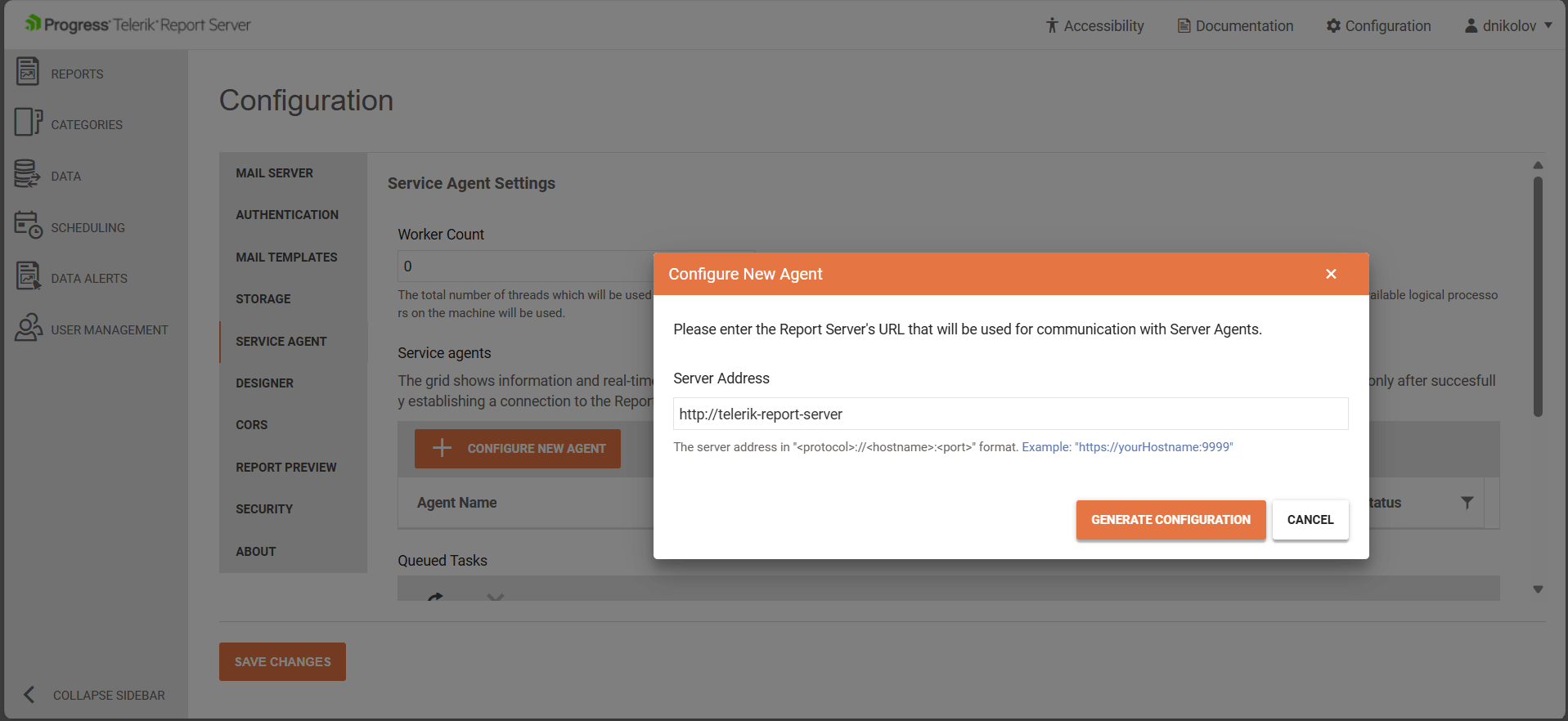
We can also use
http://telerik-report-serverfor the address because "telerik-report-server" is the name of the service in the stack. -
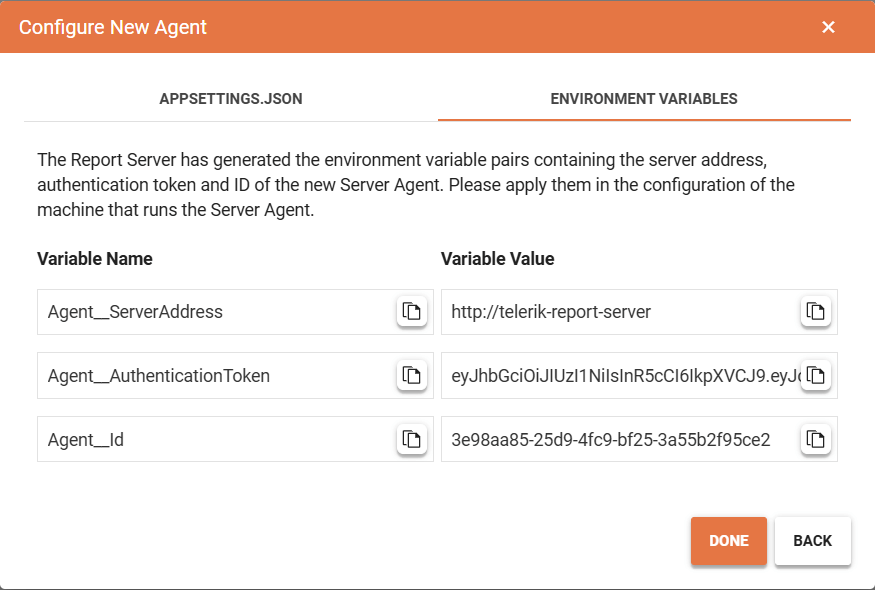
Click the GENERATE CONFIGURATION button. When the pop-up appears, switch to the ENVIRONMENT VARIABLES tab, and then copy/paste values:
Step 3.2
Using the values from the previous step, update the variables in your .env file:
-
Edit your
.envfile and update the respective environment variablesbashMY_AGENT_SERVER_ADDRESS=#Agent__ServerAddress value goes here, no spaces! MY_AGENT_AUTHTOKEN=#Agent__AuthenticationToken value goes here, no spaces! MY_AGENT_AGENTID=#Agent__Id value goes here, no spaces!- Save the changes!
-
Go back to the
docker-compose.ymlfile and now add the agent's service (see the "AGENT - START" comment):yamlservices: # The Manager app telerik-report-server: image: progressofficial/telerik-reportserver-app:latest restart: always environment: - TELERIK_LICENSE=${MY_TELERIK_LICENSE} - RS_NET_MainPrivateKey=${MY_RS_NET_MAIN_PRIVATE_KEY} - RS_NET_BackupPrivateKey=${MY_RS_NET_BACKUP_PRIVATE_KEY} - reportServer__storage__isDefault=false - reportServer__storage__provider=MsSqlServer - reportServer__storage__parameters__0__name=ConnectionString - reportServer__storage__parameters__0__value=Data Source=storage;Initial Catalog=reportserver;Password=${MY_SQL_PASS};User Id=sa;Encrypt=false ports: - "82:80" depends_on: - storage # ******* AGENT - START ******* # telerik-report-server-agent: image: progressofficial/telerik-reportserver-agent:latest restart: always environment: - Agent__ServerAddress=${MY_AGENT_SERVER_ADDRESS} - Agent__AuthenticationToken=${MY_AGENT_AUTHTOKEN} - Agent__Id=${MY_AGENT_AGENTID} - TELERIK_LICENSE=${MY_TELERIK_LICENSE} command: dockerize -wait tcp://telerik-report-server:80 -timeout 1200s # ******* AGENT - END ******* # # The storage app storage: image: "mcr.microsoft.com/mssql/server:2022-latest" restart: always environment: - MSSQL_SA_PASSWORD=${MY_SQL_PASS} - ACCEPT_EULA=Y volumes: - mssql-storage:/var/opt/mssql volumes: mssql-storage: -
Run the
docker compose up -dcommand to start the stack again. -
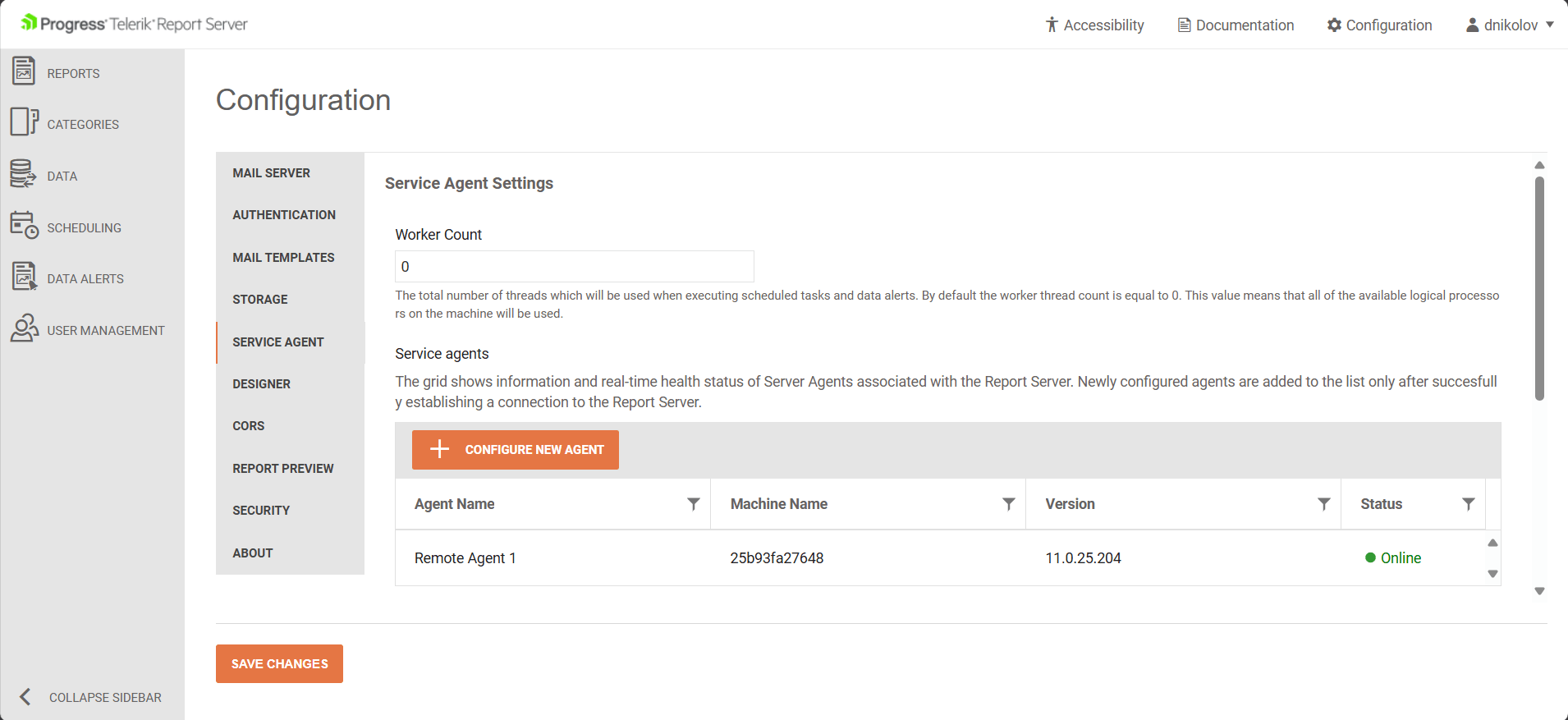
Open the Configuration page with the Service Agents again. Now, there should be one agent visible in the Server Agents table in the middle of the page:
Conclusion
To conclude, here is everything in its final form, without commentary.
docker-compose.yml
services:
  telerik-report-server:
    image: progressofficial/telerik-reportserver-app:latest
    restart: always
    environment:
      - RS_NET_MainPrivateKey=${MY_RS_NET_MainPrivateKey}
      - RS_NET_BackupPrivateKey=${MY_RS_NET_BackupPrivateKey}
      - TELERIK_LICENSE=${MY_TELERIK_LICENSE}
      - reportServer__storage__provider=MsSqlServer
      - reportServer__storage__parameters__0__name=ConnectionString
      - reportServer__storage__parameters__0__value=Data Source=storage;Initial Catalog=reportserver;Password=${MY_SQL_PASS};User Id=sa;Encrypt=false
      - reportServer__storage__isDefault=false
    ports:
      - "82:80"
    depends_on:
      - storage

  telerik-report-server-agent:
    image: progressofficial/telerik-reportserver-agent:latest
    restart: always
    environment:
      - Agent__ServerAddress=${MY_AGENT_SERVER_ADDRESS}
      - Agent__AuthenticationToken=${MY_AGENT_AUTHTOKEN}
      - Agent__Id=${MY_AGENT_AGENTID}
      - TELERIK_LICENSE=${MY_TELERIK_LICENSE}
    command: dockerize -wait tcp://telerik-report-server:80 -timeout 1200s

  storage:
    image: "mcr.microsoft.com/mssql/server:2022-latest"
    restart: always
    environment:
      - MSSQL_SA_PASSWORD=${MY_SQL_PASS}
      - ACCEPT_EULA=Y
    volumes:
      - mssql-storage:/var/opt/mssql

volumes:
  mssql-storage:
.env
MY_RS_NET_MAIN_PRIVATE_KEY=
MY_RS_NET_BACKUP_PRIVATE_KEY=

MY_AGENT_SERVER_ADDRESS=
MY_AGENT_AUTHTOKEN=
MY_AGENT_AGENTID=

MY_SQL_PASS=
MY_TELERIK_LICENSE=
Upgrading
Execute the following commands to upgrade the Report Server for .NET. Run them from the directory that contains your docker-compose.yml file, or specify the file explicitly with -f /path/to/docker-compose.yml:
docker compose pulldocker compose downdocker compose up -dIf you need to revert to an older Report Server for .NET version, replace the tag
latestin thedocker-compose.ymlwith the corresponding version tag.