New to Telerik UI for WPF? Start a free 30-day trial
How to Change GridViewCell Highlighted Background and Foreground Color
Updated on Mar 17, 2026
Environment
| Product Version | 2022.2.622 |
| Product | RadGridView for WPF |
Description
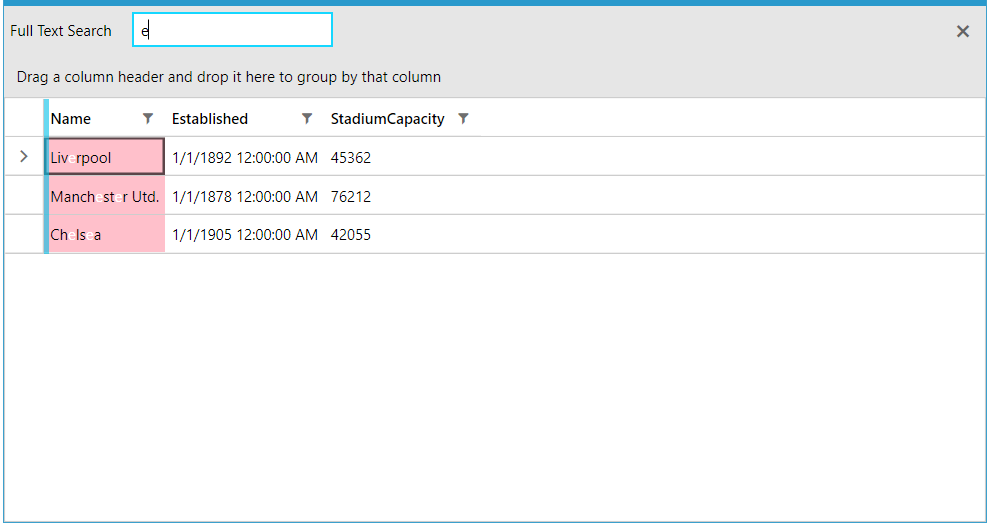
How to change the highlighted background and foreground colors of a matched GridViewCell element when search as you type is applied.
Solution
To change the background color, create a new Style and set its TargetType property to GridViewCell. Then, add a new setter for the HighlightedBackground property and set it to the desired value.
XAML
    <!-- If you use NoXaml dlls set the BasedOn property of the Style: BasedOn="{StaticResource GridViewCellStyle}" -->
    <Style TargetType="telerik:GridViewCell">
        <Setter Property="HighlightedBackground" Value="Pink"/>
    </Style>
To modify the foreground color of the matched GridViewCell, create a new Style and set its TargetType to HighlightTextBlock. After that, set the wanted foreground color to its HighlightBrush property.
XAML
	<!-- If you use NoXaml dlls set the BasedOn property of the Style: BasedOn="{StaticResource HighlightTextBlockStyle}" -->
	<Style TargetType="telerik:HighlightTextBlock">
	        <Setter Property="HighlightBrush" Value="White"/>
	</Style>