Sorting
The data in the ListBox control can be sorted using few approaches.
The most basic sorting method that can be utilized is to manually sort the original collection assigned to the ItemsSource of the RadListBox control. This will re-order the items in the view.
An easier approach would be to use ICollectionView implementation that works with sort, group and filter descriptors. One possible collection type that can be used is the Telerik's QueryableCollectionView which implements ICollectionView. The following example shows how to setup RadListBox and sort it by a property of the item model, using the SortDescriptors of the collection view.
-
Create the item model.
Defining the item model
C#public class ItemInfo : ViewModelBase { private double number; public double Number { get { return number; } set { this.number = value; OnPropertyChanged("Number"); } } public string Label { get; set; } } -
Define the data and the QueryableCollectionView. The
SortDescriptoradded in theSortDescriptorscollection tells which property should be used to sort the data. Multiple descriptors can be added to the collection.Setting up the data
C#public MainWindow() { InitializeComponent(); var r = new Random(0); var source = new ObservableCollection<ItemInfo>(); for (int i = 0; i < 6; i++) { source.Add(new ItemInfo() { Label = "Item " + i, Number = r.Next(10, 100) }); } var qcv = new QueryableCollectionView(source); qcv.SortDescriptors.Add(new SortDescriptor() { Member = "Number", SortDirection = ListSortDirection.Descending }); this.listBox.ItemsSource = qcv; } -
Setup the RadListBox.
Setting up the view
XAML<telerik:RadListBox x:Name="listBox"> <telerik:RadListBox.ItemTemplate> <DataTemplate> <StackPanel> <TextBlock Text="{Binding Label}" FontSize="14" /> <TextBlock Text="{Binding Number}" Foreground="#A24B40"/> </StackPanel> </DataTemplate> </telerik:RadListBox.ItemTemplate> </telerik:RadListBox>
Sorted RadListBox
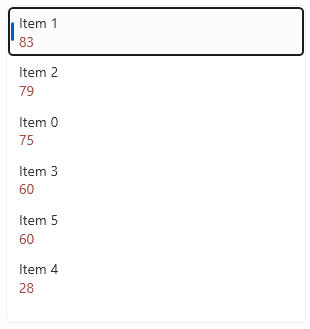
The QueryableCollectionView doesn't support live sorting. This means that the order of the items won't change automatically when a value of the property by which the view is sorted changes. To update the view, the Reset method of the sort descriptors should be called.
Resetting the SortDescriptors
	source[0].Number = -20;
	this.queryableCollectionView.SortDescriptors.Reset();
The following section shows how to use live sorting without the need to manually reset any descriptors. This can be done using the ListCollectionView class.
Live Sorting
To enable live sorting, a collection type that supports such functionality should be used. For example, the ListCollectionView allows this after setting its IsLiveSorting property to true.
Compared to the QueryableCollectionView, the ListCollectionView has a collection named SortDescriptions, instead of SortDescriptors. This collection view type works with SortDescription objects.
Setting up ListCollectionView to support live sorting
	public MainWindow()
	{
		InitializeComponent();
		var source = new ObservableCollection<ItemInfo>();
		for (int i = 0; i < 6; i++)
		{
			source.Add(new ItemInfo() { Label = "Item " + i, Number = r.Next(10, 100) });
		}

		var lcv = new ListCollectionView(source);
		lcv.IsLiveSorting = true;
		lcv.SortDescriptions.Add(new SortDescription("Number", ListSortDirection.Descending));
		this.DataContext = lcv;
	}