Screen Tips
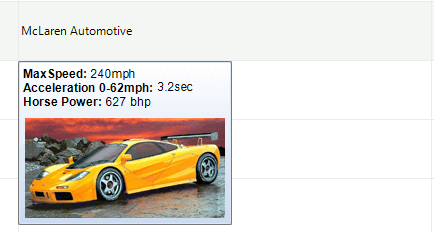
Screen Tip is a UI feature which consists of a small window that appears when the mouse cursor is hovered over a particular element. By default each control has a ScreenTipNeeded event which is fired when the mouse hovers over the various elements inside the control. The screen tip extends the tooltips functionality because it can show many different elements including images.
Figure 1: A ScreenTip in RadGridView.
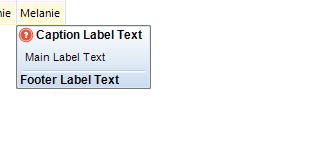
The RadOffice2007ScreenTipElement is the screen tip that is currently available in the Telerik UI for WinForms suite. This screen tip contains 3 labels and a line which is used to separate the footer. Each label element can display an image as well. The following image shows the elements that are used inside this screen tip.
Figure 2: RadOffice2007ScreenTipElement.
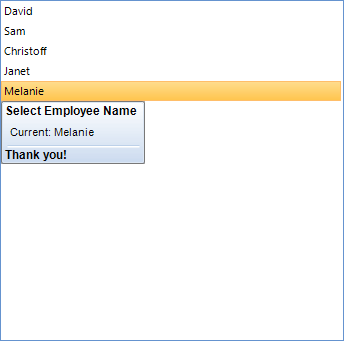
The following example demonstrates how you can show a tooltip when a RadListView item is hovered. Please note that the Item property contains the currently hovered element.
RadOffice2007ScreenTipElement screenTip = new RadOffice2007ScreenTipElement();
private void RadListView1_ScreenTipNeeded(object sender, Telerik.WinControls.ScreenTipNeededEventArgs e)
{
    var dataItem = e.Item as SimpleListViewVisualItem;
    if (e.Item != null)
    {
        screenTip.CaptionLabel.Text = "Select Employee Name";
        screenTip.MainTextLabel.Text = "Current: " + dataItem.Text;
        screenTip.FooterTextLabel.Text = "Thank you!";
        screenTip.FooterVisible = true;
        dataItem.ScreenTip = screenTip;
    }
}
Figure 3: Screen tip in RadListView
To determine which are the exact elements types, just add the following statement to the
ScreenTipNeededevent:Console.WriteLine(e.Item), this way when you are hovering the elements, their types will be displayed in the console.
Custom Tooltips
To create custom tooltips you need to create a class that inherits RadScreenTipElement. You can add any elements to this class. The following code shows how you can add a simple element which only shows image and text:
Create custom screen tip
class MyScreenTip : RadScreenTipElement
{
    LightVisualElement contentElement = new LightVisualElement();
    public LightVisualElement ContentElement
    {
        get
        {
            return contentElement;
        }
    }
    protected override void CreateChildElements()
    {
        base.CreateChildElements();
        contentElement.DrawFill = true;
        contentElement.DrawText = true;
        contentElement.GradientStyle = GradientStyles.Solid;
        contentElement.TextImageRelation = TextImageRelation.ImageBeforeText;
        this.Children.Add(contentElement);
    }
}
You can use this element as the default screen tips.
Use the custom screen tip
MyScreenTip myScreenTip = new MyScreenTip();
private void RadGridView1_ScreenTipNeeded(object sender, ScreenTipNeededEventArgs e)
{
    if (e.Item is GridDataCellElement)
    {
        var cell = e.Item as GridDataCellElement;
        myScreenTip.ContentElement.Text = cell.Text;
        myScreenTip.ContentElement.Image = img;
        myScreenTip.ContentElement.BackColor = Color.LightBlue;
        e.Item.ScreenTip = myScreenTip;
    }
}