Show Tooltips for Clipped Cell's Text
Environment
| Product Version | Product | Author |
|---|---|---|
| 2020.2.616 | RadGridView for WinForms | Desislava Yordanova |
Description
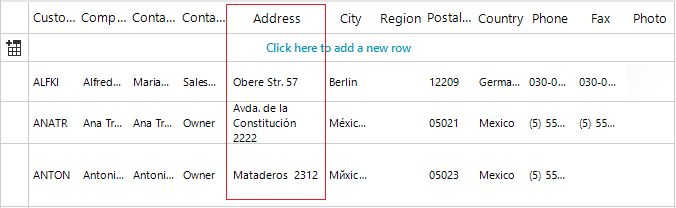
When the width of a column in RadGridView is not enough to show the whole cell's text, its context is either clipped or wrapped:
GridViewColumnInfo.WrapText=true
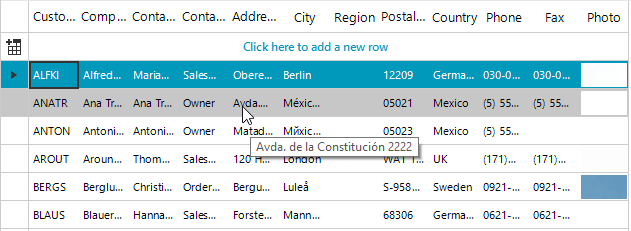
This article aims to show a sample approach of displaying a tooltip only for the cells that don't display the entire content and their text is clipped:
Solution
The challenging part here is to determine whether the text within a cell is entirely visible or it is clipped. There are different approaches for measuring some text considering the font family and font size. That is why it is important to know first how the text is being rendered in order to measure it correctly.
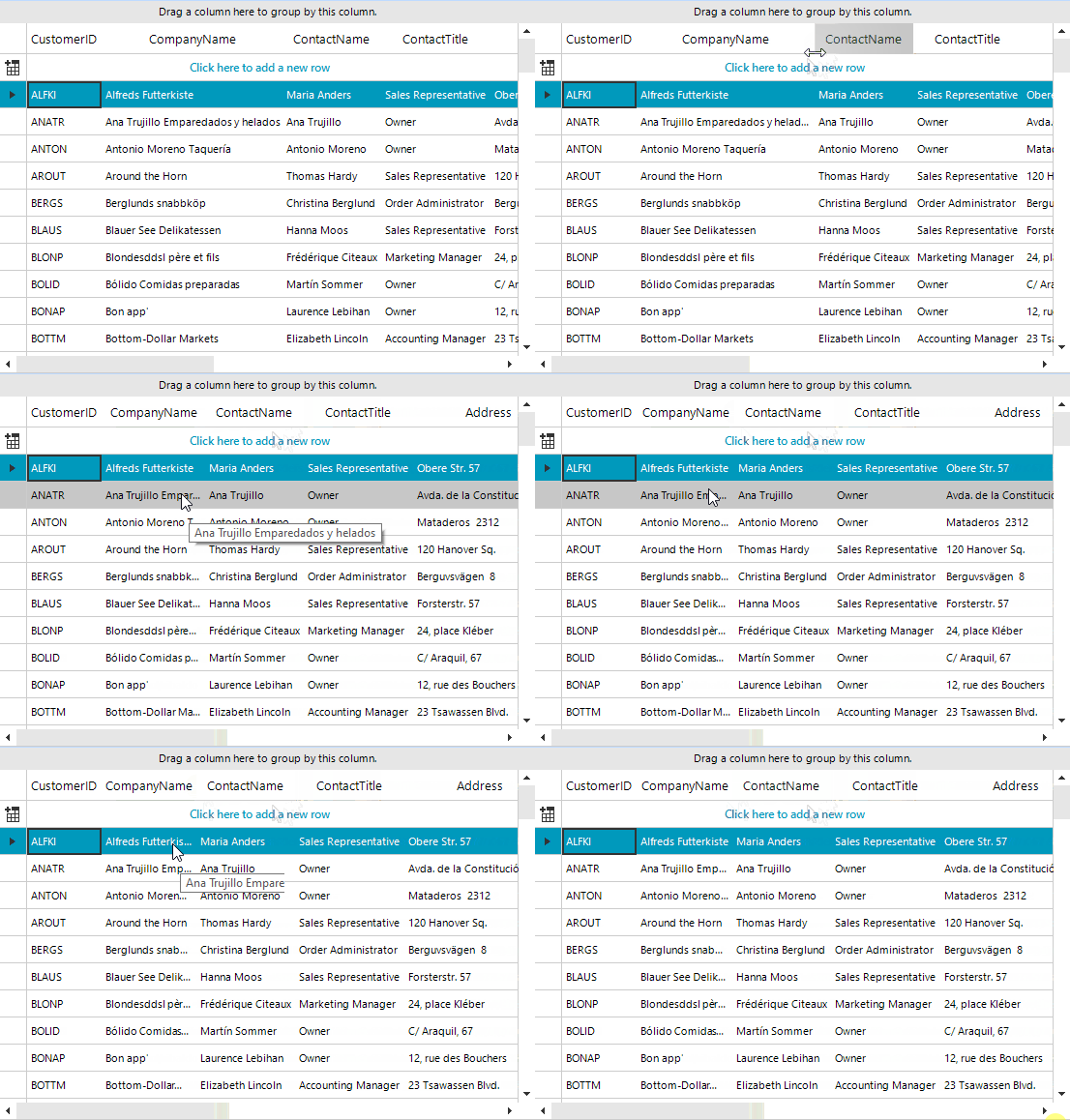
By default, Telerik Presentation Framework uses GDI+ to measure and render the text. You can easily switch to GDI instead by setting the UseCompatibleTextRendering property to false for the respective control:
Draw text with GDI: TextRenderer.DrawText
Draw text with GDI+: Graphics.DrawString
In R2 2017 we introduced the static property RadControl.UseCompatibleTextRenderingDefaultValue which allows the user to globally control the default value for UseCompatibleTextRendering property. It is recommended to set it before calling InitializeComponent.
Show ToolTips only when it is necessary
public RadForm1()
{
    RadControl.UseCompatibleTextRenderingDefaultValue = false;// to test with GDI
    RadControl.UseCompatibleTextRenderingDefaultValue = true;//to test with GDI+
    InitializeComponent();
    this.radGridView1.ToolTipTextNeeded += radGridView1_ToolTipTextNeeded;
}

private void radGridView1_ToolTipTextNeeded(object sender, Telerik.WinControls.ToolTipTextNeededEventArgs e)
{
    GridDataCellElement dataCell = sender as GridDataCellElement;
    string toolTipText = null;
    if (dataCell != null)
    {
        float cellWidth = dataCell.ColumnInfo.Width;
        float cellHeight = dataCell.Size.Height;
        switch (dataCell.BorderBoxStyle)
        {
            case BorderBoxStyle.SingleBorder:
                cellWidth -= dataCell.BorderWidth * 2;
                cellHeight -= dataCell.BorderWidth * 2;
                break;
            case BorderBoxStyle.FourBorders:
                cellWidth -= dataCell.BorderLeftWidth + dataCell.BorderRightWidth;
                cellHeight -= dataCell.BorderTopWidth + dataCell.BorderBottomWidth;
                break;
            default:
                break;
        }

        SizeF sizeInCell = SizeF.Empty;
        if (RadControl.UseCompatibleTextRenderingDefaultValue == true) //GDI+
        {
            using (Graphics g = this.radGridView1.CreateGraphics())
            {
                  sizeInCell = g.MeasureString(dataCell.Text, dataCell.Font);
            }
        }
        else //GDI
        {
              sizeInCell = TextRenderer.MeasureText(dataCell.Text, dataCell.Font);
        }

        if (sizeInCell.Width > cellWidth || cellHeight < sizeInCell.Height)
        {
            toolTipText = dataCell.Text;
        }

        e.ToolTipText = toolTipText;
    }
}
Another approach for measuring elements is to use MeasurementControl.ThreadInstance.GetDesiredSize(RadElement, SizeF) method. It is necessary to pass directly the element you want to measure (e.g. GridDataCellElement) giving the available size. Passing new SizeF(float.PositiveInfinity, float.PositiveInfinity) will return the size that RadElement actually needs.