How to AutoSize GridView's Row While Editing
Environment
| Product Version | Product | Author |
|---|---|---|
| 2021.2.511 | RadGridView | Desislava Yordanova |
Description
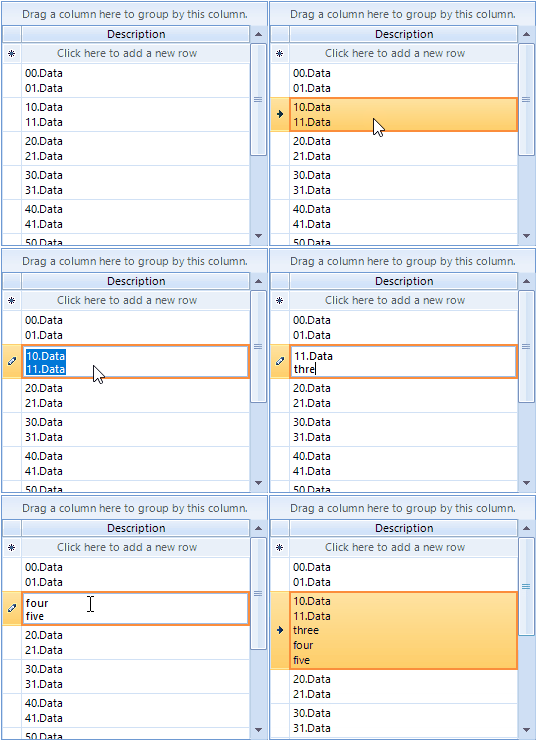
The RadGridView.AutoSizeRows property controls whether row's height in a RadGridView will expand for multiline cell text if the column is wrapped. However, note that when a cell is in edit mode and you are typing in the editor, this value is not committed to the cell yet. That is why the row's height is not updated until you commit the editor's value:
Solution
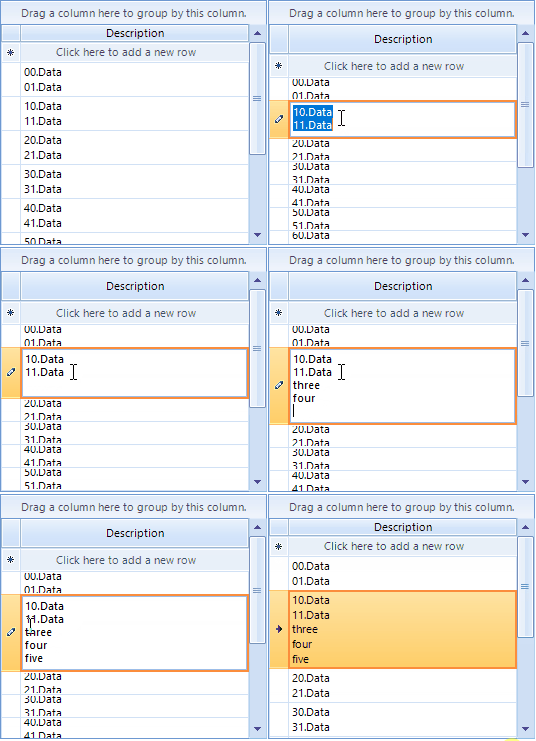
This solution demonstrates how to disable the rows auto sizing when the editor is activated and the row's height is adjusted by the MinHeight property in order to ensure that the whole multiline text inside the editor is visible:
public RadForm1()
{
    InitializeComponent();

    GridViewTextBoxColumn textColumn = new GridViewTextBoxColumn("Description");
    this.radGridView1.Columns.Add(textColumn);
    textColumn.WrapText = true;
    this.radGridView1.AutoSizeRows = true;
    this.radGridView1.AutoSizeColumnsMode = GridViewAutoSizeColumnsMode.Fill;

    this.radGridView1.BeginUpdate();
    for (int i = 0; i < 10; i++)
    {
        this.radGridView1.Rows.Add(i + "0.Data" + Environment.NewLine + i + "1.Data");
    }
    this.radGridView1.EndUpdate();

    this.radGridView1.CellEditorInitialized += radGridView1_CellEditorInitialized;
    this.radGridView1.CellEndEdit += radGridView1_CellEndEdit;
}

private void radGridView1_CellEndEdit(object sender, GridViewCellEventArgs e)
{
    this.radGridView1.AutoSizeRows = true;
}

private void radGridView1_CellEditorInitialized(object sender, GridViewCellEventArgs e)
{
    this.radGridView1.AutoSizeRows = false;
    RadTextBoxEditor tbEditor = e.ActiveEditor as RadTextBoxEditor;
    if (tbEditor != null)
    {
        tbEditor.Multiline = true;
        tbEditor.AcceptsReturn = true;
        RadTextBoxEditorElement el = tbEditor.EditorElement as RadTextBoxEditorElement;
        if (el != null)
        {
            if (textHeight == -1)
            {
                using (Graphics g = el.TextBoxItem.TextBoxControl.CreateGraphics())
                {
                    textHeight = TextRenderer.MeasureText(g, el.TextBoxItem.HostedControl.Text.Substring(0,el.Text.IndexOf(Environment.NewLine)), el.TextBoxItem.HostedControl.Font).Height;
                }
            }
            el.TextBoxItem.TextBoxControl.TextChanged -= TextBoxControl_TextChanged;
            el.TextBoxItem.TextBoxControl.TextChanged += TextBoxControl_TextChanged;

            this.radGridView1.CurrentRow.MinHeight = this.radGridView1.CurrentRow.Height = ( el.TextBoxItem.TextBoxControl.Lines.Length+1)* textHeight;
        }
    }
}

int textHeight = -1;

private void TextBoxControl_TextChanged(object sender, EventArgs e)
{
    HostedTextBoxBase tb = sender as HostedTextBoxBase;
    if (tb != null)
    {
        this.radGridView1.CurrentRow.MinHeight = this.radGridView1.CurrentRow.Height=( tb.Lines.Length+1)* textHeight;
    }
}
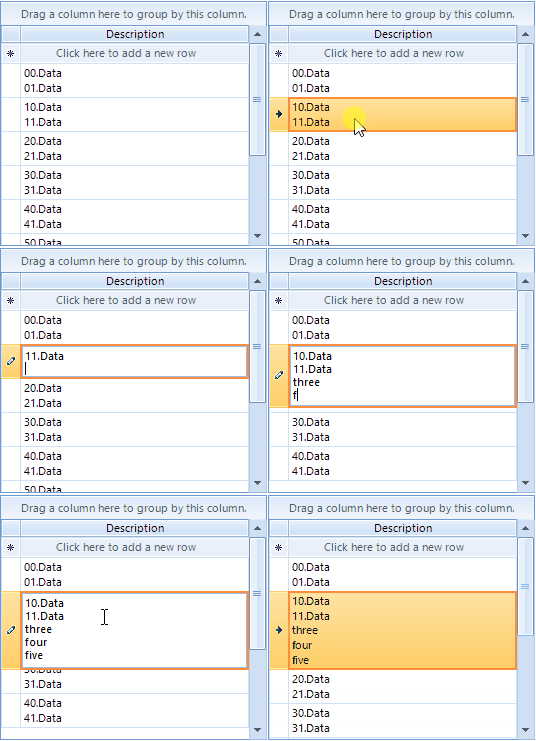
However, if there is not any specific validation logic and it is not a problem to commit the editor's value immediately after typing, it is possible to use a very simple solution by handling the ValueChanging event that RadGridView offers and updating the cell's value accordingly. Thus, you can keep the rows autositing enabled:
public RadForm1()
{
    InitializeComponent();

    GridViewTextBoxColumn textColumn = new GridViewTextBoxColumn("Description");
    this.radGridView1.Columns.Add(textColumn);
    textColumn.WrapText = true;
    this.radGridView1.AutoSizeRows = true;
    this.radGridView1.AutoSizeColumnsMode = GridViewAutoSizeColumnsMode.Fill;

    this.radGridView1.BeginUpdate();
    for (int i = 0; i < 10; i++)
    {
        this.radGridView1.Rows.Add(i + "0.Data" + Environment.NewLine + i + "1.Data");
    }
    this.radGridView1.EndUpdate();

    this.radGridView1.CellEditorInitialized += radGridView1_CellEditorInitialized;

    this.radGridView1.ValueChanging += radGridView1_ValueChanging;
}

private void radGridView1_ValueChanging(object sender, ValueChangingEventArgs e)
{
    this.radGridView1.CurrentCell.Value = e.NewValue;
}

private void radGridView1_CellEditorInitialized(object sender, GridViewCellEventArgs e)
{
    RadTextBoxEditor tbEditor = e.ActiveEditor as RadTextBoxEditor;
    if (tbEditor != null)
    {
        tbEditor.Multiline = true;
        tbEditor.AcceptsReturn = true;
    }
}