New to Telerik UI for WinForms? Start a free 30-day trial
How to show different columns for child rows
Updated over 1 year ago
Environment
| Product Version | Product | Author |
|---|---|---|
| 2022.2.622 | RadGridView for WinForms | Dinko Krastev |
Description
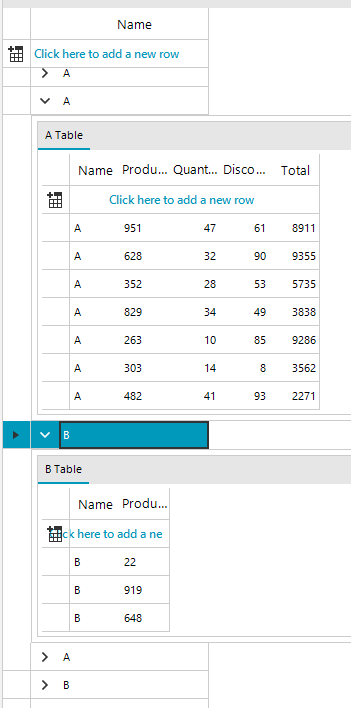
Before proceeding with the approach we need to pull out an important note when modifying templates in the RadGridView. Each hierarchical level is represented by a GridViewTemplate. This template is a common template that is used by all the parent rows to display their hierarchical rows. Each level shares one and the same template. So modifying the template will affect all rows on this level. However, the RadGridView allows you to have multiple GridViewTemplates. We can use this functionality to achieve our scenario. This example demonstrates a sample approach to how to hide the child tabs depending on a cell value in the parent row.
Solution
- First we will populate RadGridView with hierarchical data and subscribe to the ViewCellFormatting event where we will execute our custom logic. For the purpose of this example, the control will be populated in unbound mode.
C#
public RadForm1()
{
	InitializeComponent();
	this.radGridView1.ViewCellFormatting += RadGridView1_ViewCellFormatting;
	CreatingHierarchicalGridInUnboundMode();

}

private void RadGridView1_ViewCellFormatting(object sender, CellFormattingEventArgs e)
{
    // execute logic which hides/shows different gridview template
}

public void CreatingHierarchicalGridInUnboundMode()
{
	GridViewTextBoxColumn textColumn = new GridViewTextBoxColumn("Name");
	textColumn.Width = 150;
	radGridView1.MasterTemplate.Columns.Add(textColumn);

	//setup the child template
	GridViewTemplate firstTemplate = new GridViewTemplate();
	firstTemplate.AllowAddNewRow = true;
	firstTemplate.Caption = "A Table";
	firstTemplate.Columns.Add(new GridViewTextBoxColumn("Name"));
	firstTemplate.Columns.Add(new GridViewTextBoxColumn("Product Number"));
	firstTemplate.Columns.Add(new GridViewDecimalColumn("Quantity"));
	firstTemplate.Columns.Add(new GridViewDecimalColumn("Discount"));
	firstTemplate.Columns.Add(new GridViewDecimalColumn("Total"));
	radGridView1.MasterTemplate.Templates.Add(firstTemplate);

	//create the relation
	GridViewRelation firstRelation = new GridViewRelation(radGridView1.MasterTemplate);
	firstRelation.ChildTemplate = firstTemplate;
	firstRelation.RelationName = "EmployeesOrders";
	firstRelation.ParentColumnNames.Add("Name");
	firstRelation.ChildColumnNames.Add("Name");
	radGridView1.Relations.Add(firstRelation);

	GridViewTemplate secondTemplate = new GridViewTemplate();
	secondTemplate.Caption = "B Table";
	secondTemplate.AllowAddNewRow = true;
	secondTemplate.Columns.Add(new GridViewTextBoxColumn("Name"));
	secondTemplate.Columns.Add(new GridViewTextBoxColumn("Product Number"));
	radGridView1.MasterTemplate.Templates.Add(secondTemplate);
	//create the relation
	GridViewRelation secondRelation = new GridViewRelation(radGridView1.MasterTemplate);
	secondRelation.ChildTemplate = secondTemplate;
	secondRelation.RelationName = "EmployeesOrders";
	secondRelation.ParentColumnNames.Add("Name");
	secondRelation.ChildColumnNames.Add("Name");
	radGridView1.Relations.Add(secondRelation);
	//load data
	LoadUnboundData();
}

Random random = new Random((int)DateTime.Now.Ticks);
private void LoadUnboundData()
{
	using (radGridView1.DeferRefresh())
	{
		for (int i = 0; i < 10; i++)
		{
			string name = random.Next(1, 15) % 2 == 0 ? "A" : "B";
			radGridView1.MasterTemplate.Rows.Add(name);
			GridViewTemplate template = radGridView1.MasterTemplate.Templates[0];
			for (int j = 0; j < 1; j++)
			{
				template.Rows.Add(name, random.Next(1000), random.Next(50), random.Next(100), random.Next(10000));
			}
			GridViewTemplate template2 = radGridView1.MasterTemplate.Templates[1];
			for (int j = 0; j < 1; j++)
			{
				template2.Rows.Add(name, random.Next(1000));
			}
		}
	}
}
- What's left is to create the logic in the ViewCellFormatting event handler. In the following code snippet, we are going to check the string in the parent row cell. Depending on the cell value we are going to show one template and hide the other one.
C#
private void RadGridView1_ViewCellFormatting(object sender, CellFormattingEventArgs e)
{
    GridDetailViewCellElement cell = e.CellElement as GridDetailViewCellElement;
    GridGroupExpanderCellElement expanderCell = e.CellElement as GridGroupExpanderCellElement;
    if (cell != null)
    {
        GridViewHierarchyRowInfo hierarchyRow = (GridViewHierarchyRowInfo)((GridViewDetailsRowInfo)cell.RowInfo).Owner;
        for (int i = 0; i < cell.PageViewElement.Items.Count; i++)
        {
            RadPageViewItem item = cell.PageViewElement.Items[i];
            GridViewInfo viewInfo = hierarchyRow.Views[i];
            // item.Text = "Child Template " + i;
            if (hierarchyRow.Cells[0].Value != null && hierarchyRow.Cells[0].Value.ToString() == "B")
            {
                cell.PageViewElement.Items[1].IsSelected = true;
                cell.PageViewElement.Items[1].Visibility = ElementVisibility.Visible;
                cell.PageViewElement.Items[0].Visibility = ElementVisibility.Collapsed;
            }
            else
            {
                cell.PageViewElement.Items[0].IsSelected = true;
                cell.PageViewElement.Items[0].Visibility = ElementVisibility.Visible;
                cell.PageViewElement.Items[1].Visibility = ElementVisibility.Collapsed;
            }
        }
    }
}