How to Detect Mouse Input for a Word in RadSyntaxEditor
Environment
| Product Version | Product | Author |
|---|---|---|
| 2020.3.1020 | RadSyntaxEditor for WinForms | Desislava Yordanova |
Description
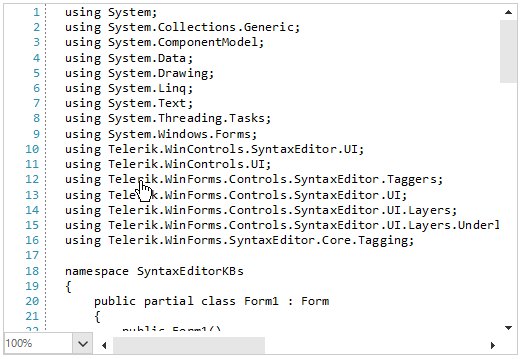
This tutorial demonstrates how to detect mouse input in RadSyntaxEditor and change the cursor when specific words are hovered (e.g. "Telerik"). In addition, a message box is shown when this specific word is clicked.
Solution
RadSyntaxEditor works with the underlying document with the help of taggers. Taggers are used to identify spans of text and assign them a specific tag if they match a specific condition. Thus, you can style different words in the document.
It is necessary to use a custom tagger to classify the desired words (e.g. "Telerik") and mark these words as specific. Since RadSyntaxEditor renders its elements on different layers based on the types of tags that are used, we will need a custom layer for the hover detection and showing the message.
public Form1()
{
    InitializeComponent();

    this.radSyntaxEditor1.TaggersRegistry.RegisterTagger(new TelerikTagger(this.radSyntaxEditor1.SyntaxEditorElement));
    this.radSyntaxEditor1.SyntaxEditorElement.UILayersBuilder = new CustomUILayersBuilder();
}
public class TelerikTagger : WordTaggerBase
{
    public static readonly ClassificationType TelerikClassificationType = new ClassificationType("Telerik");
    public static readonly Dictionary<string, ClassificationType> WordsToClassificationType = new Dictionary<string, ClassificationType>();

    public TelerikTagger(RadSyntaxEditorElement editor) : base(editor)
            {
                WordsToClassificationType.Add("Telerik", TelerikClassificationType);
            }

    protected override Dictionary<string, ClassificationType> GetWordsToClassificationTypes()
    {
        return TelerikTagger.WordsToClassificationType;
    }
}

public class CustomUILayersBuilder : Telerik.WinForms.Controls.SyntaxEditor.UI.Layers.UILayersBuilder
{
    public override void BuildUILayers(UILayerStack uiLayers)
    {
        base.BuildUILayers(uiLayers);
        uiLayers.AddLast(new MouseUILayer());
    }
}

public class MouseUILayer : LineBasedUILayer<ClassificationTag>
{
    public MouseUILayer()
    {
    }

    public override string Name => "TestUILayer";

    protected override FrameworkElement GetLinePartUIElement(ClassificationTag tag,
        Telerik.WinForms.SyntaxEditor.Core.Text.Span span, UIUpdateContext updateContext)
    {

        Rect rect = updateContext.Editor.GetLinePartBoundingRectangle(span);

        Telerik.WinControls.SyntaxEditor.UI.Rectangle rectangle = GetElementFromPool<Telerik.WinControls.SyntaxEditor.UI.Rectangle>();
        rectangle.NotifyParentOnMouseInput = false;
        rectangle.ShouldHandleMouseInput = true;
        rectangle.Width = rect.Width;
        rectangle.Height = rect.Height;

        // Need to unhook first otherwise we will get multiple calls to MouseDown.
        rectangle.MouseDown -= this.Rectangle_MouseDown;
        rectangle.MouseDown += this.Rectangle_MouseDown;
        rectangle.MouseMove -= this.Rectangle_MouseMove;
        rectangle.MouseMove += this.Rectangle_MouseMove;

        return rectangle;
    }
    private void Rectangle_MouseMove(object sender, MouseEventArgs e)
    {
        this.AssociatedEditor.ElementTree.Control.Cursor = Cursors.Hand;
    }

    private void Rectangle_MouseDown(object sender, MouseEventArgs e)
    {
        MessageBox.Show("Clicked");
    }

    protected override void ResetPooledElementProperties(object element)
    {
    }
}