How to order properties in RadDataEntry
Environment
| Product Version | 2018.1 220 |
| Product | RadDataEntry for WinForms |
Description
By default, RadDataEntry generates the editors for the fields ordered in the way they are defined in the DataSource object. A common scenario is to change the fields' order according to certain criteria.
Solution
Consider you have a class Person as follows:
Define Person class
public class Person
{
    public string LastName { get; set; }
    public string FirstName { get; set; }
    public DateTime BirthDate { get; set; }
    public int Id { get; set; }
    public string Address { get; set; }
    public Person(string lastName, string firstName, DateTime dateOfBirth, int id, string address)
    {
        this.LastName = lastName;
        this.FirstName = firstName;
        this.BirthDate = dateOfBirth;
        this.Id = id;
        this.Address = address;
    }
}
Then, set the RadDataEntry.DataSource property:
Set DataSource
this.radDataEntry1.DataSource = new List<Person> { new Person("Smith", "John", new DateTime(1980, 1, 1), 12345, "452 Holly Lane Hopewell, VA 23860") };
In the below screenshot it is demonstrated how the properties are displayed - in the order they are defined in the Person class:
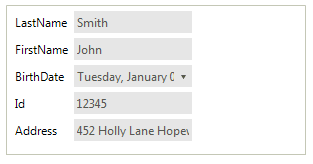
Now, we will change the properties' order.
1. For this purpose, we will use the RadSortOrderAttribute which is available in the Telerik.WinControls.UI namespace. Thus, each property will have a specific number indicating the sort order.
public class OrderedPerson
{
    [RadSortOrder(3)]
    public string LastName { get; set; }
    [RadSortOrder(2)]
    public string FirstName { get; set; }
    [RadSortOrder(4)]
    public DateTime BirthDate { get; set; }
    [RadSortOrder(1)]
    public int Id { get; set; }
    [RadSortOrder(5)]
    public string Address { get; set; }
    public OrderedPerson(string lastName, string firstName, DateTime dateOfBirth, int id, string address)
    {
        this.LastName = lastName;
        this.FirstName = firstName;
        this.BirthDate = dateOfBirth;
        this.Id = id;
        this.Address = address;
    }
}
2. Create a custom IComparer which will sort the properties considering the value of the RadSortOrderAttribute.
public class PropertyDescriptorComparer : System.Collections.IComparer
{
    public int Compare(object x, object y)
    {
        if (x == y)
            return 0;
        if (x == null)
            return 1;
        if (y == null)
            return -1;
        PropertyDescriptor propertyDescriptorX = x as PropertyDescriptor;
        PropertyDescriptor propertyDescriptorY = y as PropertyDescriptor;
        RadSortOrderAttribute propertyOrderAttributeX =
            propertyDescriptorX.Attributes[typeof(RadSortOrderAttribute)] as RadSortOrderAttribute;
        RadSortOrderAttribute propertyOrderAttributeY =
            propertyDescriptorY.Attributes[typeof(RadSortOrderAttribute)] as RadSortOrderAttribute;
        if (Equals(propertyOrderAttributeX, propertyOrderAttributeY))
            return 0;
        if (propertyOrderAttributeX == null)
            return 1;
        if (propertyOrderAttributeY == null)
            return -1;
        return propertyOrderAttributeX.Value.CompareTo(propertyOrderAttributeY.Value);
    }
}
3. Last, but not least, create a derivative of BindingList<T> which implements the ITypedList interface. Thus, you can implement the GetItemProperties method which will make use of the newly created comparer to sort the properties and control their order. It is necessary to implement the GetListName method as well.
public class DataEntrySort<T> : BindingList<T>, ITypedList
{
    public PropertyDescriptorCollection GetItemProperties(PropertyDescriptor[] listAccessors)
    {
        PropertyDescriptorCollection typePropertiesCollection = TypeDescriptor.GetProperties(typeof(T));
        return typePropertiesCollection.Sort(new PropertyDescriptorComparer());
    }
    public string GetListName(PropertyDescriptor[] listAccessors)
    {
        return string.Format("A list with Properties for {0}", typeof(T).Name);
    }
}
4. Now, you can use the new BindingList<T> you have just implemented:
this.radDataEntry1.DataSource = new DataEntrySort<OrderedPerson> { new OrderedPerson("Smith", "John", new DateTime(1980,1, 1), 12345, "452 Holly Lane Hopewell, VA 23860") };
The properties are ordered according to the specified RadSortOrder attribute:
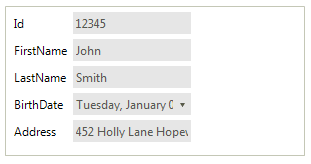
A complete solution providing a C# and VB.NET project is available here.