Replace Default Dialogs
This article will demonstrate how you can replace the default FindAndRepacle dialog with a custom one. It will show which dialogs can be replaced as well.
Create Custom Dialog
1. Let's start by adding a simple RadForm to our project (the main form of the project should contain at least one RadRichTextEditor). Make the form to look like in the following picture (you can leave the default control names).
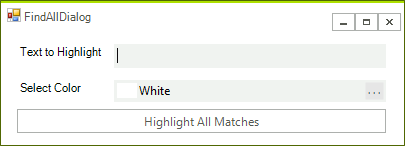
2. Open the code behind and add event handler for the button. You can add a method that will perform the search as well:
private void radButton1_Click(object sender, EventArgs e)
{
    string textToFind = radTextBox1.Text;
    SelectAllMatches(textToFind);
    var color = radColorBox1.Value;
    richTextBox.ChangeTextHighlightColor(color);
    this.richTextBox.Document.Selection.Clear();
}

private void SelectAllMatches(string toSearch)
{
    this.richTextBox.Document.Selection.Clear();
    DocumentTextSearch search = new DocumentTextSearch(this.richTextBox.Document);
    foreach (var textRange in search.FindAll(toSearch))
    {
        this.richTextBox.Document.Selection.AddSelectionStart(textRange.StartPosition);
        this.richTextBox.Document.Selection.AddSelectionEnd(textRange.EndPosition);
    }
}
3. The new dialog need to implement the IFindReplaceDialog otherwise you cannot replace the default one. So go ahead and add the interface to the form's class declaration:
public partial class FindAllDialog : RadForm, IFindReplaceDialog
Now, you are ready to add the required fields, property and methods:
RadRichTextBox richTextBox;
bool isOpen;

public bool IsOpen
{
    get
    {
        return this.isOpen;
    }
}

public void Show(RadRichTextBox richTextBox, Func<string, bool> replaceCallback, string textToFind)
{
    this.Owner = richTextBox.ElementTree.Control.FindForm();
    this.richTextBox = richTextBox;
    this.Show();
}

protected override void OnShown(EventArgs e)
{
    this.isOpen = true;
    base.OnShown(e);
}

protected override void OnActivated(EventArgs e)
{
    this.isOpen = false;
    base.OnActivated(e);
}
4. The final step is to assign a new instance of the dialog to the corresponding property:
radRichTextEditor1.RichTextBoxElement.FindReplaceDialog = new FindAllDialog();Dialogs that can be replaced
The following list shows which dialogs can be replaced in RadRichTextEditor:
-
AddNewBibliographicSourceDialog
-
ChangeEditingPermissionsDialog
-
CodeFormattingDialog
-
EditCustomDictionaryDialog
-
FindReplaceDialog
-
FloatingBlockPropertiesDialog
-
FontPropertiesDialog
-
InsertCaptionDialog
-
InsertCrossReferenceWindow
-
InsertDateTimeDialog
-
InsertHyperlinkDialog
-
InsertSymbolDialog
-
InsertTableDialog
-
InsertTableOfContentsDialog
-
ManageBibliographicSourcesDialog
-
ManageBookmarksDialog
-
ManageStylesDialog
-
NewCaptionLabelDialog
-
NotesDialog
-
ParagraphPropertiesDialog
-
ProtectDocumentDialog
-
SetNumberingValueDialog
-
SpellCheckingDialog
-
StyleFormattingPropertiesDialog
-
TablePropertiesDialog
-
TabStopsPropertiesDialog
-
UnprotectDocumentDialog
-
WatermarkSettingsDialog