New to Telerik UI for WinForms? Start a free 30-day trial
Filtering
Updated over 6 months ago
RadListView allows filtering operations in all views. To enable filtering operations use the EnableFiltering property of the control:
Enable Filtering
C#
radListView1.EnableFiltering = true;
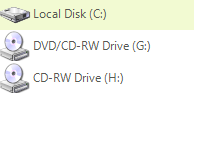
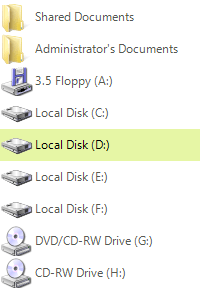
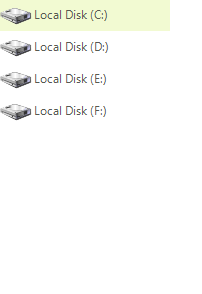
Once the filtering is enabled, we have to create a new FilterDescriptor and assign its PropertyName, FilterOperator and SearchCriteria. First, let’s filter the items by their value and look for items starting with “Local”.
Filter by Value
C#
FilterDescriptor valueFilter = new FilterDescriptor("Value", FilterOperator.StartsWith, "Local");
radListView1.FilterDescriptors.Add(valueFilter);
| Before Filtering | After Filtering |
|---|---|
 |  |
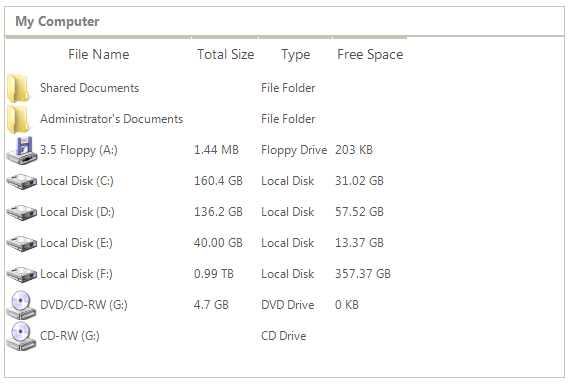
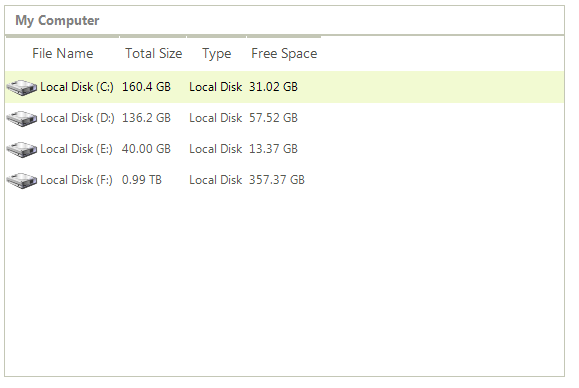
When a column name is specified as PropertyName of the filter descriptor, RadListView will filter by the values of the specified column:
Filter by type
C#
FilterDescriptor typeFilter = new FilterDescriptor("Type", FilterOperator.Contains, "Disk");
radListView1.FilterDescriptors.Add(typeFilter);
| Before | After |
|---|---|
 |  |
Custom Filtering
RadListView provides a flexible mechanism for defining a custom filtering logic by using a custom filter predicate. The following example demonstartes how to apply a FilterPredicate in order to filter all items which contain "C":
Custom FilterPredicate
C#
private bool MyFilter(ListViewDataItem item)
{
    if (item.Value.ToString().Contains("C"))
    {
        return true;
    }
    return false;
}
Apply the custom FilterPredicate
C#
this.radListView1.ListViewElement.DataView.Filter = MyFilter;
Figure 3: Custom Filtering