New to Telerik UI for WinForms? Start a free 30-day trial
Formatting Group Header Row
Updated on Aug 27, 2026
GroupSummaryEvaluate allows to modify the header text of the group rows. The event is fired when the group header row text is needed. So if you want to modify the group’s text, first you have to subscribe to the GroupSummaryEvaluate event and then perform the actual grouping, because when the GroupContentCellElement (the group header row) is being displayed, the event is fired and if you are not subscribed for it, it will apply its default settings.
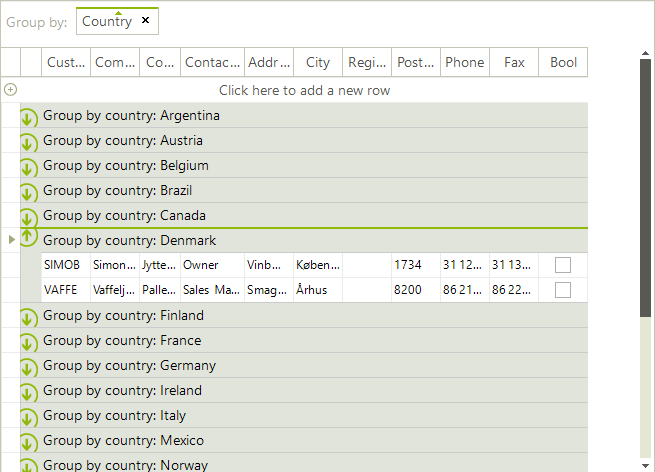
The example below demonstrates how you can change the group header text of each group if grouping is based on some specific column:
Change group header text
C#
void radGridView1_GroupSummaryEvaluate(object sender, Telerik.WinControls.UI.GroupSummaryEvaluationEventArgs e)
{
    if (e.SummaryItem.Name == "Country")
    {
        e.FormatString = String.Format("Group by country: {0}", e.Value);
    }
}
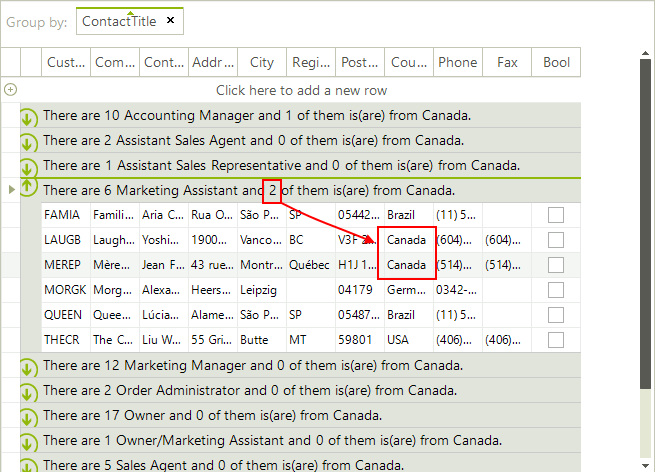
The following example demonstrates formatting of group header which uses data from the group rows:
Formatting group header by using data from data rows
C#
void radGridView1_GroupSummaryEvaluate1(object sender, Telerik.WinControls.UI.GroupSummaryEvaluationEventArgs e)
{
    if (e.SummaryItem.Name == "ContactTitle")
    {
        int count = e.Group.ItemCount;
        int contactsInCanada = 0;
        foreach (GridViewRowInfo row in e.Group)
        {
            if (row.Cells["Country"].Value.ToString() == "Canada")
            {
                contactsInCanada++;
            }
        }
        e.FormatString = String.Format("There are {0} {1} and {2} of them is(are) from Canada.", count, e.Value, contactsInCanada);
    }
}