Parameters
SetThemeName method
You can easily set the ThemeName of the RadMessageBox by calling the SetThemeName parameter, passing the theme name string:
Setting a theme in RadMessageBox
RadMessageBox.SetThemeName("Desert");Show method
The Show method displays a RadMessageBox. It returns a DialogResult value and has a couple of overloads to suit to your needs. For a list of all methods see the API Reference section. Show method could accept the following parameters:
-
Parent - An implementation of System.Windows.Forms.IWin32Window that will own the RadMessageBox.
-
Text - The text to display in the RadMessageBox.
-
Caption - The text to display in the title bar of the RadMessageBox.
-
Buttons - One of the MessageBoxButtons enumeration values that specifies which buttons to display in the message box:
-
AbortRetryIgnore
-
OK
-
OKCancel
-
RetryCancel
-
YesNo
-
YesNoCancel
-
-
Icon - One of the RadMessageIcon enumeration values that specifies which icon to display in the message box or a custom Bitmap icon that will be displayed:
-
RadMessageIcon.None
-
RadMessageIcon.Info
-
RadMessageIcon.Question
-
RadMessageIcon.Exclamation
-
RadMessageIcon.Error
-
-
defaultBtn - One of the MessageBoxDefaultButton enumeration values the specifies the default button for the message box:
-
MessageBoxDefaultButton.Button1
-
MessageBoxDefaultButton.Button2
-
MessageBoxDefaultButton.Button2
-
-
Rtl - RightToLeft settings:
-
RightToLeft.No
-
RightToLeft.Yes
-
RightToLeft.Inherit
-
Details Section
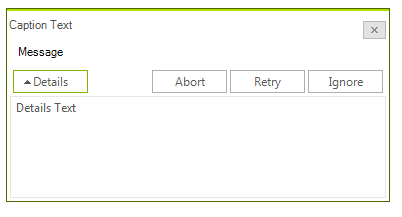
As of Q2 2014 RadMessageBox supports details section. This section can be shown by just specifying the details text in the Show method parameters:
RadMessageBox.Show("Message", "Caption Text", MessageBoxButtons.AbortRetryIgnore, "Details Text");The result looks like this: