Getting Started with WinForms BreadCrumb
This tutorial will walk you through the creation of RadBreadCrumb in your project and associating it with RadTreeView. Follow the steps:
Adding Telerik Assemblies Using NuGet
To use RadBreadCrumb when working with NuGet packages, install the Telerik.UI.for.WinForms.AllControls package. The package target framework version may vary.
Read more about NuGet installation in the Install using NuGet Packages article.
With the 2025 Q1 release, the Telerik UI for WinForms has a new licensing mechanism. You can learn more about it here.
Adding Assembly References Manually
When dragging and dropping a control from the Visual Studio (VS) Toolbox onto the Form Designer, VS automatically adds the necessary assemblies. However, if you're adding the control programmatically, you'll need to manually reference the following assemblies:
- Telerik.Licensing.Runtime
- Telerik.WinControls
- Telerik.WinControls.UI
- TelerikCommon
The Telerik UI for WinForms assemblies can be install by using one of the available installation approaches.
Defining the RadBreadCrumb
-
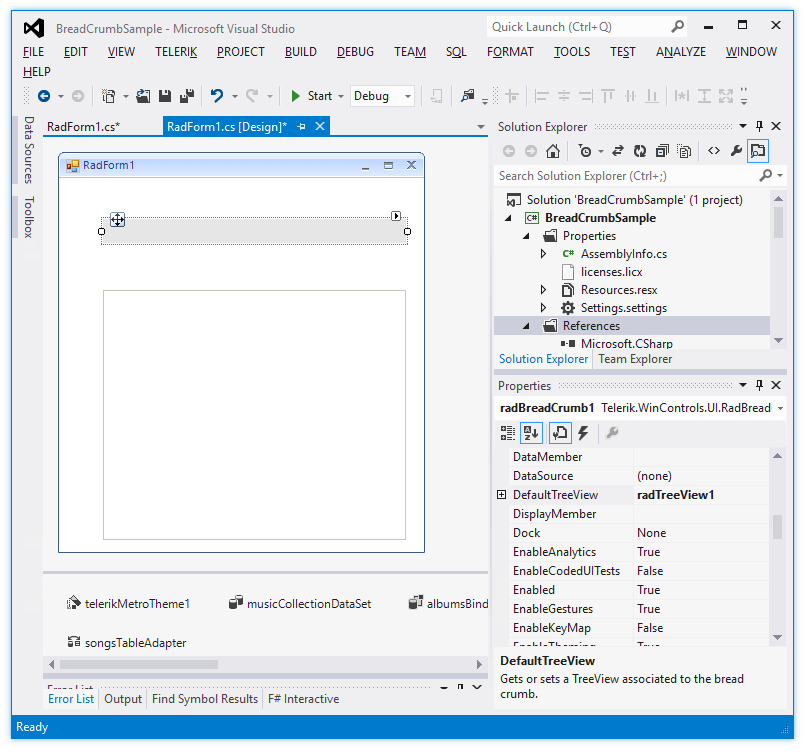
Add a RadBreadCrumb and a RadTreeView to the form.
-
Data bind the RadTreeView control.
-
Set the RadBreadCrumb.DefaultTreeView property to the tree view control on the form.
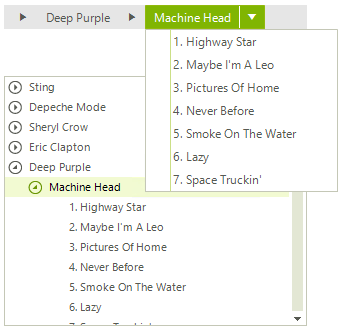
When you run the project and select a node in RadTreeView, the RadBreadCrumb control will be populated with the path to the selected node:
RadBreadCrumb associated with a RadTreeView
Using RadBreadCrumb as a standalone control
Similar to RadTreeView, RadBreadCrumb can also be bound to a collection of records. It is just necessary to set its DataSource, DisplayMember, ChildMember and ParentMember properties. In addition, enable the IsAutoCompleteEnabled property in order to get suggestions when the user types in the text box:
public void SetupStandaloneDataBinding()
{
    this.radBreadCrumb1.DisplayMember = "name";
    this.radBreadCrumb1.ParentMember = "pid";
    this.radBreadCrumb1.ChildMember = "id";
    this.radBreadCrumb1.DataSource = this.GetSampleData();

    this.radBreadCrumb1.IsAutoCompleteEnabled = true;
}

private DataTable GetSampleData()
{
    DataTable dt = new DataTable();

    DataColumn dc = new DataColumn();
    dc.ColumnName = "id";
    dc.DataType = typeof(int);
    dt.Columns.Add(dc);

    DataColumn dc1 = new DataColumn();
    dc1.ColumnName = "name";
    dc1.DataType = typeof(string);
    dt.Columns.Add(dc1);

    DataColumn dc2 = new DataColumn();
    dc2.ColumnName = "pid";
    dc2.DataType = typeof(int);
    dt.Columns.Add(dc2);

    DataRow dr = dt.NewRow();
    dr[0] = 0;
    dr[1] = "My Computer";
    dr[2] = DBNull.Value;
    dt.Rows.Add(dr);

    dr = dt.NewRow();
    dr[0] = 1;
    dr[1] = @"C:";
    dr[2] = 0;
    dt.Rows.Add(dr);

    dr = dt.NewRow();
    dr[0] = 2;
    dr[1] = @"D:";
    dr[2] = 0;
    dt.Rows.Add(dr);

    dr = dt.NewRow();
    dr[0] = 3;
    dr[1] = "Program Files";
    dr[2] = 1;
    dt.Rows.Add(dr);

    dr = dt.NewRow();
    dr[0] = 4;
    dr[1] = "Microsoft";
    dr[2] = 3;
    dt.Rows.Add(dr);

    dr = dt.NewRow();
    dr[0] = 5;
    dr[1] = "Telerik";
    dr[2] = 3;
    dt.Rows.Add(dr);

    dr = dt.NewRow();
    dr[0] = 6;
    dr[1] = "WINDOWS";
    dr[2] = 1;
    dt.Rows.Add(dr);

    return dt;
}RadBreadCrumb used as a standalone control

Please avoid using the character set as a PathSeparator in the Header of the items, because this can lead to an unexpected behavior when you try to expand a path. Also, keep in mind that the '\' character is the default PathSeparator.
See Also
Telerik UI for WinForms Learning Resources
- Telerik UI for WinForms BreadCrumb Component
- Getting Started with Telerik UI for WinForms Components
- Telerik UI for WinForms Setup
- Telerik UI for WinForms Converter
- Telerik UI for WinForms Visual Studio Templates
- Deploy Telerik UI for WinForms Applications
- Telerik UI for WinForms Virtual Classroom(Training Courses for Registered Users)
- Telerik UI for WinForms License Agreement)