Update the Forge Desktop App
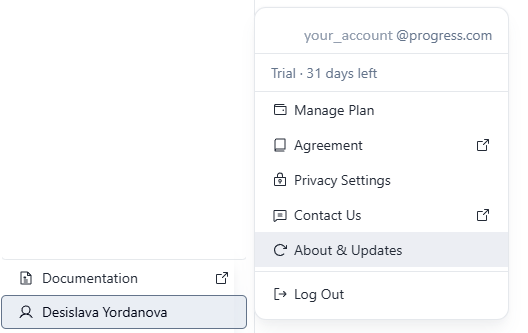
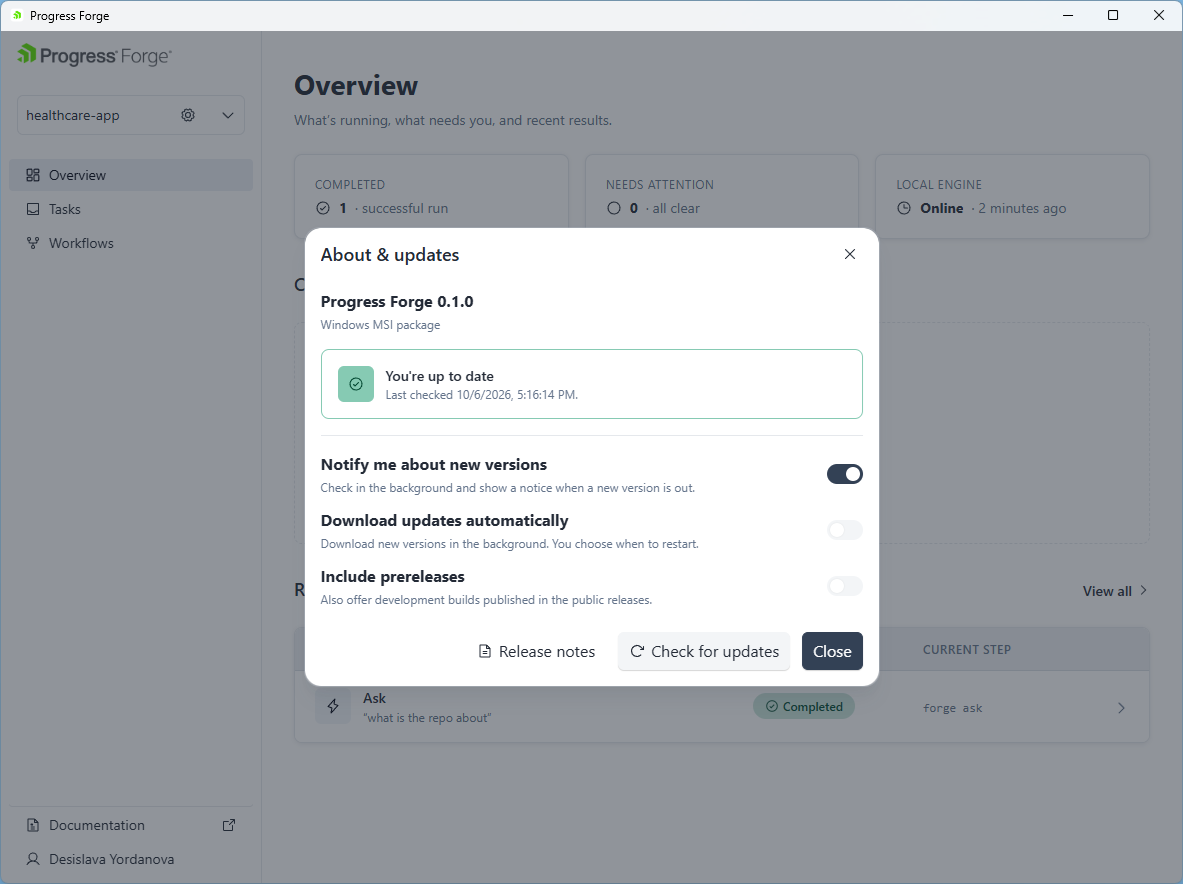
Use About & Updates in the Forge Desktop App to check the installed version, configure update preferences, download an available update, and review release notes.
Update preferences
The update preferences apply to the Desktop App and are stored with its app preferences, not in a project configuration file.
| Setting | Default | Effect |
|---|---|---|
| Notify me about new versions | On | Check in the background and show a notice when a new version is available. |
| Download updates automatically | Off | Download available versions in the background. You still choose when to restart and install. |
| Include prereleases | Off | Also offer development versions published as prereleases. |
Development builds do not check for updates. Use the public releases page when the dialog reports that updates are unavailable for the installed build.
Download and install
When an update is available, review its version and release notes in About & updates, then select Download update. Forge shows download progress. When the update is ready, select Restart now to restart the app and finish installation; downloading does not install or restart the app automatically.
Some installation types cannot be updated in-app. In that case, use Open download page and follow the release's installation instructions for your platform.
Release notes
The update dialog shows notes for an available version when the release provides them. Select Release notes to open the release notes separately. After updating, review the notes for the installed version to see what changed.