Implementing a Custom IOcrProvider
RadPdfProcessing offers a default implementation for an IOcrProvider engine wrapper that OcrFormatProvider uses. The TesseractOcrProvider uses the Tesseract 5.2.0 engine to extract text from an image.
You can also implement your own IOcrProvider that uses a different engine to recognize text from a screenshot.
Using the Azure AI Vision
The Azure AI Vision service provides access to the Optical Character Recognition (OCR) service that extracts text from images. The following example uses the Azure OCR engine to implement a custom IOcrProvider for the RadPdfProcessing library.
1. Add the following required NuGet packages to your project:
- Azure.AI.Vision.ImageAnalysis
- Telerik.Documents.Fixed
- Telerik.Documents.Fixed.FormatProviders.Ocr
- Telerik.Documents.ImageUtils
- SkiaSharp
2. Generate your Azure AI key and endpoint: Get your credentials from your Azure AI services resource

3. Create the custom AzureAIOcrProvider class that implements the IOcrProvider interface:
public class AzureAIOcrProvider : IOcrProvider
{
    public const string azure_key = "your azure key";
    public const string azure_endpoint = "your azure endpoint";
    bool IOcrProvider.CorrectVerticalPosition => false;

    OcrParseLevel IOcrProvider.ParseLevel { get; set; } = OcrParseLevel.Word;

    string IOcrProvider.GetAllTextFromImage(byte[] imageBytes)
    {
        ImageAnalysisResult imageResult = Analyze(imageBytes);

        StringBuilder stringBuilder = new StringBuilder();

        foreach (DetectedTextBlock block in imageResult.Read.Blocks)
        {
            foreach (DetectedTextLine line in block.Lines)
            {
                foreach (DetectedTextWord word in line.Words)
                {
                    stringBuilder.AppendFormat("{0} ", word.Text);
                }
            }
        }

        string resultText = stringBuilder.ToString();

        return resultText;
    }
    private static Azure.AI.Vision.ImageAnalysis.ImageAnalysisResult Analyze(byte[] imageBytes)
    {
        string endpoint = azure_endpoint;
        string key = azure_key;

        ImageAnalysisClient client = new ImageAnalysisClient(
            new Uri(endpoint),
            new Azure.AzureKeyCredential(key));

        BinaryData binaryData = BinaryData.FromBytes(imageBytes);
        ImageAnalysisResult result = client.Analyze(
            binaryData,
            VisualFeatures.Read,
            new ImageAnalysisOptions { GenderNeutralCaption = false });
        return result;
    }

    Dictionary<Rectangle, string> IOcrProvider.GetTextFromImage(byte[] imageBytes)
    {
        ImageAnalysisResult result = Analyze(imageBytes);

        Dictionary<Rectangle, string> foundObjects = [];

        foreach (DetectedTextBlock block in result.Read.Blocks)
        {
            foreach (DetectedTextLine line in block.Lines)
            {
                foreach (DetectedTextWord word in line.Words)
                {
                    int topLeftX = word.BoundingPolygon.Min(p => p.X);
                    int topLeftY = word.BoundingPolygon.Min(p => p.Y);

                    int bottomRightX = word.BoundingPolygon.Max(p => p.X);
                    int bottomRightY = word.BoundingPolygon.Max(p => p.Y);

                    Rectangle rect = new Rectangle(new Point(topLeftX, topLeftY), new Size(bottomRightX - topLeftX, bottomRightY - topLeftY));

                    foundObjects.Add(rect, word.Text);
                }
            }
        }

        return foundObjects;
    }
}
4. Use the custom implementation with the OcrFormatProvider that RadPdfProcessing offers:
FixedExtensibilityManager.ImagePropertiesResolver = new Telerik.Documents.ImageUtils.ImagePropertiesResolver();
AzureAIOcrProvider customOcrProvider = new AzureAIOcrProvider();
Telerik.Documents.Fixed.FormatProviders.Ocr.OcrFormatProvider PdfOcrProvider = new OcrFormatProvider(customOcrProvider);

RadFixedDocument document = new RadFixedDocument();
RadFixedPage page = new RadFixedPage();
string imagesFolderPath = @"..\..\..\images";
string[] pdfFilePaths = Directory.GetFiles(imagesFolderPath);
foreach (string imageFilePath in pdfFilePaths)
{
    byte[] bytes = System.IO.File.ReadAllBytes(imageFilePath);
    string text = PdfOcrProvider.OcrProvider.GetAllTextFromImage(bytes);
    page = PdfOcrProvider.Import(new FileStream(imageFilePath, FileMode.Open), null);
    document.Pages.Add(page);
}

PdfFormatProvider PdfProvider = new PdfFormatProvider();
string outputFilePath = "outputAzureAI.pdf";
if (System.IO.File.Exists(outputFilePath))
{
    System.IO.File.Delete(outputFilePath);
}
using (Stream output = System.IO.File.OpenWrite(outputFilePath))
{

    PdfProvider.Export(document, output, TimeSpan.FromSeconds(10));
}
Process.Start(new ProcessStartInfo() { FileName = outputFilePath, UseShellExecute = true });
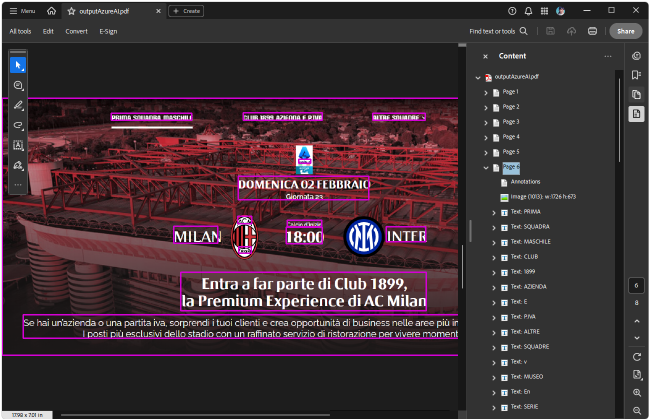
After iterating all images in the specified folder (which contain content in different languages), the provider generates a PDF document with the respective content recognized as text fragments: