Getting Started with Digital Signature
Use RadPdfProcessing to add a digital signature to a PDF document that you create in code or import from an existing file. This article explains the required setup, the signing workflow, the available signature settings, and the checks to run after export.
To use digital signatures in
RadPdfProcessingfor .NET Standard or .NET, add a reference to theSystem.Security.Cryptography.PkcsNuGet package, version 6 or later. This requirement applies starting with R1 2022 SP1.
What You Need Before You Sign a PDF
Before you sign a document, make sure you have the required inputs and document objects:
- Prepare an X509Certificate2 instance that contains the private key used for signing.
- Decide whether you will sign a newly created document or an imported RadFixedDocument.
- Choose whether the signature will be visible or invisible in the document.
- Prepare a stream that supports both reading and writing for the export operation.
Load a PKCS#12 Certificate from a File
In .NET 9 and later, use the X509CertificateLoader.LoadPkcs12FromFile method to load a PKCS#12 (.pfx or .p12) certificate from disk. The method returns an X509Certificate2 object that you can pass to the Signature constructor:
X509Certificate2 certificate = X509CertificateLoader.LoadPkcs12FromFile("certificate.pfx", "password");
Signature signature = new Signature(certificate);
The certificate must contain the private key required for signing. For target frameworks other than .NET 10, use a certificate-loading approach supported by the target framework to create the required X509Certificate2 instance.
Signing a Document
Use this workflow to sign a PDF document:
- Create a
Signatureinstance and pass the certificate to its constructor. - Add the signature to a SignatureField in the document form.
- If you need a visible signature, create a SignatureWidget and associate it with the
SignatureField. - Assign a FormSource to the widget
Content.NormalContentSourceproperty. - Use
FixedContentEditorto draw the visual content that will appear in the signature area. - Export the document to a readable and writable stream.
When you export a digitally signed document, pass a stream that supports both reading and writing. Otherwise,
RadPdfProcessingthrowsNotSupportedExceptionwith the messageStream does not support reading.
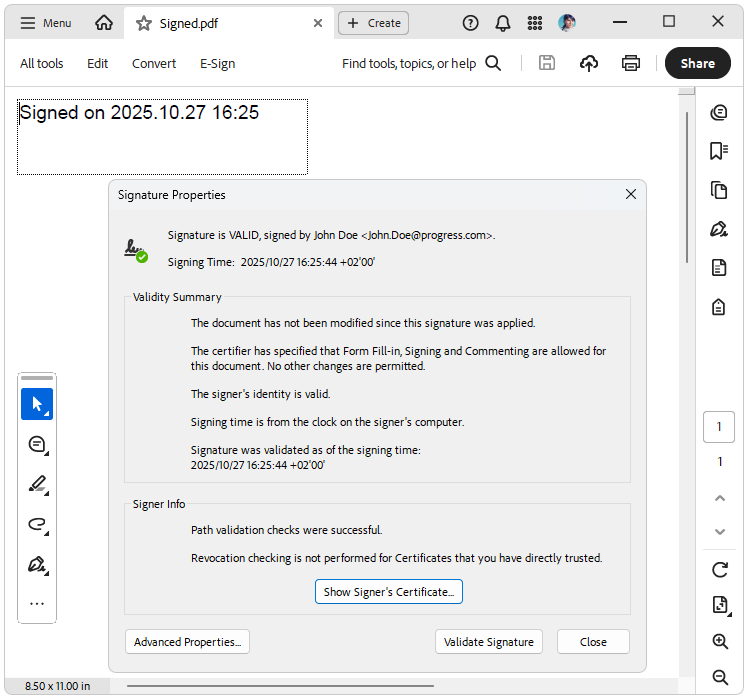
The following example signs a newly created document:
Example: Sign a document
int signatureFieldWidth = 200;
int signatureFieldHeight = 50;
int signaturePositionLeft = 10;
int signaturePositionTop = 10;

X509Certificate2 certificate = new X509Certificate2("Certificate.pfx", "johndoe");
SignatureField pdfSignature = new SignatureField("SignatureField");
pdfSignature.Signature = new Signature(certificate);

Form pdfForm = new Form();
pdfForm.FormSource = new FormSource();
pdfForm.FormSource.Size = new Size(signatureFieldWidth, signatureFieldHeight);
FixedContentEditor editor = new FixedContentEditor(pdfForm.FormSource);
pdfForm.Position.Translate(signaturePositionLeft, signaturePositionTop);
editor.DrawText($"{certificate.GetNameInfo(X509NameType.SimpleName, false)} {DateTime.Now.ToString("yyyy.MM.dd HH:mm")}");

SignatureWidget signatureWidget = pdfSignature.Widgets.AddWidget();
signatureWidget.Content.NormalContentSource = pdfForm.FormSource;
signatureWidget.Rect = new Rect(signaturePositionLeft, signaturePositionTop, signatureFieldWidth, signatureFieldHeight);
signatureWidget.RecalculateContent();

RadFixedDocument document = new RadFixedDocument();
RadFixedPage pdfPage = document.Pages.AddPage();
pdfPage.Annotations.Add(signatureWidget);

FixedContentEditor pageEditor = new FixedContentEditor(pdfPage);
pageEditor.Position.Translate(signaturePositionLeft, signaturePositionTop);
pageEditor.DrawForm(pdfForm.FormSource);
document.AcroForm.FormFields.Add(pdfSignature);
signatureWidget.RecalculateContent();

string signedDocumentFilePath = "signed.pdf";
File.Delete(signedDocumentFilePath);
using (Stream output = new FileStream(signedDocumentFilePath, FileMode.OpenOrCreate, FileAccess.ReadWrite))
{
    new Telerik.Documents.Fixed.FormatProviders.Pdf.PdfFormatProvider().Export(document, output, TimeSpan.FromSeconds(10));
}
In .NET Standard, use
Telerik.Documents.Primitives.Rectinstead ofSystem.Windows.Rect.
Signing an Existing PDF Document
When you sign an imported document, verify the form settings before export. Set the AcroForm.ViewersShouldRecalculateWidgetAppearances property to false so PDF viewers preserve the signed appearance. If this property remains true, the exported file may open without showing the document as signed.
Signature Settings
Use SignatureSettings, available through Signature.Settings, to control how RadPdfProcessing produces the digital signature. The class, introduced in Q4 2025, lets you choose the digest algorithm, configure timestamping, and decide how much certificate chain information to embed.
| Property | Description |
|---|---|
DigestAlgorithm | Gets or sets the digest (hash) algorithm used when producing the CMS (PKCS#7) signature. Default is DigestAlgorithmType.Sha256. Supported values: Sha256 (recommended default), Sha384 (for higher strength or P-384 key policy), Sha512 (highest SHA-2 strength or long-term archival). |
TimeStampServer | Gets or sets the timestamp server settings used to obtain a trusted timestamp for the signature. |
CertificateChainIncludeOption | Gets or sets the option that determines which certificates are included in the certificate chain. Available values: None (no chain info), ExcludeRoot (entire chain except root), EndCertOnly (only the end certificate), WholeChain (entire chain). [Introduced in Q1 2026] |
Choose Sha256 for most scenarios. Move to Sha384 or Sha512 only when your security policy, certificate type, or archival requirements call for a stronger hash.
Signature Encodings
RadPdfProcessing can sign and validate signature fields by using these standard encodings:
adbe.x509.rsa_sha1(PKCS #1)adbe.pkcs7.sha1(PKCS #7)adbe.pkcs7.detached(PKCS #7 Detached)
Signature Flags
Use signature flags to declare whether the document contains signature fields and whether later saves can invalidate existing signatures.
The signature flags were introduced in R2 2022 SP1. The following example shows how to apply them:
Example: Set signature flags
document.AcroForm.SignatureFlags = SignatureFlags.None;Use these values:
| Value | Description |
|---|---|
None | Indicates no signature fields exist. |
SignaturesExist | If set, the document contains at least one signature field. This flag allows a viewer to enable signature-related UI (such as menu items or buttons) without scanning the entire document. |
AppendOnly | The document contains signatures that may be invalidated if the file is saved in a way that alters its previous contents. Viewer applications can use this flag to warn users that saving will invalidate signatures. |
How to Validate the Signed PDF
After you export the document, validate the result in a PDF viewer and in your application workflow:
- Open the exported PDF in a viewer that supports digital signature inspection.
- Confirm that the signature panel shows the document as signed.
- If you created a visible signature, verify that the widget appearance renders as expected.
- Inspect the certificate information, timestamp, and chain details when your workflow requires trust validation.
- If you sign an imported file, confirm that the original content remains unchanged apart from the signature update.
Troubleshooting Common Signing Issues
Use these checks when the exported document does not appear signed or the signing process fails:
- Verify that the certificate includes a private key and is valid for digital signing.
- Verify that the export stream supports both reading and writing.
- Verify that
AcroForm.ViewersShouldRecalculateWidgetAppearancesis set tofalsefor imported documents. - Verify that the
System.Security.Cryptography.Pkcspackage is referenced when you target .NET Standard or .NET. - Verify that the PDF viewer you use supports digital signature validation and widget appearance rendering.
See Also
- Form
- Form Fields
- AcroForm
- SignatureField
- Signing a document with a digital signature
- Widgets Types
- How to Create Invisible Signatures for PDF Documents
- Signing a PDF Document with a SignatureWidget
- Verifying If Digital Signatures Exist in PDF Documents
- Signing an Unsigned PDF Document that Contains a Digital Signature with RadPdfProcessing
- Digitally Sign Document