New to Telerik Document Processing? Start a free 30-day trial
Setting Bullet List Indents in RadWordsProcessing
Updated on Jun 9, 2026
Environment
| Version | Product | Author |
|---|---|---|
| 2025.1.205 | RadWordsProcessing | Desislava Yordanova |
Description
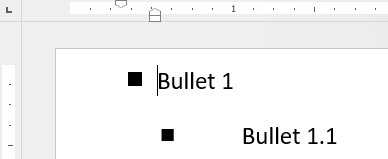
When you work with bullet lists in RadWordsProcessing documents, you may need to adjust the bullet position and text indentation to meet specific formatting requirements. This article shows how to set the text indent and adjust the bullet position for bullet lists in RadWordsProcessing.
Solution
To set the bullet position and text indentation for a bullet list in RadWordsProcessing, follow these steps:
- Initialize the RadFlowDocument and add a section to it.
- Create a bullet list and configure its levels as needed.
- Use the
ParagraphProperties.LeftIndent andParagraphProperties.HangingIndent properties to adjust the bullet position and text indentation.
Example 1: Setting Bullet List Indents
csharp
            RadFlowDocument document = new RadFlowDocument();
            Section section = document.Sections.AddSection();
            section.PageMargins = new Telerik.Windows.Documents.Primitives.Padding(10);
            document.Lists.Add(ListTemplateType.BulletDefault);
            List list = document.Lists.Last();

            // Configure the first level of the bullet list
            list.Levels[0].NumberTextFormat = "¾";
            list.Levels[0].NumberingStyle = NumberingStyle.Bullet;
            list.Levels[0].CharacterProperties.FontFamily.LocalValue = new ThemableFontFamily("Wingdings 2");
            list.Levels[0].CharacterProperties.FontSize.LocalValue = 16;
            // Adjust the space between the bullet and the text for the first level
            list.Levels[0].ParagraphProperties.LeftIndent.LocalValue = 50; // Bullet position
            list.Levels[0].ParagraphProperties.HangingIndent.LocalValue = 20; // Text indent

            // Configure the second level of the bullet list
            list.Levels[1].NumberTextFormat = "¾";
            list.Levels[1].NumberingStyle = NumberingStyle.Bullet;
            list.Levels[1].CharacterProperties.FontFamily.LocalValue = new ThemableFontFamily("Wingdings 2");
            list.Levels[1].CharacterProperties.FontSize.LocalValue = 14;
            // Adjust the space between the bullet and the text for the second level
            list.Levels[1].ParagraphProperties.LeftIndent.LocalValue = 100; // Bullet position
            list.Levels[1].ParagraphProperties.HangingIndent.LocalValue = 50; // Text indent

            // Add paragraphs and associate them with list levels
            Paragraph paragraph = document.Sections.Last().Blocks.AddParagraph();
            paragraph.Inlines.AddRun("Bullet 1");
            paragraph.ListId = list.Id;
            paragraph.ListLevel = 0;

            paragraph = document.Sections.Last().Blocks.AddParagraph();
            paragraph.Inlines.AddRun("Bullet 1.1");
            paragraph.ListId = list.Id;
            paragraph.ListLevel = 1;

            Telerik.Windows.Documents.Flow.FormatProviders.Docx.DocxFormatProvider provider = new Telerik.Windows.Documents.Flow.FormatProviders.Docx.DocxFormatProvider();
            string outputFilePath = "output.docx";
            File.Delete(outputFilePath);
            using (Stream output = File.OpenWrite(outputFilePath))
            {
                provider.Export(document, output, TimeSpan.FromSeconds(10));
            }

            Process.Start(new ProcessStartInfo() { FileName = outputFilePath, UseShellExecute = true });
The conversion from device-independent pixels (DIP) to centimeters (cm) uses the formula: cm = DIP / 96 * 2.54. For example, to convert 18.9 DIP to cm: 18.9 / 96 * 2.54 = 0.5 cm.