Cropping PDF Pages and Saving as Images Using RadPdfProcessing
Environment
| Version | Product | Author |
|---|---|---|
| 2024.2.426 | RadPdfProcessing | Desislava Yordanova |
Description
This article shows how to load an original PDF document, crop the central 1/3 part of the PDF page, and extract this part to an image.
Solution
To crop parts of a PDF page and save them as images, follow the steps below. OCR is not directly supported by RadPdfProcessing, but you can use external libraries for that purpose after exporting the images.
-
Load the PDF document using the PdfFormatProvider and create a
RadFixedDocument. -
Set the
CropBoxfor each page to define the area you want to crop. TheCropBoxproperty specifies the region of the page to display or print. -
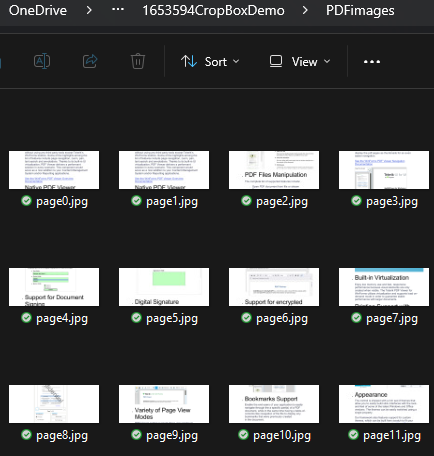
Export the cropped pages as images. You can use the RadPdfViewer which offers the export to image feature without additional configuration.
For .NET Standard scenarios, use the SkiaImageFormatProvider.
Here is a simplified code example that shows these steps:
         static void Main(string[] args)
        {
            string originalFilePath = @"sample.pdf";
            PdfFormatProvider provider = new PdfFormatProvider();
            RadFixedDocument croppedDocument = provider.Import(File.ReadAllBytes(originalFilePath));

            foreach (var item in croppedDocument.Pages)
            {
                //crop the central 1/3 part of the PDF page
                item.CropBox = new Rect(0, item.Size.Height / 3, item.Size.Width, item.Size.Height / 3);
            }

            GenerateImagesFromPdfViewer(croppedDocument);
        }

        private static void GenerateImagesFromPdfViewer(RadFixedDocument croppedDocument)
        {
            Telerik.WinControls.UI.RadPdfViewer rViewer = new Telerik.WinControls.UI.RadPdfViewer();
            rViewer.DocumentLoaded += RViewer_DocumentLoaded;
            rViewer.Document = croppedDocument;
            rViewer.LoadElementTree();
            System.Windows.Forms.Application.DoEvents();
        }

        private static void RViewer_DocumentLoaded(object sender, System.EventArgs e)
        {
            DeleteAllExistingImages();
            string filePath = @"..\..\PDFimages\page";
            Telerik.WinControls.UI.RadPdfViewerElement pdfViewerElement = sender as Telerik.WinControls.UI.RadPdfViewerElement;
            if (pdfViewerElement != null)
            {
                for (int i = 0; i < pdfViewerElement.Document.Pages.Count; i++)
                {
                    System.Drawing.Image imagePage = pdfViewerElement.ExportPage(i, 1, true, System.Drawing.Imaging.ImageFormat.Jpeg);
                    imagePage.Save(filePath + i + ".jpg");
                }
            }
        }
The above example is a sample approach. You can further adjust the crop rectangle according to the specific part of the page that you want to extract as an image.