New to Telerik Document Processing? Start a free 30-day trial
Converting XLSX Content to DOCX Document
Updated on Jun 5, 2026
Environment
| Version | Product | Author |
|---|---|---|
| 2024.1.124 | Document Processing Libraries (.NET Standard) | Desislava Yordanova |
Description
A common requirement is to convert XLSX documents to DOCX format. However, the libraries do not support direct conversion.
This article demonstrates how to convert an Excel document into an image and insert it into a Word document.
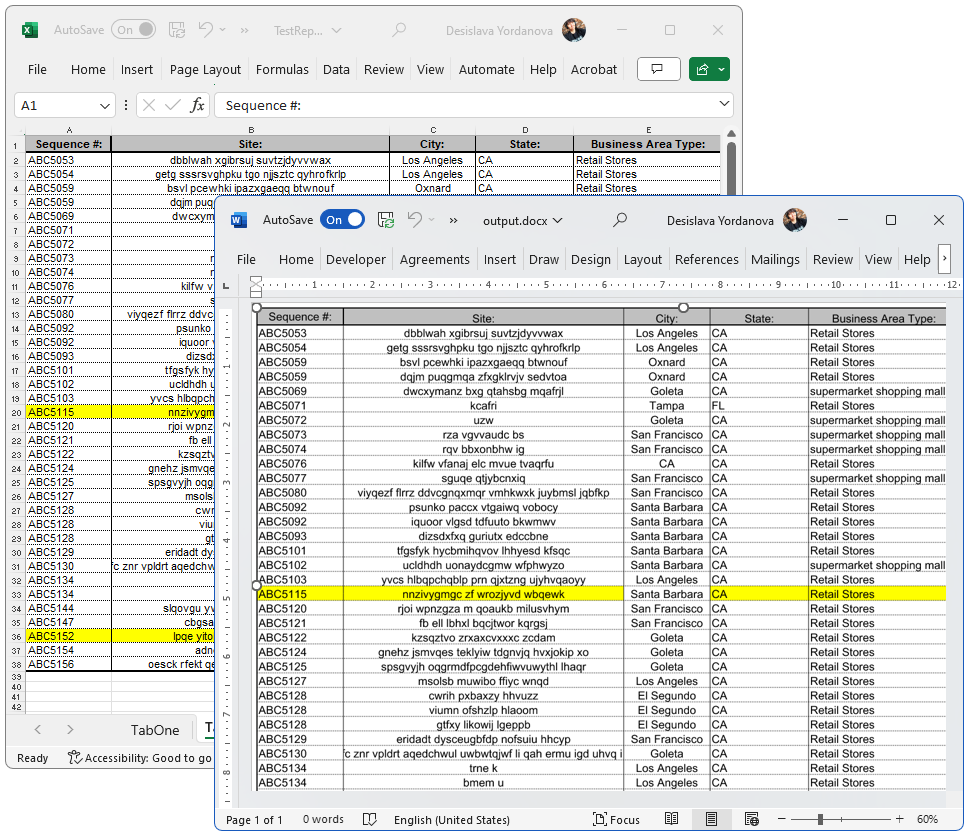
Solution
To accomplish this task, use the RadSpreadProcessing, RadPdfProcessing, and RadWordsProcessing libraries. Follow the steps below:
- Import the Excel file as a Workbook using the XlsxFormatProvider from the SpreadProcessing library.
- Select the desired range of the content to export.
- Export the selected range as a PDF document using the PdfFormatProvider that RadSpreadProcessing offers.
- Import the exported PDF file using the PdfFormatProvider from the RadPdfProcessing library.
- Export the PDF pages as images using the SkiaImageFormatProvider.
- Create a RadFlowDocument using the WordsProcessing library.
- Insert the exported images into the RadFlowDocument.
- Export the RadFlowDocument as a DOCX file using the DocxFormatProvider.
Here is a complete code snippet that demonstrates this functionality:
csharp
using Telerik.Windows.Documents.Spreadsheet.FormatProviders.OpenXml.Xlsx;
using Telerik.Windows.Documents.Spreadsheet.FormatProviders;
using Telerik.Windows.Documents.Spreadsheet.Model;
using Telerik.Windows.Documents.Fixed.Model;
using Telerik.Documents.Fixed.FormatProviders.Image.Skia;
using Telerik.Windows.Documents.Extensibility;
using Telerik.Windows.Documents.Spreadsheet.Extensibility;
using Telerik.Windows.Documents.Model;
using Telerik.Windows.Documents.Spreadsheet.Model.Printing;
using Telerik.Documents.Primitives;
using Telerik.Windows.Documents.Primitives;
using Telerik.Windows.Documents.Flow.FormatProviders.Docx;
using Telerik.Windows.Documents.Flow.Model;

// Step 1. Start with XLSX---------------------------------

Workbook workbook;
IWorkbookFormatProvider xlsxFormatProvider = new XlsxFormatProvider();

using (Stream input = new FileStream(@"..\..\..\..\TestReport.xlsx", FileMode.Open))
{
    workbook = xlsxFormatProvider.Import(input);
}

//Set export settings
WorksheetPageSetup pageSetup = workbook.ActiveWorksheet.WorksheetPageSetup;
pageSetup.PageOrientation = PageOrientation.Landscape;
pageSetup.Margins = new PageMargins(0, 0, 0, 0);
pageSetup.PaperType = PaperTypes.A1; /*make sure the size of the PaperType is bigger than the dimentions from the used range of cells*/

Telerik.Windows.Documents.Spreadsheet.FormatProviders.Pdf.PdfFormatProvider spreadPdfFormatProvider = new Telerik.Windows.Documents.Spreadsheet.FormatProviders.Pdf.PdfFormatProvider();
spreadPdfFormatProvider.ExportSettings = new Telerik.Windows.Documents.Spreadsheet.FormatProviders.Pdf.Export.PdfExportSettings(ExportWhat.ActiveSheet, true);

// Step 2. Export to PDF-----------------------------------

SpreadTextMeasurerBase fixedTextMeasurer = new SpreadFixedTextMeasurer();
SpreadExtensibilityManager.TextMeasurer = fixedTextMeasurer;
string pdfOutput = @"..\..\..\..\output.pdf";
using (Stream output = File.OpenWrite(pdfOutput))
{
    spreadPdfFormatProvider.Export(workbook, output);
}

// Step 3. Import PDF--------------------------------------
RadFixedDocument document;
Telerik.Windows.Documents.Fixed.FormatProviders.Pdf.PdfFormatProvider fixedPdfFormatProvider = new Telerik.Windows.Documents.Fixed.FormatProviders.Pdf.PdfFormatProvider();

using (Stream input = File.OpenRead(pdfOutput))
{
    document = fixedPdfFormatProvider.Import(input);
}

// Step 4. Set new page size to ensure that the generated image will be with proper size
Size tableSize = CalculateRangeSize(workbook.ActiveWorksheet, workbook.ActiveWorksheet.UsedCellRange);
RadFixedPage fixedPage = document.Pages.First();
fixedPage.Size = new Size(tableSize.Width, tableSize.Height);

// Step 5. Export PDF to image
SkiaImageFormatProvider imageProvider = new SkiaImageFormatProvider();

int count = 1;
foreach (RadFixedPage page in document.Pages)
{
    byte[] resultImage = imageProvider.Export(page);
    File.WriteAllBytes("..\\..\\..\\..\\image " + count++ + ".jpg", resultImage);
}

// Step 6. Create new DOCX file and insert the PDF image

var wordFlowDocument = new Telerik.Windows.Documents.Flow.Model.RadFlowDocument();

Section section = wordFlowDocument.Sections.AddSection();
section.PageOrientation = PageOrientation.Landscape;
section.PageSize = new Telerik.Documents.Primitives.Size(tableSize.Width+20, tableSize.Height+20);
section.PageMargins = new Padding(10);

Telerik.Windows.Documents.Flow.Model.Editing.RadFlowDocumentEditor flowEditor = new Telerik.Windows.Documents.Flow.Model.Editing.RadFlowDocumentEditor(wordFlowDocument);
Telerik.Documents.Primitives.Size ImageSize = new Telerik.Documents.Primitives.Size(tableSize.Width, tableSize.Height);

using (Stream stream = new FileStream($"..\\..\\..\\..\\image 1.jpg", FileMode.Open))

{
    flowEditor.InsertImageInline(stream, "jpg", ImageSize);
}

// Step 7. Export the DOCX file
DocxFormatProvider docxFormatProvider = new DocxFormatProvider();
using (Stream output = File.OpenWrite("..\\..\\..\\..\\output.docx"))
{
    docxFormatProvider.Export(wordFlowDocument, output);
}

Size CalculateRangeSize(Worksheet worksheet, CellRange range)
{
    double totalHeight = 0;
    double totalWidth = 0;

    for (int row = range.FromIndex.RowIndex; row <= range.ToIndex.RowIndex; row++)
    {
        double rowHeight = worksheet.Rows[row].GetHeight().Value.Value;
        totalHeight += rowHeight;
    }

    for (int column = range.FromIndex.ColumnIndex; column <= range.ToIndex.ColumnIndex; column++)
    {
        double columnWidth = worksheet.Columns[column].GetWidth().Value.Value;
        totalWidth += columnWidth;
    }

    return new Size(totalWidth, totalHeight);
}
The resolution of the exported images may vary depending on the settings used. You can adjust the image quality, compression, scale factor, and anti-aliasing properties in the
SkiaImageFormatProviderto achieve the desired results.