New to Telerik Document Processing? Start a free 30-day trial
Changing the Date Format in Excel Files Exported from UI Grid Components
Updated on Oct 28, 2026
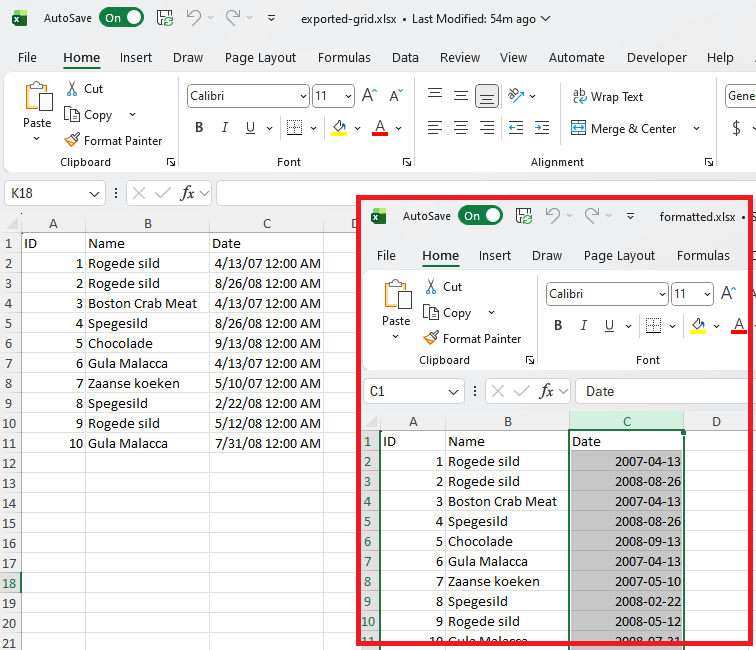
Apply a custom date format to grid data exported to Excel with RadSpreadProcessing.
Environment
| Version | Product | Author |
|---|---|---|
| 2025.3.806 | RadSpreadProcessing | Desislava Yordanova |
Description
Learn how to apply a custom date format (for example, "yyyy-MM-dd") to the relevant columns in the exported Excel file generated from UI Grid components offered by the Telerik family.
Solution
To change the date format in the exported Excel file, use RadSpreadProcessing to modify the exported stream before saving the file.
Follow these steps:
- Export the grid data to a
MemoryStream. - Load the exported stream into a workbook using the XlsxFormatProvider.
- Apply a custom date format to the desired column in the workbook.
- Save the modified workbook to a file.
Here is an example implementation:
csharp
static void Main(string[] args)
{
    // Step 1: Export the grid data to a MemoryStream
    var exportedExcelStream = new MemoryStream(File.ReadAllBytes("exported-grid.xlsx"));

    // Step 2: Load the exported stream into a workbook
    XlsxFormatProvider formatProvider = new XlsxFormatProvider();
    Workbook workbook = formatProvider.Import(exportedExcelStream, TimeSpan.FromSeconds(10));

    // Step 3: Apply date format to the desired column (e.g., column index 2 for Dates)
    CellValueFormat dateFormat = new CellValueFormat("yyyy-MM-dd");
    ColumnSelection dateColumn = workbook.Worksheets[0].Columns[2]; // Update index as needed
    dateColumn.SetFormat(dateFormat);

    // Step 4: Save the modified workbook to a file
    string outputFilePath = "formatted.xlsx";
    File.WriteAllBytes(outputFilePath, formatProvider.Export(workbook, TimeSpan.FromSeconds(10)));
    Process.Start(new ProcessStartInfo() { FileName = outputFilePath, UseShellExecute = true });
}
Explanation
- Step 1: Reads the exported Excel file into a
MemoryStream. - Step 2: Uses
XlsxFormatProviderto parse the stream into aWorkbookobject for manipulation. - Step 3: Sets a custom date format for the targeted column using
SetFormat. - Step 4: Saves the updated workbook and opens the file using the default application.