Filtering
PropertyGrid supports filtering of the property definitions via the built-in Search Box. The default behavior is "search as you type" meaning that each time you modify the text, property definitions will be filtered based on their DisplayName property setting.
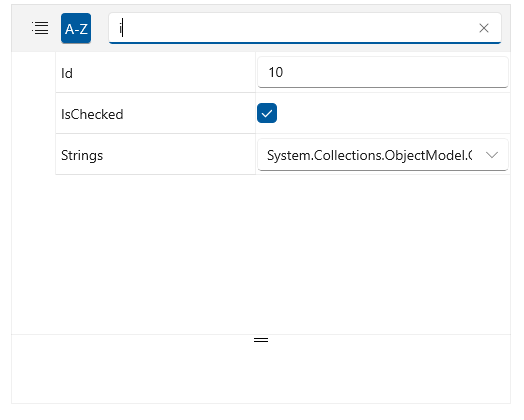
To disable the search box filtering, set the SearchBoxVisibility property of RadPropertyGrid to Collapsed. This will hide the search box and the user won't be able to filter the property definitions.
Hiding the Search Box
<telerikControls:RadPropertyGrid SearchBoxVisibility="Collapsed" /> 
Deferred Filtering
To disable the live filtering that happens on text changed in the Search Box, set the EnableDeferredFiltering property to True. This way the filtering won't be executed until the search box loses the focus or Enter, or Tab key is pressed.
Disable live filtering on text changed
<telerikControls:RadPropertyGrid EnableDeferredFiltering="True" /> Custom Filtering
The default fitlering behavior can be customized by implementing custom filter. To enable this set the EnableCustomFiltering property of RadPropertyGrid to True and override the IsFiltered property of the PropertyDefinition.
Implementing custom file by overriding the IsFiltered property
public class MyPropertyDefinition : PropertyDefinition
{
	public override bool IsFiltered
	{
		get
		{
			if (!string.IsNullOrEmpty(this.SearchString))
			{
				return this.Value.ToString().Contains(this.SearchString) || this.DisplayName.Contains(this.SearchString);
			}
			else
			{
				return true;
			}
		}
	}
}
Enabling custom filtering and using the custom PropertyDefinition
<telerikControls:RadPropertyGrid AutoGeneratePropertyDefinitions="False" EnableCustomFiltering="True" >
	<telerikControls:RadPropertyGrid.PropertyDefinitions>
		<local:MyPropertyDefinition DisplayName="Name" Binding="{Binding Name}" />
		<!-- other property definitions here -->
	</telerikControls:RadPropertyGrid.PropertyDefinitions>
</telerikControls:RadPropertyGrid>
Filtering Events
The PropertyGrid control provides two filtering events - Filtering and Filtered. The Filtering event is raised just before the filtering happens and it can be used to cancel the action.
Filtering event handler
private void RadPropertyGrid_Filtering(object sender, PropertyGridFilteringEventArgs e)
{
	string searchText = e.FilterText;
	if (shouldCancelFiltering)
	{
		e.Cancel = true;
	}
}
Filtered event handler
private void RadPropertyGrid_Filtered(object sender, EventArgs e)
{
}
Searching in Nested Properties
By default the filtering doesn't search for nested properties. To enable this, set the SearchInNestedProperties property to True.
Enabling search in nested properties
<telerikControls:RadPropertyGrid SearchInNestedProperties="True" />