New to Telerik UI for WinUI? Start a free 30-day trial
Numerical Column
Updated on Mar 26, 2026
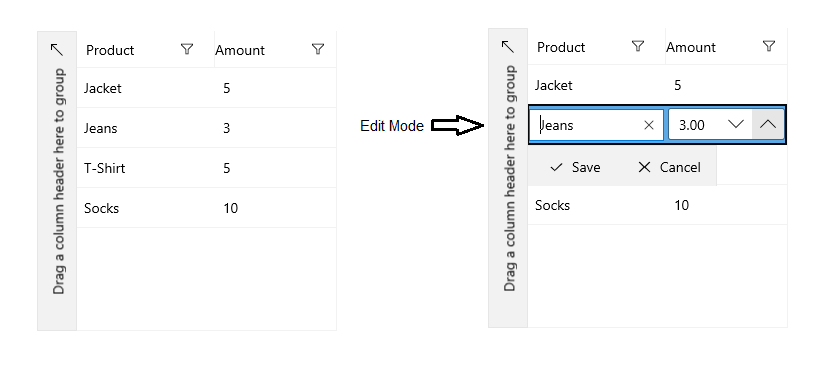
The DataGridNumericalColumn represents only numerical values.
The following example shows how to generate a DataGridNumericalColumn.
- First, create the business object.
Create the Data Model
C#
public class Data
{
	public string Product { get; set; }
	public int Amount { get; set; }
}- The next step is to create some sample data.
Create Sample Data
C#
public MainPage()
{
	this.InitializeComponent();
	this.DataContext = new List<Data>()
	{
		new Data { Product = "Jacket",  Amount = 5},
		new Data { Product = "Jeans",   Amount = 3},
		new Data { Product = "T-Shirt", Amount = 5},
		new Data { Product = "Socks",   Amount = 10}
	};
} - The final step is to bind the
ItemsSourceproperty of the DataGrid and manually declare theDataGridNumericalColumncolumn. To associate each column with the relevant property from the model, the example uses thePropertyNameproperty.
Define PropertyName in XAML
XAML
<telerikGrid:RadDataGrid UserEditMode="Inline" ItemsSource="{Binding}" AutoGenerateColumns="False" Height="250" Width="300">
	<telerikGrid:RadDataGrid.Columns>
		<telerikGrid:DataGridTextColumn PropertyName="Product" Header="Product"/>
		<telerikGrid:DataGridNumericalColumn PropertyName="Amount" Header="Amount"/>
	</telerikGrid:RadDataGrid.Columns>
</telerikGrid:RadDataGrid>
Numerical Column