New to Telerik UI for WinUI? Start a free 30-day trial
Boolean Column
Updated on Mar 26, 2026
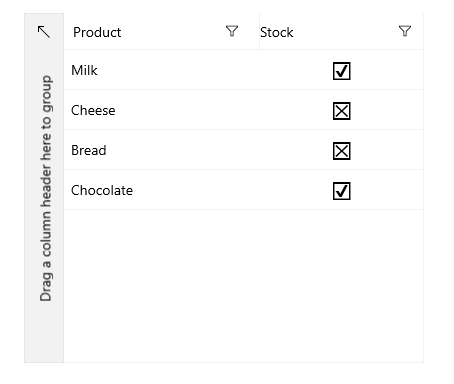
The DataGridBooleanColumn represents Boolean values and uses а CheckBox control to edit its values in the edit mode.
The following example shows how to generate a DataGridBooleanColumn manually.
- First, create the business object.
Create Data Model
C#
public class Data
{
	public string Product { get; set; }
	public bool Stock { get; set; }
}- The next step is to create some sample data.
Create Sample Data
C#
public MainPage()
{
	this.InitializeComponent();
	this.DataContext = new List<Data>()
	{
		new Data { Product = "Milk", Stock = true },
		new Data { Product = "Cheese", Stock = false },
		new Data { Product = "Bread", Stock = false },
		new Data { Product = "Chocolate", Stock = true }
	};
}- Associate each column with the relevant property from the model by using the
PropertyNameproperty.
Example 3: Defining in XAML
XAML
<telerikGrid:RadDataGrid ItemsSource="{Binding}" AutoGenerateColumns="False">
	<telerikGrid:RadDataGrid.Columns>
		<telerikGrid:DataGridTextColumn PropertyName="Product" Header="Product"/>
		<telerikGrid:DataGridBooleanColumn PropertyName="Stock" Header="Stock"/>
	</telerikGrid:RadDataGrid.Columns>
</telerikGrid:RadDataGrid>
DataGrid Boolean Column